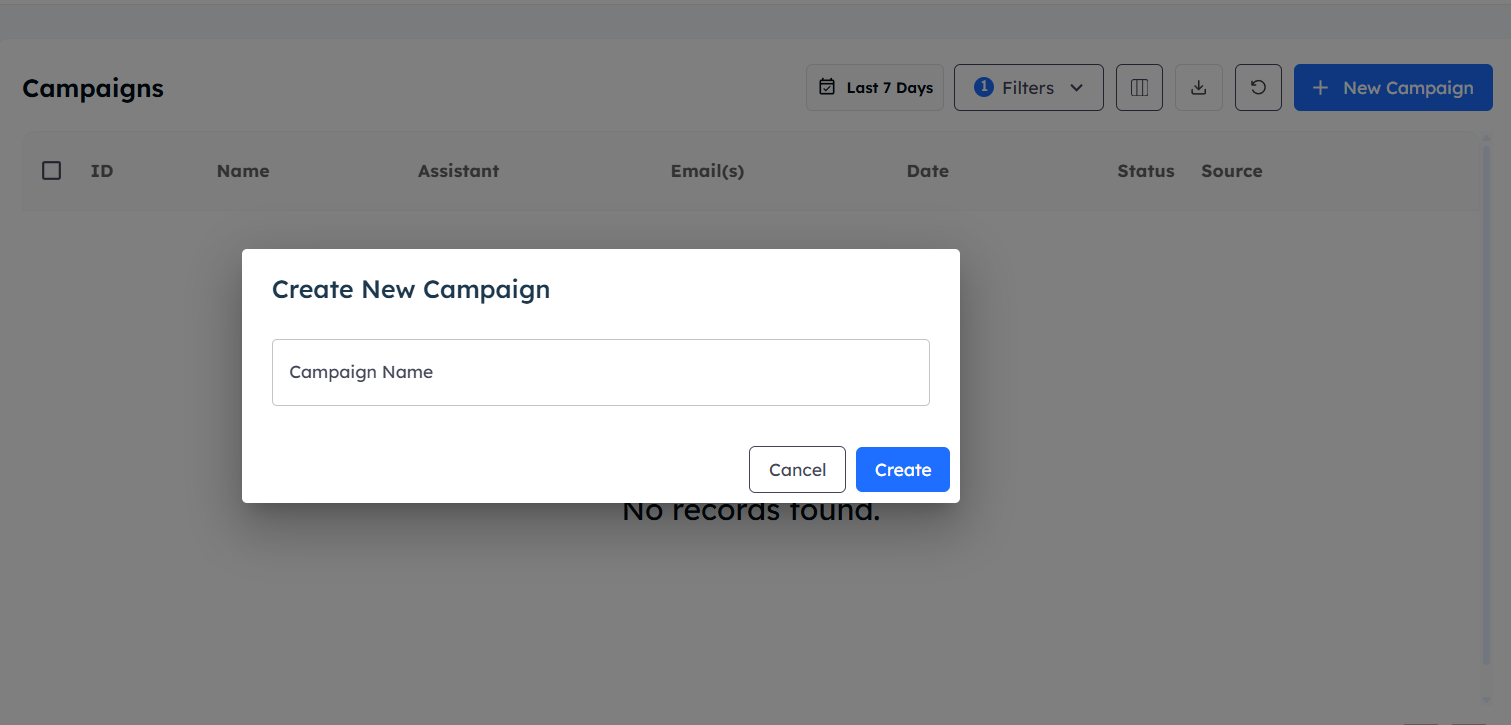
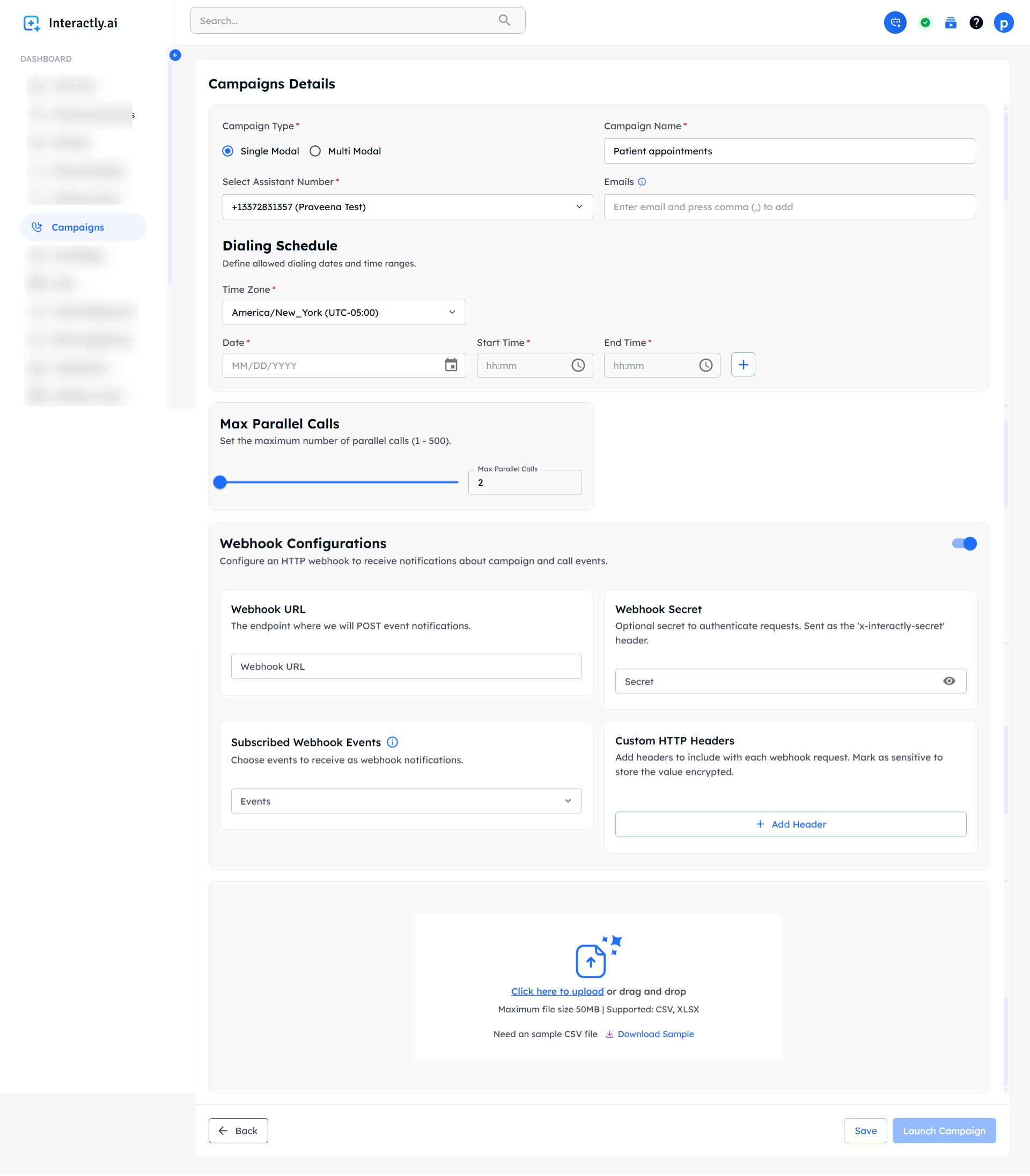
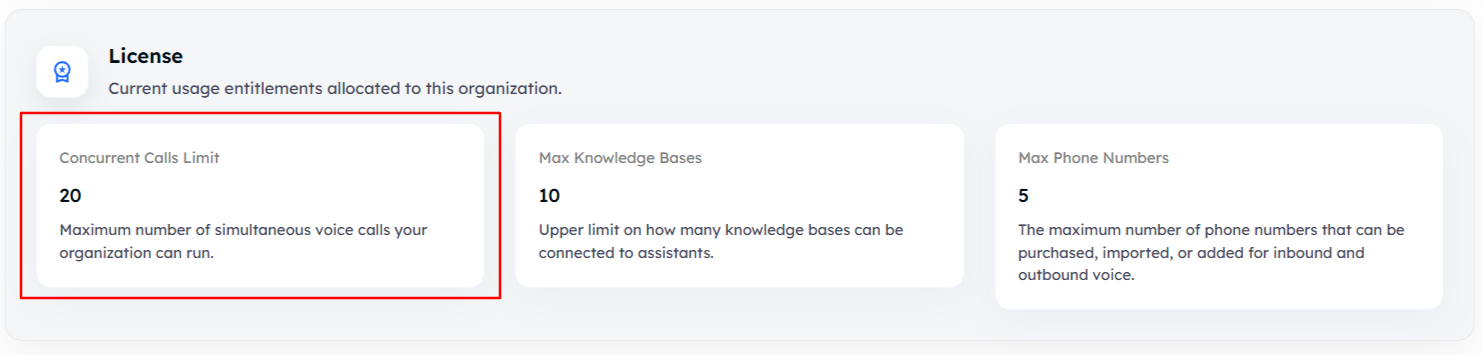
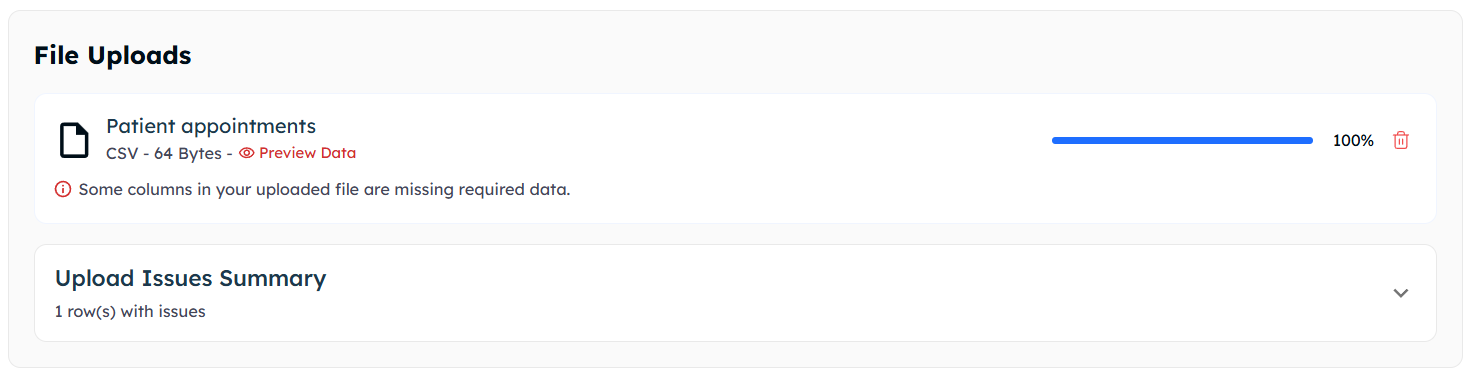
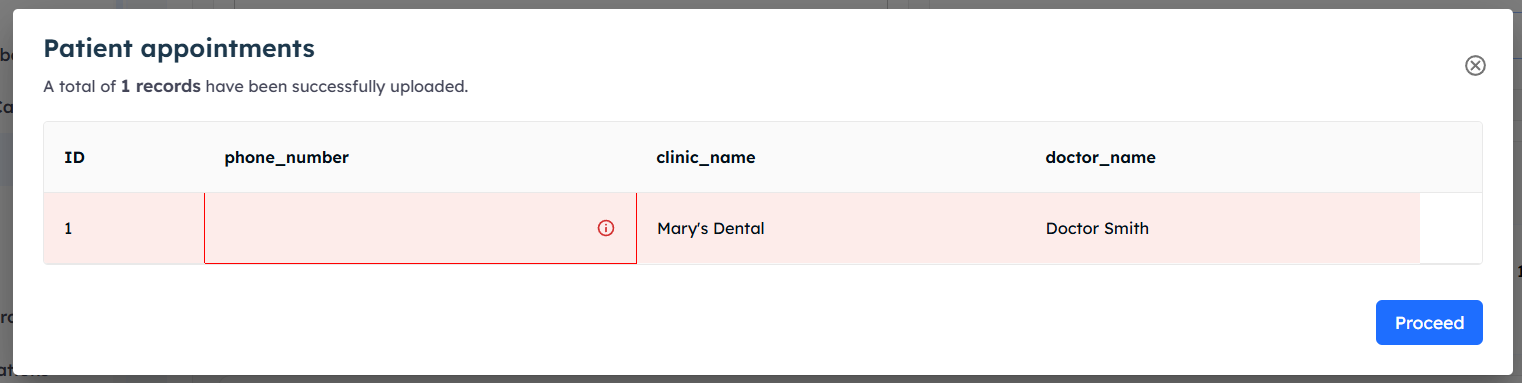
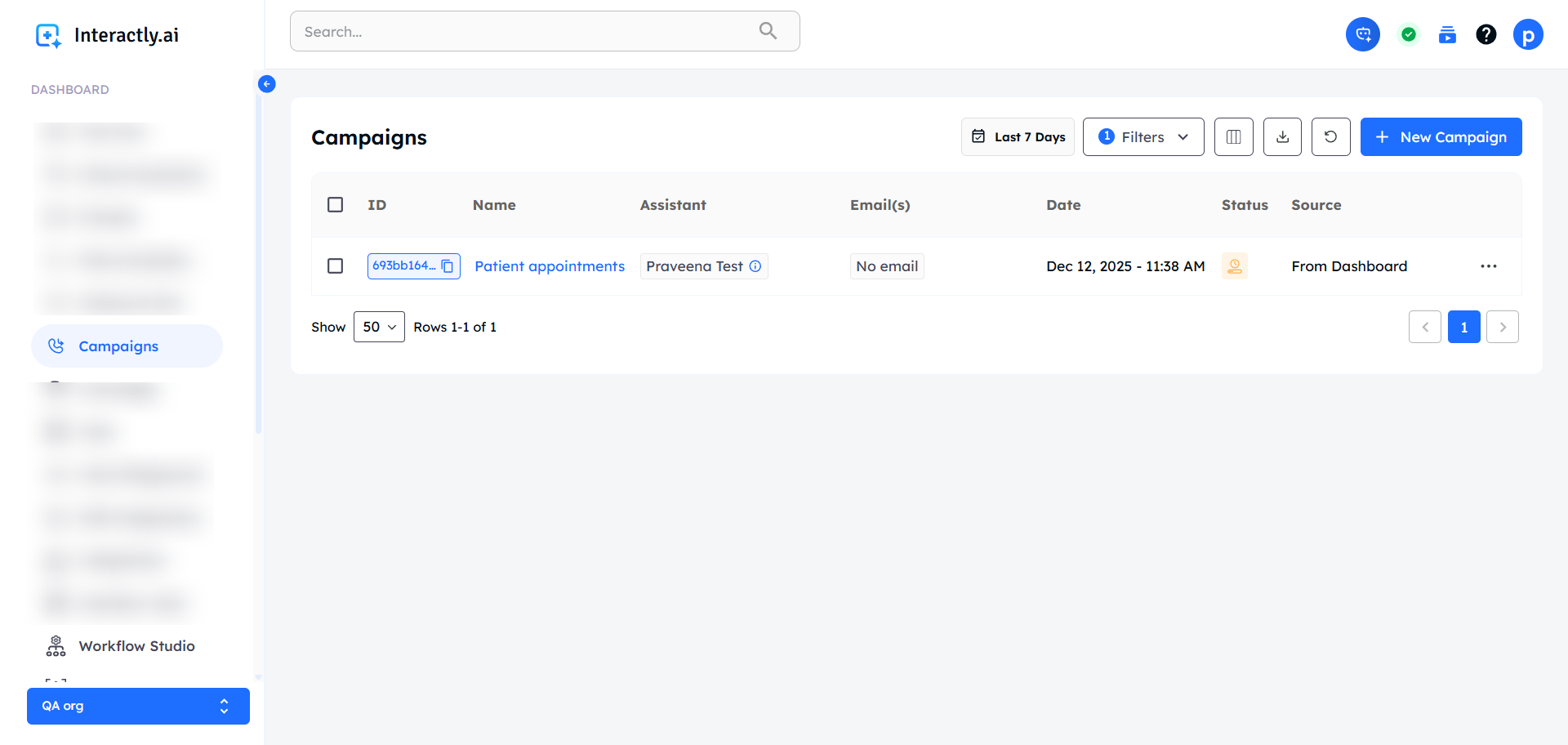
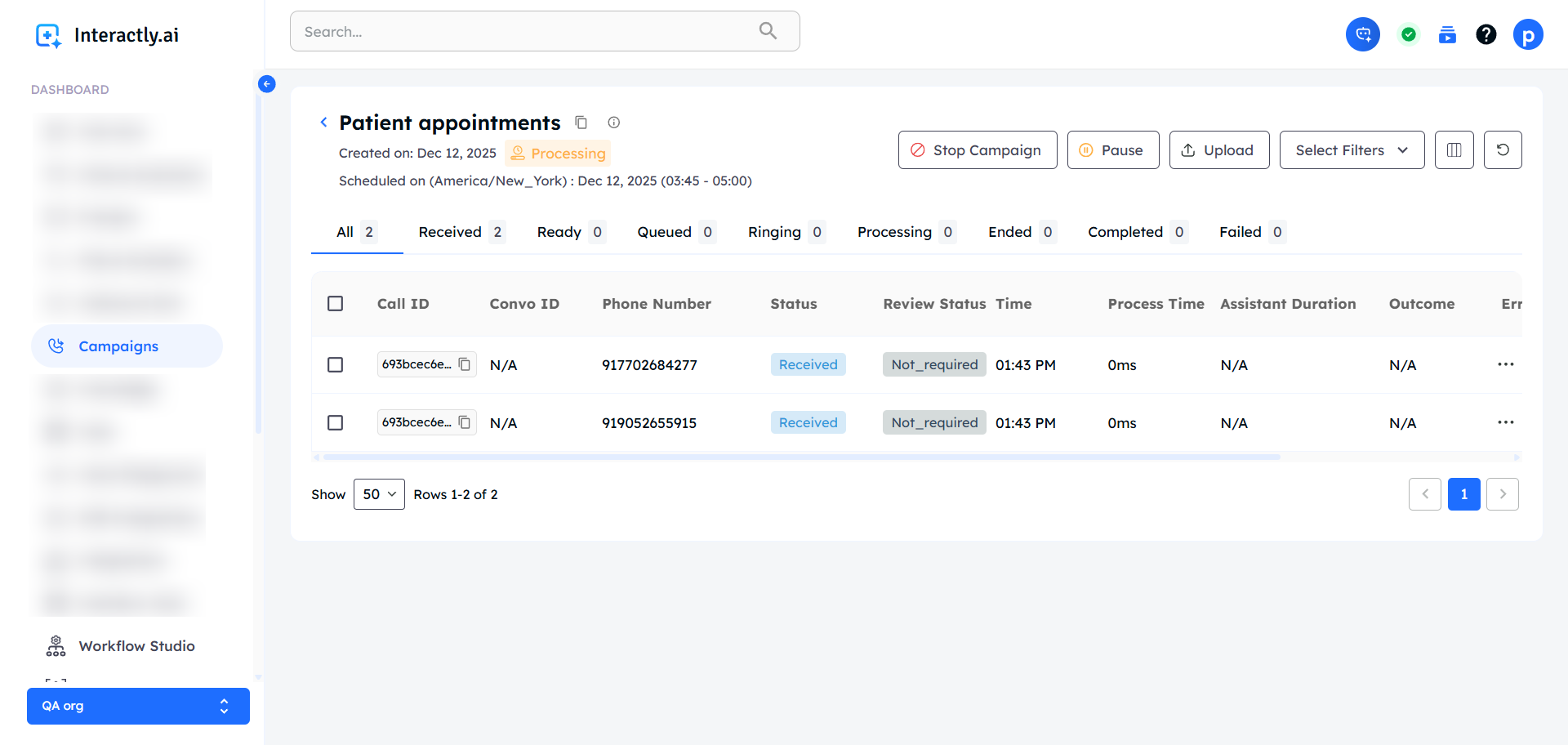
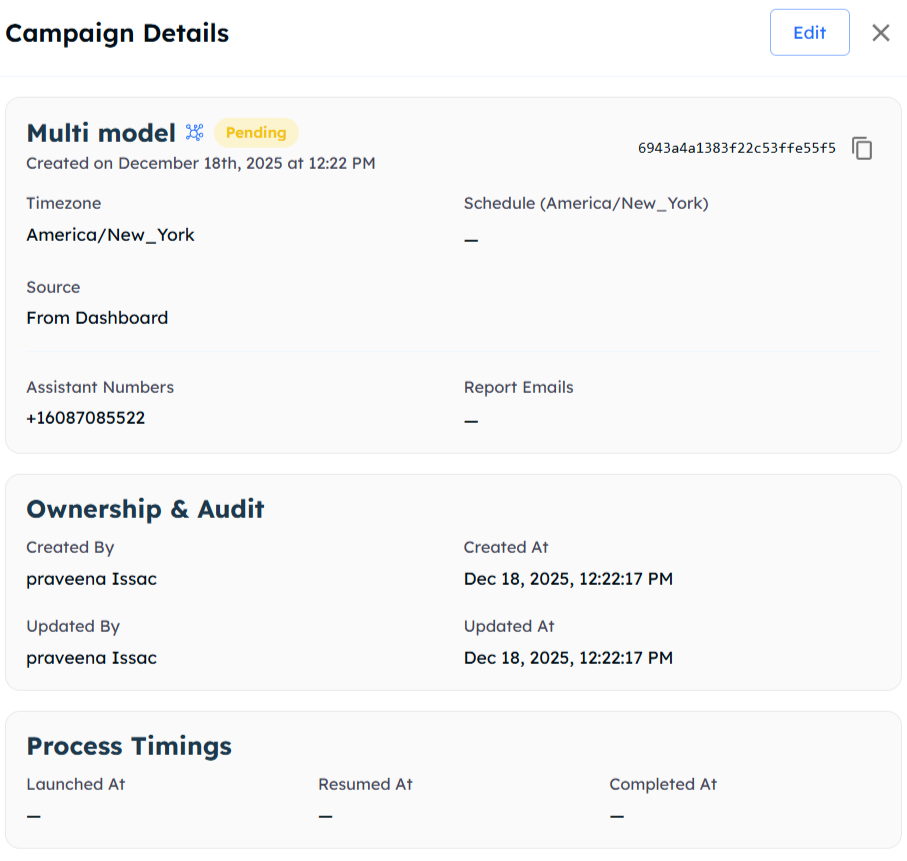
Single-modal campaigns provide a streamlined, voice-only communication channel for automated phone calls. These campaigns focus exclusively on direct voice interactions with your AI assistant, making them perfect for appointment reminders, quick surveys, confirmations, and simple outreach scenarios.
Single-modal campaigns are ideal when you only need voice interactions. For campaigns requiring SMS notifications or follow-up messages, explore Multi-Modal Campaigns.
Add as many campaign dates as needed, each with custom timing windows
Example Schedule
Day 1: January 15, 9:00 AM - 5:00 PM
Day 2: January 16, 2:00 PM - 8:00 PM
Day 3: January 20, 10:00 AM - 3:00 PM
2
Automatic Progression
Campaign moves through scheduled dates in sequence, making calls during each time window
3
Smart Completion
Campaign ends when either condition is met:
✅ All calls reach their final stage (completed/failed)
✅ All scheduled dates and times have passed
Campaign Completion Logic
Important: If your campaign completes all calls before reaching later scheduled dates, those remaining dates will be skipped automatically.Example: If you schedule 3 days but all contacts are successfully called on day 1, days 2 and 3 won’t execute.This ensures efficient resource usage and prevents unnecessary processing.
Use multiple dates with different timings to accommodate varying contact preferences, time zones, or business operating hours.
Webhooks allow your application to receive real-time updates about campaign and call statuses. This enables you to build custom integrations and automated workflows.
Integrate with your CRM or contact management systems
This API is perfect for integrating Interactly campaigns with your existing workflows, allowing dynamic contact addition based on business rules or user actions.
Pause: Temporarily halt call processing while maintaining queue
Resume: Continue paused campaigns from where they left off
Stop: Permanently abort remaining calls in the campaign
This API provides the same campaign control actions available in the dashboard interface, allowing you to build automated campaign management workflows.
Ready to explore more campaign options or enhance your setup?
Multi-Modal Campaigns
Add pre and post-call messaging capabilities to your campaigns
Campaign Overview
Return to main campaigns documentation
{"docsConfig":{"theme":"mint","$schema":"https://mintlify.com/docs.json","name":"Interactly API","colors":{"primary":"#1E6EFF","light":"#1E6EFF","dark":"#1E6EFF"},"logo":{"light":"https://mintcdn.com/interactly-qa/rQv06DcAu00ifyO5/logo/logo_light.svg?fit=max\u0026auto=format\u0026n=rQv06DcAu00ifyO5\u0026q=85\u0026s=eb6e3c5ae13dedc06c7f4af81bffb90d","dark":"https://mintcdn.com/interactly-qa/rQv06DcAu00ifyO5/logo/logo_dark.svg?fit=max\u0026auto=format\u0026n=rQv06DcAu00ifyO5\u0026q=85\u0026s=7df0871e3b8149b8337d8f907a078ed7"},"favicon":"https://mintcdn.com/interactly-qa/20698e0YpWVbNAWm/logo/favicon.png?fit=max\u0026auto=format\u0026n=20698e0YpWVbNAWm\u0026q=85\u0026s=d20934ecbb58c578651e1c26eb7e922a","api":{"playground":{"display":"interactive","proxy":false}},"appearance":{"default":"light"},"navbar":{"links":[{"href":"https://interactly.ai","label":"Website"}],"primary":{"type":"button","label":"Dashboard","href":"https://dashboard-qa.interactly.ai"}},"footer":{"socials":{}},"seo":{"indexing":"all"},"styling":{"latex":false},"navigation":{"pages":[]}},"deployment":{"deploymentMetadataValue":{"subdomain":"interactly-qa","hasAudioNarration":false,"actualSubdomain":"interactly-qa","customDomains":["docs-qa.interactly.ai"],"gitSource":{"type":"github","owner":"interactly","repo":"docs","deployBranch":"main","contentDirectory":"","isPrivate":false,"mountPath":"","label":""},"chroma":{"liveDeploymentHistoryId":"6a548c02370bcde85027ad75","collectionId":"0357f8f2-f8b1-4504-a8e2-46e87b2a8016","schemaVersion":"v3"},"entitlements":{},"buildId":"6a548c02370bcde85027ad75:success","clientVersion":"0.0.3939","searchFilterCounts":[{"language":"default","tag":"API Reference","count":256},{"language":"default","tag":"Workflows","count":140},{"language":"default","tag":"Integrations","count":61},{"language":"default","tag":"Campaigns","count":42},{"language":"default","tag":"APIs","count":38},{"language":"default","tag":"Documentation","count":33},{"language":"default","tag":"Tools","count":15},{"language":"default","tag":"Prompts","count":13},{"language":"default","tag":"Simulations","count":13},{"language":"default","tag":"Integrations Resource Records V2","count":12}]},"assistantConfig":{},"hasChatPermissions":false,"hasWebMcpPermissions":false,"toggles":[{"name":"kill-isr","enabled":true,"variant":{"name":"disabled","enabled":false,"feature_enabled":true},"impressionData":false},{"name":"agent-mintlify-slack","enabled":true,"variant":{"name":"disabled","enabled":false,"feature_enabled":true},"impressionData":false},{"name":"editor-v7-file-tree","enabled":true,"variant":{"name":"disabled","enabled":false,"feature_enabled":true},"impressionData":false},{"name":"agent-integrations-settings","enabled":true,"variant":{"name":"disabled","enabled":false,"feature_enabled":true},"impressionData":false},{"name":"automations-pr-grouping","enabled":true,"variant":{"name":"disabled","enabled":false,"feature_enabled":true},"impressionData":false},{"name":"custom-prefix","enabled":true,"variant":{"name":"disabled","enabled":false,"feature_enabled":true},"impressionData":false},{"name":"analytics-v7","enabled":true,"variant":{"name":"disabled","enabled":false,"feature_enabled":true},"impressionData":false},{"name":"user-flows-analytics","enabled":true,"variant":{"name":"disabled","enabled":false,"feature_enabled":true},"impressionData":false},{"name":"no-publish-flow","enabled":true,"variant":{"name":"disabled","enabled":false,"feature_enabled":true},"impressionData":false},{"name":"workos-onboarding","enabled":true,"variant":{"name":"disabled","enabled":false,"feature_enabled":true},"impressionData":false},{"name":"llms-txt-v2","enabled":true,"variant":{"name":"disabled","enabled":false,"feature_enabled":true},"impressionData":false},{"name":"pause-universal-search-reconcile","enabled":true,"variant":{"name":"disabled","enabled":false,"feature_enabled":true},"impressionData":false},{"name":"snapshot-serving-live","enabled":true,"variant":{"name":"disabled","enabled":false,"feature_enabled":true},"impressionData":false},{"name":"stripTemperatureMiddleware","enabled":true,"variant":{"name":"disabled","enabled":false,"feature_enabled":true},"impressionData":false},{"name":"per-site-search-delta","enabled":true,"variant":{"name":"disabled","enabled":false,"feature_enabled":true},"impressionData":false},{"name":"support-platform-pylon-zendesk","enabled":true,"variant":{"name":"disabled","enabled":false,"feature_enabled":true},"impressionData":false},{"name":"snapshot-serving","enabled":true,"variant":{"name":"disabled","enabled":false,"feature_enabled":true},"impressionData":false},{"name":"instant-rollback","enabled":true,"variant":{"name":"disabled","enabled":false,"feature_enabled":true},"impressionData":false},{"name":"granular-notifications-server","enabled":true,"variant":{"name":"disabled","enabled":false,"feature_enabled":true},"impressionData":false},{"name":"granular-notifications","enabled":true,"variant":{"name":"disabled","enabled":false,"feature_enabled":true},"impressionData":false},{"name":"editor-private-page-search","enabled":true,"variant":{"name":"disabled","enabled":false,"feature_enabled":true},"impressionData":false},{"name":"automations-fable","enabled":true,"variant":{"name":"disabled","enabled":false,"feature_enabled":true},"impressionData":false},{"name":"fixed-ai-action-pricing","enabled":true,"variant":{"name":"disabled","enabled":false,"feature_enabled":true},"impressionData":false},{"name":"automation-resolve-merge-conflict","enabled":true,"variant":{"name":"disabled","enabled":false,"feature_enabled":true},"impressionData":false},{"name":"scoped-publishing","enabled":true,"variant":{"name":"disabled","enabled":false,"feature_enabled":true},"impressionData":false},{"name":"mintql","enabled":true,"variant":{"name":"disabled","enabled":false,"feature_enabled":true},"impressionData":false},{"name":"page-level-analytics","enabled":true,"variant":{"name":"disabled","enabled":false,"feature_enabled":true},"impressionData":false},{"name":"editor-version-history-v2","enabled":true,"variant":{"name":"disabled","enabled":false,"feature_enabled":true},"impressionData":false},{"name":"editor-nav-generations","enabled":true,"variant":{"name":"disabled","enabled":false,"feature_enabled":true},"impressionData":false},{"name":"billing-page-v2","enabled":true,"variant":{"name":"disabled","enabled":false,"feature_enabled":true},"impressionData":false},{"name":"workspace-projects","enabled":true,"variant":{"name":"disabled","enabled":false,"feature_enabled":true},"impressionData":false},{"name":"assistant-v5","enabled":true,"variant":{"name":"disabled","enabled":false,"feature_enabled":true},"impressionData":false},{"name":"byok-sep-25","enabled":true,"variant":{"name":"disabled","enabled":false,"feature_enabled":true},"impressionData":false},{"name":"fork-pr-previews","enabled":true,"variant":{"name":"disabled","enabled":false,"feature_enabled":true},"impressionData":false},{"name":"revalidation-jwt","enabled":true,"variant":{"name":"disabled","enabled":false,"feature_enabled":true},"impressionData":false},{"name":"vite-origin","enabled":true,"variant":{"name":"disabled","enabled":false,"feature_enabled":true},"impressionData":false},{"name":"editor-agent-model-picker","enabled":true,"variant":{"name":"disabled","enabled":false,"feature_enabled":true},"impressionData":false},{"name":"billing-updated-9-15","enabled":true,"variant":{"name":"disabled","enabled":false,"feature_enabled":true},"impressionData":false},{"name":"hobby-abuse-scan","enabled":true,"variant":{"name":"disabled","enabled":false,"feature_enabled":true},"impressionData":false},{"name":"dashboard-inbox","enabled":true,"variant":{"name":"disabled","enabled":false,"feature_enabled":true},"impressionData":false}],"isAtlas":false,"googleFontsInlined":false},"customCss":[],"page":{"pagePath":"campaigns/single-modal-campaign","slug":"/campaigns/single-modal-campaign","pageMetadata":{"title":"Single-Modal Campaign","subtitle":"Create and manage voice-only campaigns for direct phone communications","slug":"campaigns/single-modal-campaign","description":"Learn how to set up, launch, and manage single-modal campaigns for voice-only automated phone calls with AI assistants","href":"/campaigns/single-modal-campaign"},"description":{"compiledSource":"\"use strict\";\nconst {jsx: _jsx} = arguments[0];\nconst {useMDXComponents: _provideComponents} = arguments[0];\nfunction _createMdxContent(props) {\n const _components = {\n p: \"p\",\n ..._provideComponents(),\n ...props.components\n };\n return _jsx(_components.p, {\n children: \"Learn how to set up, launch, and manage single-modal campaigns for voice-only automated phone calls with AI assistants\"\n });\n}\nfunction MDXContent(props = {}) {\n const {wrapper: MDXLayout} = {\n ..._provideComponents(),\n ...props.components\n };\n return MDXLayout ? _jsx(MDXLayout, {\n ...props,\n children: _jsx(_createMdxContent, {\n ...props\n })\n }) : _createMdxContent(props);\n}\nreturn {\n default: MDXContent\n};\n","frontmatter":{},"scope":{}},"pageType":"default","mdx":{"mdxSource":{"compiledSource":"\"use strict\";const{Fragment:_Fragment,jsx:_jsx,jsxs:_jsxs}=arguments[0];const{useMDXComponents:_provideComponents}=arguments[0];function _createMdxContent(props){const _components={a:`a`,code:`code`,li:`li`,ol:`ol`,p:`p`,pre:`pre`,span:`span`,strong:`strong`,tbody:`tbody`,td:`td`,th:`th`,thead:`thead`,tr:`tr`,ul:`ul`,..._provideComponents(),...props.components},{Accordion,AccordionGroup,Card,CardGroup,CodeBlock,Frame,Heading,Info,Note,OptimizedImage,Step,Steps,Table,Tip,Warning}=_components;if(!Accordion)_missingMdxReference(`Accordion`,true);if(!AccordionGroup)_missingMdxReference(`AccordionGroup`,true);if(!Card)_missingMdxReference(`Card`,true);if(!CardGroup)_missingMdxReference(`CardGroup`,true);if(!CodeBlock)_missingMdxReference(`CodeBlock`,true);if(!Frame)_missingMdxReference(`Frame`,true);if(!Heading)_missingMdxReference(`Heading`,true);if(!Info)_missingMdxReference(`Info`,true);if(!Note)_missingMdxReference(`Note`,true);if(!OptimizedImage)_missingMdxReference(`OptimizedImage`,true);if(!Step)_missingMdxReference(`Step`,true);if(!Steps)_missingMdxReference(`Steps`,true);if(!Table)_missingMdxReference(`Table`,true);if(!Tip)_missingMdxReference(`Tip`,true);if(!Warning)_missingMdxReference(`Warning`,true);return _jsxs(_Fragment,{children:[_jsx(Heading,{level:`1`,id:`about`,children:`About`}),`\n`,_jsx(_components.p,{children:`Single-modal campaigns provide a streamlined, voice-only communication channel for automated phone calls. These campaigns focus exclusively on direct voice interactions with your AI assistant, making them perfect for appointment reminders, quick surveys, confirmations, and simple outreach scenarios.`}),`\n`,_jsx(Info,{children:_jsxs(_components.p,{children:[`Single-modal campaigns are ideal when you only need voice interactions. For campaigns requiring SMS notifications or follow-up messages, explore `,_jsx(_components.a,{href:`/campaigns/multi-modal-campaign`,children:`Multi-Modal Campaigns`}),`.`]})}),`\n`,_jsx(Heading,{level:`2`,id:`what-makes-it-single-modal`,children:`What Makes It Single-Modal?`}),`\n`,_jsxs(_components.p,{children:[`Single-modal campaigns are designed for `,_jsx(_components.strong,{children:`voice interactions only`}),`:`]}),`\n`,_jsx(Card,{title:`Voice-Only Features`,icon:`phone`,children:_jsxs(_components.ul,{children:[`\n`,_jsx(_components.li,{children:`✅ Direct phone calls to contacts`}),`\n`,_jsx(_components.li,{children:`✅ AI assistant-powered conversations`}),`\n`,_jsx(_components.li,{children:`✅ Real-time call processing`}),`\n`,_jsx(_components.li,{children:`✅ Call outcome tracking`}),`\n`,_jsx(_components.li,{children:`❌ No pre-call SMS notifications`}),`\n`,_jsx(_components.li,{children:`❌ No post-call messaging`}),`\n`,_jsx(_components.li,{children:`❌ No text-based interactions`}),`\n`]})}),`\n`,_jsx(Heading,{level:`2`,id:`when-to-use-single-modal-campaigns`,children:`When to Use Single-Modal Campaigns`}),`\n`,_jsxs(AccordionGroup,{children:[_jsx(Accordion,{title:`Perfect Use Cases`,icon:`check`,id:`perfect-use-cases`,children:_jsxs(_components.ul,{children:[`\n`,_jsxs(_components.li,{children:[_jsx(_components.strong,{children:`Appointment reminders`}),`: Simple voice confirmations`]}),`\n`,_jsxs(_components.li,{children:[_jsx(_components.strong,{children:`Quick surveys`}),`: Voice-based data collection`]}),`\n`,_jsxs(_components.li,{children:[_jsx(_components.strong,{children:`Service confirmations`}),`: Order status or delivery updates`]}),`\n`,_jsxs(_components.li,{children:[_jsx(_components.strong,{children:`Simple notifications`}),`: Payment reminders or alerts`]}),`\n`,_jsxs(_components.li,{children:[_jsx(_components.strong,{children:`Customer service`}),`: Direct voice support outreach`]}),`\n`]})}),_jsx(Accordion,{title:`Benefits`,icon:`star`,id:`benefits`,children:_jsxs(_components.ul,{children:[`\n`,_jsxs(_components.li,{children:[_jsx(_components.strong,{children:`Streamlined setup`}),`: Focus only on voice configuration`]}),`\n`,_jsxs(_components.li,{children:[_jsx(_components.strong,{children:`Cost-effective`}),`: No SMS costs or complexity`]}),`\n`,_jsxs(_components.li,{children:[_jsx(_components.strong,{children:`Quick deployment`}),`: Faster to configure and launch`]}),`\n`,_jsxs(_components.li,{children:[_jsx(_components.strong,{children:`Clear workflow`}),`: Single communication channel`]}),`\n`,_jsxs(_components.li,{children:[_jsx(_components.strong,{children:`Higher completion rates`}),`: Direct voice engagement`]}),`\n`]})})]}),`\n`,_jsx(Heading,{level:`2`,id:`creating-your-single-modal-campaign`,children:`Creating Your Single-Modal Campaign`}),`\n`,_jsxs(Steps,{children:[_jsxs(Step,{title:`Access Campaign Dashboard`,children:[_jsxs(_components.ol,{children:[`\n`,_jsx(_components.li,{children:`Navigate to your Interactly dashboard`}),`\n`,_jsxs(_components.li,{children:[`Click the `,_jsx(_components.strong,{children:`Campaigns`}),` tab`]}),`\n`,_jsxs(_components.li,{children:[`Select `,_jsx(_components.strong,{children:`New Campaign`}),` to begin`]}),`\n`]}),_jsx(Frame,{caption:`Creating a new campaign`,children:_jsx(OptimizedImage,{src:`https://mintcdn.com/interactly-qa/YwOnkt07zlLxtLNJ/images/campaigns/create-new-campaign.png?fit=max\u0026auto=format\u0026n=YwOnkt07zlLxtLNJ\u0026q=85\u0026s=cdc648bd9a413bf014b4ff382dfc2403`,\"data-og-width\":`1511`,width:`1511`,\"data-og-height\":`725`,height:`725`,\"data-path\":`images/campaigns/create-new-campaign.png`,\"data-optimize\":`true`,\"data-opv\":`3`,srcset:`https://mintcdn.com/interactly-qa/YwOnkt07zlLxtLNJ/images/campaigns/create-new-campaign.png?w=280\u0026fit=max\u0026auto=format\u0026n=YwOnkt07zlLxtLNJ\u0026q=85\u0026s=fd53a762e06c50fc64a74beb505f137c 280w, https://mintcdn.com/interactly-qa/YwOnkt07zlLxtLNJ/images/campaigns/create-new-campaign.png?w=560\u0026fit=max\u0026auto=format\u0026n=YwOnkt07zlLxtLNJ\u0026q=85\u0026s=026aecc9a566fe372a6a06b5cd74e394 560w, https://mintcdn.com/interactly-qa/YwOnkt07zlLxtLNJ/images/campaigns/create-new-campaign.png?w=840\u0026fit=max\u0026auto=format\u0026n=YwOnkt07zlLxtLNJ\u0026q=85\u0026s=90601c89a5cafddbfa449526ab9f87e8 840w, https://mintcdn.com/interactly-qa/YwOnkt07zlLxtLNJ/images/campaigns/create-new-campaign.png?w=1100\u0026fit=max\u0026auto=format\u0026n=YwOnkt07zlLxtLNJ\u0026q=85\u0026s=07c273e5e9d334b5dbcdcd230ce86892 1100w, https://mintcdn.com/interactly-qa/YwOnkt07zlLxtLNJ/images/campaigns/create-new-campaign.png?w=1650\u0026fit=max\u0026auto=format\u0026n=YwOnkt07zlLxtLNJ\u0026q=85\u0026s=6e0d04ca1036eb34a07c833107855a41 1650w, https://mintcdn.com/interactly-qa/YwOnkt07zlLxtLNJ/images/campaigns/create-new-campaign.png?w=2500\u0026fit=max\u0026auto=format\u0026n=YwOnkt07zlLxtLNJ\u0026q=85\u0026s=1aa71c6384686a1f18750083e4410ea3 2500w`})})]}),_jsxs(Step,{title:`Name Your Campaign`,children:[_jsx(_components.p,{children:`Enter a descriptive campaign name that reflects its purpose:`}),_jsx(Card,{title:`Naming Examples`,icon:`tag`,children:_jsxs(_components.ul,{children:[`\n`,_jsx(_components.li,{children:`“Weekly Appointment Reminders”`}),`\n`,_jsx(_components.li,{children:`“Customer Survey Outreach”`}),`\n`,_jsx(_components.li,{children:`“Payment Due Notifications”`}),`\n`,_jsx(_components.li,{children:`“Service Confirmation Calls”`}),`\n`]})}),_jsxs(_components.p,{children:[`Click `,_jsx(_components.strong,{children:`Create`}),` to proceed to configuration.`]})]}),_jsxs(Step,{title:`Configure Campaign Settings`,children:[_jsx(_components.p,{children:`You’ll be redirected to the campaign configuration page:`}),_jsx(Frame,{caption:`Campaign configuration page`,children:_jsx(OptimizedImage,{src:`https://mintcdn.com/interactly-qa/YwOnkt07zlLxtLNJ/images/campaigns/campaign-creation-page.png?fit=max\u0026auto=format\u0026n=YwOnkt07zlLxtLNJ\u0026q=85\u0026s=449844fc23919de6f2391c9968f48406`,\"data-og-width\":`1920`,width:`1920`,\"data-og-height\":`2193`,height:`2193`,\"data-path\":`images/campaigns/campaign-creation-page.png`,\"data-optimize\":`true`,\"data-opv\":`3`,srcset:`https://mintcdn.com/interactly-qa/YwOnkt07zlLxtLNJ/images/campaigns/campaign-creation-page.png?w=280\u0026fit=max\u0026auto=format\u0026n=YwOnkt07zlLxtLNJ\u0026q=85\u0026s=5a5fe95127dd24e8e3eaf778a657c43e 280w, https://mintcdn.com/interactly-qa/YwOnkt07zlLxtLNJ/images/campaigns/campaign-creation-page.png?w=560\u0026fit=max\u0026auto=format\u0026n=YwOnkt07zlLxtLNJ\u0026q=85\u0026s=457fe8fc90356b796e1961a93f005b85 560w, https://mintcdn.com/interactly-qa/YwOnkt07zlLxtLNJ/images/campaigns/campaign-creation-page.png?w=840\u0026fit=max\u0026auto=format\u0026n=YwOnkt07zlLxtLNJ\u0026q=85\u0026s=2ae20fe2e22270700b4894107b35acdf 840w, https://mintcdn.com/interactly-qa/YwOnkt07zlLxtLNJ/images/campaigns/campaign-creation-page.png?w=1100\u0026fit=max\u0026auto=format\u0026n=YwOnkt07zlLxtLNJ\u0026q=85\u0026s=528b22c3f646d29a5fd17d821628869f 1100w, https://mintcdn.com/interactly-qa/YwOnkt07zlLxtLNJ/images/campaigns/campaign-creation-page.png?w=1650\u0026fit=max\u0026auto=format\u0026n=YwOnkt07zlLxtLNJ\u0026q=85\u0026s=54952abea57625e31760e961ee045ca5 1650w, https://mintcdn.com/interactly-qa/YwOnkt07zlLxtLNJ/images/campaigns/campaign-creation-page.png?w=2500\u0026fit=max\u0026auto=format\u0026n=YwOnkt07zlLxtLNJ\u0026q=85\u0026s=16c259d0eeefaeac5c9c0a2bc0ce1508 2500w`})})]})]}),`\n`,_jsx(Heading,{level:`2`,id:`campaign-configuration`,children:`Campaign Configuration`}),`\n`,_jsx(Heading,{level:`3`,id:`campaign-type-selection`,children:`Campaign Type Selection`}),`\n`,_jsxs(_components.p,{children:[`Select `,_jsx(_components.strong,{children:`Single-Modal`}),` to create voice-only campaigns:`]}),`\n`,_jsx(Card,{title:`Single-Modal Benefits`,icon:`phone`,children:_jsxs(_components.ul,{children:[`\n`,_jsxs(_components.li,{children:[_jsx(_components.strong,{children:`Voice calls only`}),` - no messaging complexity`]}),`\n`,_jsxs(_components.li,{children:[_jsx(_components.strong,{children:`Streamlined setup`}),` - focus purely on call configuration`]}),`\n`,_jsxs(_components.li,{children:[_jsx(_components.strong,{children:`Cost-effective`}),` - no SMS charges`]}),`\n`,_jsxs(_components.li,{children:[_jsx(_components.strong,{children:`Simple workflow`}),` - one communication channel`]}),`\n`]})}),`\n`,_jsx(Note,{children:_jsxs(_components.p,{children:[`Need SMS capabilities? Create a `,_jsx(_components.a,{href:`/campaigns/multi-modal-campaign`,children:`Multi-Modal Campaign`}),` instead.`]})}),`\n`,_jsx(Heading,{level:`3`,id:`assistant-configuration`,children:`Assistant Configuration`}),`\n`,_jsxs(Accordion,{title:`Select Assistant Number`,id:`select-assistant-number`,children:[_jsx(_components.p,{children:`Choose your AI assistant from the dropdown menu. This determines:`}),_jsxs(_components.ul,{children:[`\n`,_jsxs(_components.li,{children:[_jsx(_components.strong,{children:`Phone number`}),` used for outbound calls`]}),`\n`,_jsxs(_components.li,{children:[_jsx(_components.strong,{children:`AI model`}),` and voice configuration`]}),`\n`,_jsxs(_components.li,{children:[_jsx(_components.strong,{children:`Conversation flow`}),` and response patterns`]}),`\n`,_jsxs(_components.li,{children:[_jsx(_components.strong,{children:`Voice characteristics`}),` and speaking style`]}),`\n`]})]}),`\n`,_jsx(Heading,{level:`3`,id:`notification-settings`,children:`Notification Settings`}),`\n`,_jsxs(Card,{title:`Email Notifications`,icon:`mail`,children:[_jsx(_components.p,{children:`Add your email address to receive:`}),_jsxs(_components.ul,{children:[`\n`,_jsx(_components.li,{children:`Campaign launch confirmations`}),`\n`,_jsx(_components.li,{children:`Real-time status updates`}),`\n`,_jsx(_components.li,{children:`Error alerts and warnings`}),`\n`,_jsx(_components.li,{children:`Final completion reports`}),`\n`]})]}),`\n`,_jsx(Tip,{children:_jsxs(_components.p,{children:[`Press `,_jsx(_components.strong,{children:`Enter`}),` after typing your email to confirm it’s properly added to the notification list.`]})}),`\n`,_jsx(Heading,{level:`3`,id:`schedule-configuration`,children:`Schedule Configuration`}),`\n`,_jsx(Heading,{level:`4`,id:`time-zone-settings`,children:`Time Zone Settings`}),`\n`,_jsxs(_components.ul,{children:[`\n`,_jsxs(_components.li,{children:[_jsx(_components.strong,{children:`Default`}),`: America/New York`]}),`\n`,_jsxs(_components.li,{children:[_jsx(_components.strong,{children:`Customizable`}),`: Select from available time zones`]}),`\n`,_jsxs(_components.li,{children:[_jsx(_components.strong,{children:`Important`}),`: Affects all call timing in your campaign`]}),`\n`]}),`\n`,_jsx(Heading,{level:`4`,id:`campaign-timing`,children:`Campaign Timing`}),`\n`,_jsx(_components.p,{children:`Configure flexible scheduling for your voice calls with multiple dates and custom timings:`}),`\n`,_jsx(Info,{children:_jsx(_components.p,{children:`You can schedule campaigns across multiple dates, each with their own start and end times for maximum flexibility.`})}),`\n`,_jsxs(CardGroup,{cols:2,children:[_jsxs(Card,{title:`Multiple Dates Support`,icon:`calendar-days`,children:[_jsx(_components.p,{children:_jsx(_components.strong,{children:`Flexible Date Selection`})}),_jsxs(_components.ul,{children:[`\n`,_jsx(_components.li,{children:`Add multiple target dates for your campaign`}),`\n`,_jsx(_components.li,{children:`Each date can have different timing windows`}),`\n`,_jsx(_components.li,{children:`Perfect for multi-day outreach sequences`}),`\n`]})]}),_jsxs(Card,{title:`Custom Daily Timing`,icon:`clock-rotate-left`,children:[_jsx(_components.p,{children:_jsx(_components.strong,{children:`Individual Day Control`})}),_jsxs(_components.ul,{children:[`\n`,_jsx(_components.li,{children:`Set unique start/end times per date`}),`\n`,_jsx(_components.li,{children:`No requirement for consistent timing`}),`\n`,_jsx(_components.li,{children:`Adapt to different time zones or business hours`}),`\n`]})]})]}),`\n`,_jsx(Heading,{level:`4`,id:`how-campaign-timing-works`,children:`How Campaign Timing Works`}),`\n`,_jsxs(Steps,{children:[_jsxs(Step,{title:`Schedule Multiple Dates`,children:[_jsx(_components.p,{children:`Add as many campaign dates as needed, each with custom timing windows`}),_jsx(Card,{title:`Example Schedule`,icon:`calendar`,children:_jsxs(_components.ul,{children:[`\n`,_jsxs(_components.li,{children:[_jsx(_components.strong,{children:`Day 1`}),`: January 15, 9:00 AM - 5:00 PM`]}),`\n`,_jsxs(_components.li,{children:[_jsx(_components.strong,{children:`Day 2`}),`: January 16, 2:00 PM - 8:00 PM`]}),`\n`,_jsxs(_components.li,{children:[_jsx(_components.strong,{children:`Day 3`}),`: January 20, 10:00 AM - 3:00 PM`]}),`\n`]})})]}),_jsx(Step,{title:`Automatic Progression`,children:_jsx(_components.p,{children:`Campaign moves through scheduled dates in sequence, making calls during each time window`})}),_jsxs(Step,{title:`Smart Completion`,children:[_jsxs(_components.p,{children:[`Campaign ends when `,_jsx(_components.strong,{children:`either`}),` condition is met:`]}),_jsxs(_components.ul,{children:[`\n`,_jsx(_components.li,{children:`✅ All calls reach their final stage (completed/failed)`}),`\n`,_jsx(_components.li,{children:`✅ All scheduled dates and times have passed`}),`\n`]})]})]}),`\n`,_jsxs(Accordion,{title:`Campaign Completion Logic`,id:`campaign-completion-logic`,children:[_jsxs(_components.p,{children:[_jsx(_components.strong,{children:`Important`}),`: If your campaign completes all calls before reaching later scheduled dates, those remaining dates will be skipped automatically.`]}),_jsxs(_components.p,{children:[_jsx(_components.strong,{children:`Example`}),`: If you schedule 3 days but all contacts are successfully called on day 1, days 2 and 3 won’t execute.`]}),_jsx(_components.p,{children:`This ensures efficient resource usage and prevents unnecessary processing.`})]}),`\n`,_jsx(Tip,{children:_jsx(_components.p,{children:`Use multiple dates with different timings to accommodate varying contact preferences, time zones, or business operating hours.`})}),`\n`,_jsx(Heading,{level:`3`,id:`call-volume-management`,children:`Call Volume Management`}),`\n`,_jsxs(Accordion,{title:`Max Parallel Calls`,id:`max-parallel-calls`,children:[_jsx(_components.p,{children:`Control how many simultaneous calls your campaign can make:`}),_jsx(Warning,{children:_jsx(_components.p,{children:`Your maximum parallel calls cannot exceed your organization’s license limit. Check your limits before setting this value.`})}),_jsx(_components.p,{children:_jsx(_components.strong,{children:`To verify your organization limits:`})}),_jsxs(_components.ol,{children:[`\n`,_jsxs(_components.li,{children:[`Navigate to `,_jsx(_components.strong,{children:`My Organization`}),` → `,_jsx(_components.strong,{children:`License`})]}),`\n`,_jsx(_components.li,{children:`Review your org limit set by the Interactly team`}),`\n`,_jsx(_components.li,{children:`Configure max parallel calls within this limit`}),`\n`]}),_jsx(Frame,{caption:`Organization limits`,children:_jsx(OptimizedImage,{src:`https://mintcdn.com/interactly-qa/YwOnkt07zlLxtLNJ/images/campaigns/org-limit.png?fit=max\u0026auto=format\u0026n=YwOnkt07zlLxtLNJ\u0026q=85\u0026s=87cdc6f4da52cf01df74093e1ce536e0`,\"data-og-width\":`1482`,width:`1482`,\"data-og-height\":`355`,height:`355`,\"data-path\":`images/campaigns/org-limit.png`,\"data-optimize\":`true`,\"data-opv\":`3`,srcset:`https://mintcdn.com/interactly-qa/YwOnkt07zlLxtLNJ/images/campaigns/org-limit.png?w=280\u0026fit=max\u0026auto=format\u0026n=YwOnkt07zlLxtLNJ\u0026q=85\u0026s=c969599aa0b93db199354475570a6ea0 280w, https://mintcdn.com/interactly-qa/YwOnkt07zlLxtLNJ/images/campaigns/org-limit.png?w=560\u0026fit=max\u0026auto=format\u0026n=YwOnkt07zlLxtLNJ\u0026q=85\u0026s=b1b821983c535f37b2f2b1139fbfbad6 560w, https://mintcdn.com/interactly-qa/YwOnkt07zlLxtLNJ/images/campaigns/org-limit.png?w=840\u0026fit=max\u0026auto=format\u0026n=YwOnkt07zlLxtLNJ\u0026q=85\u0026s=bf4d14d5d984e13974731b675d87000f 840w, https://mintcdn.com/interactly-qa/YwOnkt07zlLxtLNJ/images/campaigns/org-limit.png?w=1100\u0026fit=max\u0026auto=format\u0026n=YwOnkt07zlLxtLNJ\u0026q=85\u0026s=7dac8f7cb27dedb1ded4d9ba49d5c0d7 1100w, https://mintcdn.com/interactly-qa/YwOnkt07zlLxtLNJ/images/campaigns/org-limit.png?w=1650\u0026fit=max\u0026auto=format\u0026n=YwOnkt07zlLxtLNJ\u0026q=85\u0026s=7cf3994ce936a1917e4a3fefd4fb3fea 1650w, https://mintcdn.com/interactly-qa/YwOnkt07zlLxtLNJ/images/campaigns/org-limit.png?w=2500\u0026fit=max\u0026auto=format\u0026n=YwOnkt07zlLxtLNJ\u0026q=85\u0026s=20b3c2f39c126b030dc9d48576a7f718 2500w`})})]}),`\n`,_jsx(Heading,{level:`2`,id:`webhook-integration`,children:`Webhook Integration`}),`\n`,_jsx(_components.p,{children:`Webhooks allow your application to receive real-time updates about campaign and call statuses. This enables you to build custom integrations and automated workflows.`}),`\n`,_jsx(Heading,{level:`3`,id:`webhook-configuration`,children:`Webhook Configuration`}),`\n`,_jsx(Card,{title:`Webhook URL`,icon:`globe`,children:_jsx(_components.p,{children:`The endpoint where Interactly will send webhook notifications`})}),`\n`,_jsx(Card,{title:`Webhook Secret`,icon:`key`,children:_jsxs(_components.p,{children:[`Optional security header (`,_jsx(_components.code,{children:`x-interactly-secret`}),`) to verify webhook authenticity`]})}),`\n`,_jsx(Card,{title:`Subscribed Events`,icon:`bell`,children:_jsx(_components.p,{children:`Choose which events trigger webhook notifications`})}),`\n`,_jsx(Heading,{level:`3`,id:`available-webhook-events`,children:`Available Webhook Events`}),`\n`,_jsx(Heading,{level:`4`,id:`call-status-events`,children:`Call Status Events`}),`\n`,_jsx(_components.p,{children:`Receive immediate notifications when individual calls complete or fail.`}),`\n`,_jsx(Accordion,{title:`Call Status Payload Example`,id:`call-status-payload-example`,children:_jsx(CodeBlock,{filename:``,numberOfLines:`31`,language:`json`,children:_jsx(_components.pre,{className:`shiki shiki-themes github-light-default dark-plus`,style:{backgroundColor:`#ffffff`,\"--shiki-dark-bg\":`#0B0C0E`,color:`#1f2328`,\"--shiki-dark\":`#D4D4D4`},language:`json`,children:_jsxs(_components.code,{language:`json`,numberOfLines:`31`,children:[_jsx(_components.span,{className:`line`,children:_jsx(_components.span,{style:{color:`#1F2328`,\"--shiki-dark\":`#D4D4D4`},children:`{`})}),`\n`,_jsxs(_components.span,{className:`line`,children:[_jsx(_components.span,{style:{color:`#116329`,\"--shiki-dark\":`#9CDCFE`},children:` \"event\"`}),_jsx(_components.span,{style:{color:`#1F2328`,\"--shiki-dark\":`#D4D4D4`},children:`: `}),_jsx(_components.span,{style:{color:`#0A3069`,\"--shiki-dark\":`#CE9178`},children:`\"call_status\"`}),_jsx(_components.span,{style:{color:`#1F2328`,\"--shiki-dark\":`#D4D4D4`},children:`,`})]}),`\n`,_jsxs(_components.span,{className:`line`,children:[_jsx(_components.span,{style:{color:`#116329`,\"--shiki-dark\":`#9CDCFE`},children:` \"campaign\"`}),_jsx(_components.span,{style:{color:`#1F2328`,\"--shiki-dark\":`#D4D4D4`},children:`: {`})]}),`\n`,_jsxs(_components.span,{className:`line`,children:[_jsx(_components.span,{style:{color:`#116329`,\"--shiki-dark\":`#9CDCFE`},children:` \"id\"`}),_jsx(_components.span,{style:{color:`#1F2328`,\"--shiki-dark\":`#D4D4D4`},children:`: `}),_jsx(_components.span,{style:{color:`#0A3069`,\"--shiki-dark\":`#CE9178`},children:`\"cmp_123456\"`}),_jsx(_components.span,{style:{color:`#1F2328`,\"--shiki-dark\":`#D4D4D4`},children:`,`})]}),`\n`,_jsxs(_components.span,{className:`line`,children:[_jsx(_components.span,{style:{color:`#116329`,\"--shiki-dark\":`#9CDCFE`},children:` \"teamId\"`}),_jsx(_components.span,{style:{color:`#1F2328`,\"--shiki-dark\":`#D4D4D4`},children:`: `}),_jsx(_components.span,{style:{color:`#0A3069`,\"--shiki-dark\":`#CE9178`},children:`\"team_001\"`}),_jsx(_components.span,{style:{color:`#1F2328`,\"--shiki-dark\":`#D4D4D4`},children:`,`})]}),`\n`,_jsxs(_components.span,{className:`line`,children:[_jsx(_components.span,{style:{color:`#116329`,\"--shiki-dark\":`#9CDCFE`},children:` \"name\"`}),_jsx(_components.span,{style:{color:`#1F2328`,\"--shiki-dark\":`#D4D4D4`},children:`: `}),_jsx(_components.span,{style:{color:`#0A3069`,\"--shiki-dark\":`#CE9178`},children:`\"November Outreach\"`}),_jsx(_components.span,{style:{color:`#1F2328`,\"--shiki-dark\":`#D4D4D4`},children:`,`})]}),`\n`,_jsxs(_components.span,{className:`line`,children:[_jsx(_components.span,{style:{color:`#116329`,\"--shiki-dark\":`#9CDCFE`},children:` \"createdAt\"`}),_jsx(_components.span,{style:{color:`#1F2328`,\"--shiki-dark\":`#D4D4D4`},children:`: `}),_jsx(_components.span,{style:{color:`#0A3069`,\"--shiki-dark\":`#CE9178`},children:`\"2025-11-05T08:10:11.129Z\"`}),_jsx(_components.span,{style:{color:`#1F2328`,\"--shiki-dark\":`#D4D4D4`},children:`,`})]}),`\n`,_jsxs(_components.span,{className:`line`,children:[_jsx(_components.span,{style:{color:`#116329`,\"--shiki-dark\":`#9CDCFE`},children:` \"updatedAt\"`}),_jsx(_components.span,{style:{color:`#1F2328`,\"--shiki-dark\":`#D4D4D4`},children:`: `}),_jsx(_components.span,{style:{color:`#0A3069`,\"--shiki-dark\":`#CE9178`},children:`\"2025-11-05T08:10:11.129Z\"`}),_jsx(_components.span,{style:{color:`#1F2328`,\"--shiki-dark\":`#D4D4D4`},children:`,`})]}),`\n`,_jsxs(_components.span,{className:`line`,children:[_jsx(_components.span,{style:{color:`#116329`,\"--shiki-dark\":`#9CDCFE`},children:` \"processTimings\"`}),_jsx(_components.span,{style:{color:`#1F2328`,\"--shiki-dark\":`#D4D4D4`},children:`: {`})]}),`\n`,_jsxs(_components.span,{className:`line`,children:[_jsx(_components.span,{style:{color:`#116329`,\"--shiki-dark\":`#9CDCFE`},children:` \"launchAt\"`}),_jsx(_components.span,{style:{color:`#1F2328`,\"--shiki-dark\":`#D4D4D4`},children:`: `}),_jsx(_components.span,{style:{color:`#0A3069`,\"--shiki-dark\":`#CE9178`},children:`\"2025-11-05T08:10:19.242Z\"`}),_jsx(_components.span,{style:{color:`#1F2328`,\"--shiki-dark\":`#D4D4D4`},children:`,`})]}),`\n`,_jsxs(_components.span,{className:`line`,children:[_jsx(_components.span,{style:{color:`#116329`,\"--shiki-dark\":`#9CDCFE`},children:` \"resumeAt\"`}),_jsx(_components.span,{style:{color:`#1F2328`,\"--shiki-dark\":`#D4D4D4`},children:`: `}),_jsx(_components.span,{style:{color:`#0550AE`,\"--shiki-dark\":`#569CD6`},children:`null`}),_jsx(_components.span,{style:{color:`#1F2328`,\"--shiki-dark\":`#D4D4D4`},children:`,`})]}),`\n`,_jsxs(_components.span,{className:`line`,children:[_jsx(_components.span,{style:{color:`#116329`,\"--shiki-dark\":`#9CDCFE`},children:` \"completedAt\"`}),_jsx(_components.span,{style:{color:`#1F2328`,\"--shiki-dark\":`#D4D4D4`},children:`: `}),_jsx(_components.span,{style:{color:`#0A3069`,\"--shiki-dark\":`#CE9178`},children:`\"2025-11-05T08:10:19.242Z\"`})]}),`\n`,_jsx(_components.span,{className:`line`,children:_jsx(_components.span,{style:{color:`#1F2328`,\"--shiki-dark\":`#D4D4D4`},children:` }`})}),`\n`,_jsx(_components.span,{className:`line`,children:_jsx(_components.span,{style:{color:`#1F2328`,\"--shiki-dark\":`#D4D4D4`},children:` },`})}),`\n`,_jsxs(_components.span,{className:`line`,children:[_jsx(_components.span,{style:{color:`#116329`,\"--shiki-dark\":`#9CDCFE`},children:` \"call\"`}),_jsx(_components.span,{style:{color:`#1F2328`,\"--shiki-dark\":`#D4D4D4`},children:`: {`})]}),`\n`,_jsxs(_components.span,{className:`line`,children:[_jsx(_components.span,{style:{color:`#116329`,\"--shiki-dark\":`#9CDCFE`},children:` \"id\"`}),_jsx(_components.span,{style:{color:`#1F2328`,\"--shiki-dark\":`#D4D4D4`},children:`: `}),_jsx(_components.span,{style:{color:`#0A3069`,\"--shiki-dark\":`#CE9178`},children:`\"call_001\"`}),_jsx(_components.span,{style:{color:`#1F2328`,\"--shiki-dark\":`#D4D4D4`},children:`,`})]}),`\n`,_jsxs(_components.span,{className:`line`,children:[_jsx(_components.span,{style:{color:`#116329`,\"--shiki-dark\":`#9CDCFE`},children:` \"status\"`}),_jsx(_components.span,{style:{color:`#1F2328`,\"--shiki-dark\":`#D4D4D4`},children:`: `}),_jsx(_components.span,{style:{color:`#0A3069`,\"--shiki-dark\":`#CE9178`},children:`\"completed\"`}),_jsx(_components.span,{style:{color:`#1F2328`,\"--shiki-dark\":`#D4D4D4`},children:`,`})]}),`\n`,_jsxs(_components.span,{className:`line`,children:[_jsx(_components.span,{style:{color:`#116329`,\"--shiki-dark\":`#9CDCFE`},children:` \"outcome\"`}),_jsx(_components.span,{style:{color:`#1F2328`,\"--shiki-dark\":`#D4D4D4`},children:`: `}),_jsx(_components.span,{style:{color:`#0A3069`,\"--shiki-dark\":`#CE9178`},children:`\"no_answer\"`}),_jsx(_components.span,{style:{color:`#1F2328`,\"--shiki-dark\":`#D4D4D4`},children:`,`})]}),`\n`,_jsxs(_components.span,{className:`line`,children:[_jsx(_components.span,{style:{color:`#116329`,\"--shiki-dark\":`#9CDCFE`},children:` \"conversationId\"`}),_jsx(_components.span,{style:{color:`#1F2328`,\"--shiki-dark\":`#D4D4D4`},children:`: `}),_jsx(_components.span,{style:{color:`#0A3069`,\"--shiki-dark\":`#CE9178`},children:`\"conv_123e4567-e89b-12d3-a456-426614174000\"`}),_jsx(_components.span,{style:{color:`#1F2328`,\"--shiki-dark\":`#D4D4D4`},children:`,`})]}),`\n`,_jsxs(_components.span,{className:`line`,children:[_jsx(_components.span,{style:{color:`#116329`,\"--shiki-dark\":`#9CDCFE`},children:` \"assistantNumber\"`}),_jsx(_components.span,{style:{color:`#1F2328`,\"--shiki-dark\":`#D4D4D4`},children:`: `}),_jsx(_components.span,{style:{color:`#0A3069`,\"--shiki-dark\":`#CE9178`},children:`\"+12058820192\"`}),_jsx(_components.span,{style:{color:`#1F2328`,\"--shiki-dark\":`#D4D4D4`},children:`,`})]}),`\n`,_jsxs(_components.span,{className:`line`,children:[_jsx(_components.span,{style:{color:`#116329`,\"--shiki-dark\":`#9CDCFE`},children:` \"phoneNumber\"`}),_jsx(_components.span,{style:{color:`#1F2328`,\"--shiki-dark\":`#D4D4D4`},children:`: `}),_jsx(_components.span,{style:{color:`#0A3069`,\"--shiki-dark\":`#CE9178`},children:`\"+15105550123\"`}),_jsx(_components.span,{style:{color:`#1F2328`,\"--shiki-dark\":`#D4D4D4`},children:`,`})]}),`\n`,_jsxs(_components.span,{className:`line`,children:[_jsx(_components.span,{style:{color:`#116329`,\"--shiki-dark\":`#9CDCFE`},children:` \"collectedInformation\"`}),_jsx(_components.span,{style:{color:`#1F2328`,\"--shiki-dark\":`#D4D4D4`},children:`: {`})]}),`\n`,_jsxs(_components.span,{className:`line`,children:[_jsx(_components.span,{style:{color:`#116329`,\"--shiki-dark\":`#9CDCFE`},children:` \"leadName\"`}),_jsx(_components.span,{style:{color:`#1F2328`,\"--shiki-dark\":`#D4D4D4`},children:`: `}),_jsx(_components.span,{style:{color:`#0A3069`,\"--shiki-dark\":`#CE9178`},children:`\"Jane Doe\"`}),_jsx(_components.span,{style:{color:`#1F2328`,\"--shiki-dark\":`#D4D4D4`},children:`,`})]}),`\n`,_jsxs(_components.span,{className:`line`,children:[_jsx(_components.span,{style:{color:`#116329`,\"--shiki-dark\":`#9CDCFE`},children:` \"zip\"`}),_jsx(_components.span,{style:{color:`#1F2328`,\"--shiki-dark\":`#D4D4D4`},children:`: `}),_jsx(_components.span,{style:{color:`#0A3069`,\"--shiki-dark\":`#CE9178`},children:`\"94105\"`})]}),`\n`,_jsx(_components.span,{className:`line`,children:_jsx(_components.span,{style:{color:`#1F2328`,\"--shiki-dark\":`#D4D4D4`},children:` },`})}),`\n`,_jsxs(_components.span,{className:`line`,children:[_jsx(_components.span,{style:{color:`#116329`,\"--shiki-dark\":`#9CDCFE`},children:` \"errorCode\"`}),_jsx(_components.span,{style:{color:`#1F2328`,\"--shiki-dark\":`#D4D4D4`},children:`: `}),_jsx(_components.span,{style:{color:`#0550AE`,\"--shiki-dark\":`#569CD6`},children:`null`}),_jsx(_components.span,{style:{color:`#1F2328`,\"--shiki-dark\":`#D4D4D4`},children:`,`})]}),`\n`,_jsxs(_components.span,{className:`line`,children:[_jsx(_components.span,{style:{color:`#116329`,\"--shiki-dark\":`#9CDCFE`},children:` \"errorMessage\"`}),_jsx(_components.span,{style:{color:`#1F2328`,\"--shiki-dark\":`#D4D4D4`},children:`: `}),_jsx(_components.span,{style:{color:`#0550AE`,\"--shiki-dark\":`#569CD6`},children:`null`}),_jsx(_components.span,{style:{color:`#1F2328`,\"--shiki-dark\":`#D4D4D4`},children:`,`})]}),`\n`,_jsxs(_components.span,{className:`line`,children:[_jsx(_components.span,{style:{color:`#116329`,\"--shiki-dark\":`#9CDCFE`},children:` \"createdAt\"`}),_jsx(_components.span,{style:{color:`#1F2328`,\"--shiki-dark\":`#D4D4D4`},children:`: `}),_jsx(_components.span,{style:{color:`#0A3069`,\"--shiki-dark\":`#CE9178`},children:`\"2025-11-05T08:43:37.018Z\"`}),_jsx(_components.span,{style:{color:`#1F2328`,\"--shiki-dark\":`#D4D4D4`},children:`,`})]}),`\n`,_jsxs(_components.span,{className:`line`,children:[_jsx(_components.span,{style:{color:`#116329`,\"--shiki-dark\":`#9CDCFE`},children:` \"updatedAt\"`}),_jsx(_components.span,{style:{color:`#1F2328`,\"--shiki-dark\":`#D4D4D4`},children:`: `}),_jsx(_components.span,{style:{color:`#0A3069`,\"--shiki-dark\":`#CE9178`},children:`\"2025-11-05T08:43:37.018Z\"`})]}),`\n`,_jsx(_components.span,{className:`line`,children:_jsx(_components.span,{style:{color:`#1F2328`,\"--shiki-dark\":`#D4D4D4`},children:` }`})}),`\n`,_jsx(_components.span,{className:`line`,children:_jsx(_components.span,{style:{color:`#1F2328`,\"--shiki-dark\":`#D4D4D4`},children:`}`})}),`\n`]})})})}),`\n`,_jsx(Heading,{level:`4`,id:`campaign-report-events`,children:`Campaign Report Events`}),`\n`,_jsx(_components.p,{children:`Get a comprehensive summary when your entire campaign completes.`}),`\n`,_jsx(Accordion,{title:`Campaign Report Payload Example`,id:`campaign-report-payload-example`,children:_jsx(CodeBlock,{filename:``,numberOfLines:`20`,language:`json`,children:_jsx(_components.pre,{className:`shiki shiki-themes github-light-default dark-plus`,style:{backgroundColor:`#ffffff`,\"--shiki-dark-bg\":`#0B0C0E`,color:`#1f2328`,\"--shiki-dark\":`#D4D4D4`},language:`json`,children:_jsxs(_components.code,{language:`json`,numberOfLines:`20`,children:[_jsx(_components.span,{className:`line`,children:_jsx(_components.span,{style:{color:`#1F2328`,\"--shiki-dark\":`#D4D4D4`},children:`{`})}),`\n`,_jsxs(_components.span,{className:`line`,children:[_jsx(_components.span,{style:{color:`#116329`,\"--shiki-dark\":`#9CDCFE`},children:` \"event\"`}),_jsx(_components.span,{style:{color:`#1F2328`,\"--shiki-dark\":`#D4D4D4`},children:`: `}),_jsx(_components.span,{style:{color:`#0A3069`,\"--shiki-dark\":`#CE9178`},children:`\"campaign_report\"`}),_jsx(_components.span,{style:{color:`#1F2328`,\"--shiki-dark\":`#D4D4D4`},children:`,`})]}),`\n`,_jsxs(_components.span,{className:`line`,children:[_jsx(_components.span,{style:{color:`#116329`,\"--shiki-dark\":`#9CDCFE`},children:` \"campaign\"`}),_jsx(_components.span,{style:{color:`#1F2328`,\"--shiki-dark\":`#D4D4D4`},children:`: {`})]}),`\n`,_jsxs(_components.span,{className:`line`,children:[_jsx(_components.span,{style:{color:`#116329`,\"--shiki-dark\":`#9CDCFE`},children:` \"id\"`}),_jsx(_components.span,{style:{color:`#1F2328`,\"--shiki-dark\":`#D4D4D4`},children:`: `}),_jsx(_components.span,{style:{color:`#0A3069`,\"--shiki-dark\":`#CE9178`},children:`\"cmp_123456\"`}),_jsx(_components.span,{style:{color:`#1F2328`,\"--shiki-dark\":`#D4D4D4`},children:`,`})]}),`\n`,_jsxs(_components.span,{className:`line`,children:[_jsx(_components.span,{style:{color:`#116329`,\"--shiki-dark\":`#9CDCFE`},children:` \"teamId\"`}),_jsx(_components.span,{style:{color:`#1F2328`,\"--shiki-dark\":`#D4D4D4`},children:`: `}),_jsx(_components.span,{style:{color:`#0A3069`,\"--shiki-dark\":`#CE9178`},children:`\"team_001\"`}),_jsx(_components.span,{style:{color:`#1F2328`,\"--shiki-dark\":`#D4D4D4`},children:`,`})]}),`\n`,_jsxs(_components.span,{className:`line`,children:[_jsx(_components.span,{style:{color:`#116329`,\"--shiki-dark\":`#9CDCFE`},children:` \"name\"`}),_jsx(_components.span,{style:{color:`#1F2328`,\"--shiki-dark\":`#D4D4D4`},children:`: `}),_jsx(_components.span,{style:{color:`#0A3069`,\"--shiki-dark\":`#CE9178`},children:`\"November Campaign\"`}),_jsx(_components.span,{style:{color:`#1F2328`,\"--shiki-dark\":`#D4D4D4`},children:`,`})]}),`\n`,_jsxs(_components.span,{className:`line`,children:[_jsx(_components.span,{style:{color:`#116329`,\"--shiki-dark\":`#9CDCFE`},children:` \"createdAt\"`}),_jsx(_components.span,{style:{color:`#1F2328`,\"--shiki-dark\":`#D4D4D4`},children:`: `}),_jsx(_components.span,{style:{color:`#0A3069`,\"--shiki-dark\":`#CE9178`},children:`\"2025-11-05T08:10:11.129Z\"`}),_jsx(_components.span,{style:{color:`#1F2328`,\"--shiki-dark\":`#D4D4D4`},children:`,`})]}),`\n`,_jsxs(_components.span,{className:`line`,children:[_jsx(_components.span,{style:{color:`#116329`,\"--shiki-dark\":`#9CDCFE`},children:` \"updatedAt\"`}),_jsx(_components.span,{style:{color:`#1F2328`,\"--shiki-dark\":`#D4D4D4`},children:`: `}),_jsx(_components.span,{style:{color:`#0A3069`,\"--shiki-dark\":`#CE9178`},children:`\"2025-11-05T08:10:11.129Z\"`}),_jsx(_components.span,{style:{color:`#1F2328`,\"--shiki-dark\":`#D4D4D4`},children:`,`})]}),`\n`,_jsxs(_components.span,{className:`line`,children:[_jsx(_components.span,{style:{color:`#116329`,\"--shiki-dark\":`#9CDCFE`},children:` \"processTimings\"`}),_jsx(_components.span,{style:{color:`#1F2328`,\"--shiki-dark\":`#D4D4D4`},children:`: {`})]}),`\n`,_jsxs(_components.span,{className:`line`,children:[_jsx(_components.span,{style:{color:`#116329`,\"--shiki-dark\":`#9CDCFE`},children:` \"launchAt\"`}),_jsx(_components.span,{style:{color:`#1F2328`,\"--shiki-dark\":`#D4D4D4`},children:`: `}),_jsx(_components.span,{style:{color:`#0A3069`,\"--shiki-dark\":`#CE9178`},children:`\"2025-11-05T08:10:19.242Z\"`}),_jsx(_components.span,{style:{color:`#1F2328`,\"--shiki-dark\":`#D4D4D4`},children:`,`})]}),`\n`,_jsxs(_components.span,{className:`line`,children:[_jsx(_components.span,{style:{color:`#116329`,\"--shiki-dark\":`#9CDCFE`},children:` \"resumeAt\"`}),_jsx(_components.span,{style:{color:`#1F2328`,\"--shiki-dark\":`#D4D4D4`},children:`: `}),_jsx(_components.span,{style:{color:`#0550AE`,\"--shiki-dark\":`#569CD6`},children:`null`}),_jsx(_components.span,{style:{color:`#1F2328`,\"--shiki-dark\":`#D4D4D4`},children:`,`})]}),`\n`,_jsxs(_components.span,{className:`line`,children:[_jsx(_components.span,{style:{color:`#116329`,\"--shiki-dark\":`#9CDCFE`},children:` \"completedAt\"`}),_jsx(_components.span,{style:{color:`#1F2328`,\"--shiki-dark\":`#D4D4D4`},children:`: `}),_jsx(_components.span,{style:{color:`#0550AE`,\"--shiki-dark\":`#569CD6`},children:`null`})]}),`\n`,_jsx(_components.span,{className:`line`,children:_jsx(_components.span,{style:{color:`#1F2328`,\"--shiki-dark\":`#D4D4D4`},children:` }`})}),`\n`,_jsx(_components.span,{className:`line`,children:_jsx(_components.span,{style:{color:`#1F2328`,\"--shiki-dark\":`#D4D4D4`},children:` },`})}),`\n`,_jsxs(_components.span,{className:`line`,children:[_jsx(_components.span,{style:{color:`#116329`,\"--shiki-dark\":`#9CDCFE`},children:` \"report\"`}),_jsx(_components.span,{style:{color:`#1F2328`,\"--shiki-dark\":`#D4D4D4`},children:`: {`})]}),`\n`,_jsxs(_components.span,{className:`line`,children:[_jsx(_components.span,{style:{color:`#116329`,\"--shiki-dark\":`#9CDCFE`},children:` \"totalCalls\"`}),_jsx(_components.span,{style:{color:`#1F2328`,\"--shiki-dark\":`#D4D4D4`},children:`: `}),_jsx(_components.span,{style:{color:`#0550AE`,\"--shiki-dark\":`#B5CEA8`},children:`42`}),_jsx(_components.span,{style:{color:`#1F2328`,\"--shiki-dark\":`#D4D4D4`},children:`,`})]}),`\n`,_jsxs(_components.span,{className:`line`,children:[_jsx(_components.span,{style:{color:`#116329`,\"--shiki-dark\":`#9CDCFE`},children:` \"completedCalls\"`}),_jsx(_components.span,{style:{color:`#1F2328`,\"--shiki-dark\":`#D4D4D4`},children:`: `}),_jsx(_components.span,{style:{color:`#0550AE`,\"--shiki-dark\":`#B5CEA8`},children:`31`}),_jsx(_components.span,{style:{color:`#1F2328`,\"--shiki-dark\":`#D4D4D4`},children:`,`})]}),`\n`,_jsxs(_components.span,{className:`line`,children:[_jsx(_components.span,{style:{color:`#116329`,\"--shiki-dark\":`#9CDCFE`},children:` \"failedCalls\"`}),_jsx(_components.span,{style:{color:`#1F2328`,\"--shiki-dark\":`#D4D4D4`},children:`: `}),_jsx(_components.span,{style:{color:`#0550AE`,\"--shiki-dark\":`#B5CEA8`},children:`11`})]}),`\n`,_jsx(_components.span,{className:`line`,children:_jsx(_components.span,{style:{color:`#1F2328`,\"--shiki-dark\":`#D4D4D4`},children:` }`})}),`\n`,_jsx(_components.span,{className:`line`,children:_jsx(_components.span,{style:{color:`#1F2328`,\"--shiki-dark\":`#D4D4D4`},children:`}`})}),`\n`]})})})}),`\n`,_jsx(Heading,{level:`4`,id:`campaign-status-events`,children:`Campaign Status Events`}),`\n`,_jsx(_components.p,{children:`Receive notifications whenever a campaign transitions to a new lifecycle status — processing, paused, or aborted.`}),`\n`,_jsx(Accordion,{title:`Campaign Status Payload Example`,id:`campaign-status-payload-example`,children:_jsx(CodeBlock,{filename:``,numberOfLines:`16`,language:`json`,children:_jsx(_components.pre,{className:`shiki shiki-themes github-light-default dark-plus`,style:{backgroundColor:`#ffffff`,\"--shiki-dark-bg\":`#0B0C0E`,color:`#1f2328`,\"--shiki-dark\":`#D4D4D4`},language:`json`,children:_jsxs(_components.code,{language:`json`,numberOfLines:`16`,children:[_jsx(_components.span,{className:`line`,children:_jsx(_components.span,{style:{color:`#1F2328`,\"--shiki-dark\":`#D4D4D4`},children:`{`})}),`\n`,_jsxs(_components.span,{className:`line`,children:[_jsx(_components.span,{style:{color:`#116329`,\"--shiki-dark\":`#9CDCFE`},children:` \"event\"`}),_jsx(_components.span,{style:{color:`#1F2328`,\"--shiki-dark\":`#D4D4D4`},children:`: `}),_jsx(_components.span,{style:{color:`#0A3069`,\"--shiki-dark\":`#CE9178`},children:`\"campaign_status\"`}),_jsx(_components.span,{style:{color:`#1F2328`,\"--shiki-dark\":`#D4D4D4`},children:`,`})]}),`\n`,_jsxs(_components.span,{className:`line`,children:[_jsx(_components.span,{style:{color:`#116329`,\"--shiki-dark\":`#9CDCFE`},children:` \"campaign\"`}),_jsx(_components.span,{style:{color:`#1F2328`,\"--shiki-dark\":`#D4D4D4`},children:`: {`})]}),`\n`,_jsxs(_components.span,{className:`line`,children:[_jsx(_components.span,{style:{color:`#116329`,\"--shiki-dark\":`#9CDCFE`},children:` \"id\"`}),_jsx(_components.span,{style:{color:`#1F2328`,\"--shiki-dark\":`#D4D4D4`},children:`: `}),_jsx(_components.span,{style:{color:`#0A3069`,\"--shiki-dark\":`#CE9178`},children:`\"cmp_123456\"`}),_jsx(_components.span,{style:{color:`#1F2328`,\"--shiki-dark\":`#D4D4D4`},children:`,`})]}),`\n`,_jsxs(_components.span,{className:`line`,children:[_jsx(_components.span,{style:{color:`#116329`,\"--shiki-dark\":`#9CDCFE`},children:` \"teamId\"`}),_jsx(_components.span,{style:{color:`#1F2328`,\"--shiki-dark\":`#D4D4D4`},children:`: `}),_jsx(_components.span,{style:{color:`#0A3069`,\"--shiki-dark\":`#CE9178`},children:`\"team_001\"`}),_jsx(_components.span,{style:{color:`#1F2328`,\"--shiki-dark\":`#D4D4D4`},children:`,`})]}),`\n`,_jsxs(_components.span,{className:`line`,children:[_jsx(_components.span,{style:{color:`#116329`,\"--shiki-dark\":`#9CDCFE`},children:` \"name\"`}),_jsx(_components.span,{style:{color:`#1F2328`,\"--shiki-dark\":`#D4D4D4`},children:`: `}),_jsx(_components.span,{style:{color:`#0A3069`,\"--shiki-dark\":`#CE9178`},children:`\"November Outreach\"`}),_jsx(_components.span,{style:{color:`#1F2328`,\"--shiki-dark\":`#D4D4D4`},children:`,`})]}),`\n`,_jsxs(_components.span,{className:`line`,children:[_jsx(_components.span,{style:{color:`#116329`,\"--shiki-dark\":`#9CDCFE`},children:` \"createdAt\"`}),_jsx(_components.span,{style:{color:`#1F2328`,\"--shiki-dark\":`#D4D4D4`},children:`: `}),_jsx(_components.span,{style:{color:`#0A3069`,\"--shiki-dark\":`#CE9178`},children:`\"2025-11-05T08:10:11.129Z\"`}),_jsx(_components.span,{style:{color:`#1F2328`,\"--shiki-dark\":`#D4D4D4`},children:`,`})]}),`\n`,_jsxs(_components.span,{className:`line`,children:[_jsx(_components.span,{style:{color:`#116329`,\"--shiki-dark\":`#9CDCFE`},children:` \"updatedAt\"`}),_jsx(_components.span,{style:{color:`#1F2328`,\"--shiki-dark\":`#D4D4D4`},children:`: `}),_jsx(_components.span,{style:{color:`#0A3069`,\"--shiki-dark\":`#CE9178`},children:`\"2025-11-05T08:10:19.242Z\"`}),_jsx(_components.span,{style:{color:`#1F2328`,\"--shiki-dark\":`#D4D4D4`},children:`,`})]}),`\n`,_jsxs(_components.span,{className:`line`,children:[_jsx(_components.span,{style:{color:`#116329`,\"--shiki-dark\":`#9CDCFE`},children:` \"processTimings\"`}),_jsx(_components.span,{style:{color:`#1F2328`,\"--shiki-dark\":`#D4D4D4`},children:`: {`})]}),`\n`,_jsxs(_components.span,{className:`line`,children:[_jsx(_components.span,{style:{color:`#116329`,\"--shiki-dark\":`#9CDCFE`},children:` \"launchAt\"`}),_jsx(_components.span,{style:{color:`#1F2328`,\"--shiki-dark\":`#D4D4D4`},children:`: `}),_jsx(_components.span,{style:{color:`#0A3069`,\"--shiki-dark\":`#CE9178`},children:`\"2025-11-05T08:10:19.242Z\"`}),_jsx(_components.span,{style:{color:`#1F2328`,\"--shiki-dark\":`#D4D4D4`},children:`,`})]}),`\n`,_jsxs(_components.span,{className:`line`,children:[_jsx(_components.span,{style:{color:`#116329`,\"--shiki-dark\":`#9CDCFE`},children:` \"resumeAt\"`}),_jsx(_components.span,{style:{color:`#1F2328`,\"--shiki-dark\":`#D4D4D4`},children:`: `}),_jsx(_components.span,{style:{color:`#0550AE`,\"--shiki-dark\":`#569CD6`},children:`null`}),_jsx(_components.span,{style:{color:`#1F2328`,\"--shiki-dark\":`#D4D4D4`},children:`,`})]}),`\n`,_jsxs(_components.span,{className:`line`,children:[_jsx(_components.span,{style:{color:`#116329`,\"--shiki-dark\":`#9CDCFE`},children:` \"completedAt\"`}),_jsx(_components.span,{style:{color:`#1F2328`,\"--shiki-dark\":`#D4D4D4`},children:`: `}),_jsx(_components.span,{style:{color:`#0550AE`,\"--shiki-dark\":`#569CD6`},children:`null`})]}),`\n`,_jsx(_components.span,{className:`line`,children:_jsx(_components.span,{style:{color:`#1F2328`,\"--shiki-dark\":`#D4D4D4`},children:` }`})}),`\n`,_jsx(_components.span,{className:`line`,children:_jsx(_components.span,{style:{color:`#1F2328`,\"--shiki-dark\":`#D4D4D4`},children:` },`})}),`\n`,_jsxs(_components.span,{className:`line`,children:[_jsx(_components.span,{style:{color:`#116329`,\"--shiki-dark\":`#9CDCFE`},children:` \"status\"`}),_jsx(_components.span,{style:{color:`#1F2328`,\"--shiki-dark\":`#D4D4D4`},children:`: `}),_jsx(_components.span,{style:{color:`#0A3069`,\"--shiki-dark\":`#CE9178`},children:`\"processing\"`})]}),`\n`,_jsx(_components.span,{className:`line`,children:_jsx(_components.span,{style:{color:`#1F2328`,\"--shiki-dark\":`#D4D4D4`},children:`}`})}),`\n`]})})})}),`\n`,_jsxs(_components.p,{children:[`The `,_jsx(_components.code,{children:`status`}),` field reflects the campaign’s new state at the time of the event. Possible values:`]}),`\n`,_jsxs(Table,{children:[_jsx(_components.thead,{children:_jsxs(_components.tr,{children:[_jsx(_components.th,{children:`Status`}),_jsx(_components.th,{children:`Trigger`})]})}),_jsxs(_components.tbody,{children:[_jsxs(_components.tr,{children:[_jsx(_components.td,{children:_jsx(_components.code,{children:`processing`})}),_jsx(_components.td,{children:`Campaign launched or resumed`})]}),_jsxs(_components.tr,{children:[_jsx(_components.td,{children:_jsx(_components.code,{children:`paused`})}),_jsx(_components.td,{children:`Campaign manually paused`})]}),_jsxs(_components.tr,{children:[_jsx(_components.td,{children:_jsx(_components.code,{children:`aborted`})}),_jsx(_components.td,{children:`Campaign manually stopped`})]})]})]}),`\n`,_jsx(Heading,{level:`4`,id:`custom-http-headers`,children:`Custom HTTP Headers`}),`\n`,_jsxs(_components.p,{children:[`Add additional headers like `,_jsx(_components.code,{children:`Authorization`}),` for enhanced security and integration with your systems.`]}),`\n`,_jsx(Heading,{level:`2`,id:`contact-data-upload`,children:`Contact Data Upload`}),`\n`,_jsx(_components.p,{children:`For single-modal campaigns, you only need contact data relevant to voice calls.\nTo upload the file with records first download the sample file.`}),`\n`,_jsxs(Heading,{level:`3`,id:`sample-file-for-voice-only-campaigns`,children:[_jsx(_components.strong,{children:`Sample file for Voice-Only Campaigns`}),`:`]}),`\n`,_jsx(Info,{children:_jsx(_components.p,{children:`Since this is a single-modal campaign, focus on data needed for voice interactions only`})}),`\n`,_jsxs(_components.ul,{children:[`\n`,_jsxs(_components.li,{children:[_jsx(_components.strong,{children:`phone_number`}),` (mandatory): The primary field - the number to call`]}),`\n`,_jsxs(_components.li,{children:[_jsx(_components.strong,{children:`Voice prompt variables`}),`: Fields used as dynamic variables in your AI assistant’s voice prompts`]}),`\n`,_jsxs(_components.li,{children:[_jsx(_components.strong,{children:`Call-relevant data`}),`: Information your assistant needs during the voice conversation`]}),`\n`,_jsx(_components.li,{children:`You can add as many contact records as needed`}),`\n`,_jsx(_components.li,{children:`All voice prompt variables must be populated`}),`\n`,_jsx(_components.li,{children:`Once the file is ready, click upload to add your contacts`}),`\n`,_jsxs(_components.li,{children:[`Missing required fields will prevent upload - you can `,_jsx(_components.strong,{children:`delete`}),` and re-upload if needed`]}),`\n`]}),`\n`,_jsx(Frame,{caption:``,children:_jsx(OptimizedImage,{src:`https://mintcdn.com/interactly-qa/YwOnkt07zlLxtLNJ/images/campaigns/file-uploads.png?fit=max\u0026auto=format\u0026n=YwOnkt07zlLxtLNJ\u0026q=85\u0026s=1198d475d46f1b300a14a45222dbdc0e`,\"data-og-width\":`1467`,width:`1467`,\"data-og-height\":`380`,height:`380`,\"data-path\":`images/campaigns/file-uploads.png`,\"data-optimize\":`true`,\"data-opv\":`3`,srcset:`https://mintcdn.com/interactly-qa/YwOnkt07zlLxtLNJ/images/campaigns/file-uploads.png?w=280\u0026fit=max\u0026auto=format\u0026n=YwOnkt07zlLxtLNJ\u0026q=85\u0026s=f0ce851eb21101a5feb8bd1cf7dfb904 280w, https://mintcdn.com/interactly-qa/YwOnkt07zlLxtLNJ/images/campaigns/file-uploads.png?w=560\u0026fit=max\u0026auto=format\u0026n=YwOnkt07zlLxtLNJ\u0026q=85\u0026s=55b8a6eb7821d19f8078054041b40eb0 560w, https://mintcdn.com/interactly-qa/YwOnkt07zlLxtLNJ/images/campaigns/file-uploads.png?w=840\u0026fit=max\u0026auto=format\u0026n=YwOnkt07zlLxtLNJ\u0026q=85\u0026s=38f46b60c5268f27c31fd59abd305907 840w, https://mintcdn.com/interactly-qa/YwOnkt07zlLxtLNJ/images/campaigns/file-uploads.png?w=1100\u0026fit=max\u0026auto=format\u0026n=YwOnkt07zlLxtLNJ\u0026q=85\u0026s=4a96a11a7b784b07d3883335f3e87e93 1100w, https://mintcdn.com/interactly-qa/YwOnkt07zlLxtLNJ/images/campaigns/file-uploads.png?w=1650\u0026fit=max\u0026auto=format\u0026n=YwOnkt07zlLxtLNJ\u0026q=85\u0026s=d253a9491caa607723a0fe3084a9038f 1650w, https://mintcdn.com/interactly-qa/YwOnkt07zlLxtLNJ/images/campaigns/file-uploads.png?w=2500\u0026fit=max\u0026auto=format\u0026n=YwOnkt07zlLxtLNJ\u0026q=85\u0026s=f193117bf9f46a74638072cb68a4ab6d 2500w`})}),`\n`,_jsx(`ul`,{style:{paddingLeft:`36px`},children:_jsx(`li`,{children:`You can click on preview to see the uploaded file.`})}),`\n`,_jsx(Frame,{caption:``,children:_jsx(OptimizedImage,{src:`https://mintcdn.com/interactly-qa/YwOnkt07zlLxtLNJ/images/campaigns/patient-appointments.png?fit=max\u0026auto=format\u0026n=YwOnkt07zlLxtLNJ\u0026q=85\u0026s=a8c0c9bf20da16e193fb5c47cfa8596d`,\"data-og-width\":`1522`,width:`1522`,\"data-og-height\":`383`,height:`383`,\"data-path\":`images/campaigns/patient-appointments.png`,\"data-optimize\":`true`,\"data-opv\":`3`,srcset:`https://mintcdn.com/interactly-qa/YwOnkt07zlLxtLNJ/images/campaigns/patient-appointments.png?w=280\u0026fit=max\u0026auto=format\u0026n=YwOnkt07zlLxtLNJ\u0026q=85\u0026s=6b4ed04c640bd81f96b7013f76492fba 280w, https://mintcdn.com/interactly-qa/YwOnkt07zlLxtLNJ/images/campaigns/patient-appointments.png?w=560\u0026fit=max\u0026auto=format\u0026n=YwOnkt07zlLxtLNJ\u0026q=85\u0026s=179668bf84e1d24d8ec0348ac2902a6c 560w, https://mintcdn.com/interactly-qa/YwOnkt07zlLxtLNJ/images/campaigns/patient-appointments.png?w=840\u0026fit=max\u0026auto=format\u0026n=YwOnkt07zlLxtLNJ\u0026q=85\u0026s=73e829ef273eaf7c9b8ed12b5f6f8f9c 840w, https://mintcdn.com/interactly-qa/YwOnkt07zlLxtLNJ/images/campaigns/patient-appointments.png?w=1100\u0026fit=max\u0026auto=format\u0026n=YwOnkt07zlLxtLNJ\u0026q=85\u0026s=14ec48a65d5ed9cc18ba6d2be3cddfa6 1100w, https://mintcdn.com/interactly-qa/YwOnkt07zlLxtLNJ/images/campaigns/patient-appointments.png?w=1650\u0026fit=max\u0026auto=format\u0026n=YwOnkt07zlLxtLNJ\u0026q=85\u0026s=bc074f635e73e3a9e75cc6b84580a77e 1650w, https://mintcdn.com/interactly-qa/YwOnkt07zlLxtLNJ/images/campaigns/patient-appointments.png?w=2500\u0026fit=max\u0026auto=format\u0026n=YwOnkt07zlLxtLNJ\u0026q=85\u0026s=d7f52aebc7316d4bc5634823f5e1192b 2500w`})}),`\n`,_jsx(`ul`,{style:{paddingLeft:`36px`},children:_jsx(`li`,{children:`You can upload more files while the campaign is running by clicking on “upload”.`})}),`\n`,_jsx(Heading,{level:`2`,id:`launching-your-campaign`,children:`Launching Your Campaign`}),`\n`,_jsx(_components.p,{children:`After configuring all settings and uploading contacts:`}),`\n`,_jsxs(CardGroup,{cols:2,children:[_jsx(Card,{title:`Save for Later`,icon:`floppy-disk`,children:_jsx(_components.p,{children:`Save your campaign configuration to launch at a later time`})}),_jsx(Card,{title:`Launch Now`,icon:`rocket`,children:_jsx(_components.p,{children:`Start your campaign immediately if you’re ready`})})]}),`\n`,_jsx(_components.p,{children:`When your campaign launches, you’ll see the campaign list page:`}),`\n`,_jsx(Frame,{caption:`Campaign list view`,children:_jsx(OptimizedImage,{src:`https://mintcdn.com/interactly-qa/YwOnkt07zlLxtLNJ/images/campaigns/campaign_list_page.png?fit=max\u0026auto=format\u0026n=YwOnkt07zlLxtLNJ\u0026q=85\u0026s=01a1de8e410b887732fc8634549f0c7f`,\"data-og-width\":`1920`,width:`1920`,\"data-og-height\":`912`,height:`912`,\"data-path\":`images/campaigns/campaign_list_page.png`,\"data-optimize\":`true`,\"data-opv\":`3`,srcset:`https://mintcdn.com/interactly-qa/YwOnkt07zlLxtLNJ/images/campaigns/campaign_list_page.png?w=280\u0026fit=max\u0026auto=format\u0026n=YwOnkt07zlLxtLNJ\u0026q=85\u0026s=de90c45190a890df2d2cc64239e63bc8 280w, https://mintcdn.com/interactly-qa/YwOnkt07zlLxtLNJ/images/campaigns/campaign_list_page.png?w=560\u0026fit=max\u0026auto=format\u0026n=YwOnkt07zlLxtLNJ\u0026q=85\u0026s=eb43b77aa1d29350426a16746a50618f 560w, https://mintcdn.com/interactly-qa/YwOnkt07zlLxtLNJ/images/campaigns/campaign_list_page.png?w=840\u0026fit=max\u0026auto=format\u0026n=YwOnkt07zlLxtLNJ\u0026q=85\u0026s=e765ee85162488e3337be8c995a7c877 840w, https://mintcdn.com/interactly-qa/YwOnkt07zlLxtLNJ/images/campaigns/campaign_list_page.png?w=1100\u0026fit=max\u0026auto=format\u0026n=YwOnkt07zlLxtLNJ\u0026q=85\u0026s=9ea5e007bd0fadb114e908c607642037 1100w, https://mintcdn.com/interactly-qa/YwOnkt07zlLxtLNJ/images/campaigns/campaign_list_page.png?w=1650\u0026fit=max\u0026auto=format\u0026n=YwOnkt07zlLxtLNJ\u0026q=85\u0026s=052486f5360ba8d2f01d7dc01cbb6721 1650w, https://mintcdn.com/interactly-qa/YwOnkt07zlLxtLNJ/images/campaigns/campaign_list_page.png?w=2500\u0026fit=max\u0026auto=format\u0026n=YwOnkt07zlLxtLNJ\u0026q=85\u0026s=981d2d7edef23f0830960da2b95f495c 2500w`})}),`\n`,_jsx(_components.p,{children:`Click on your campaign to view the detailed calls page:`}),`\n`,_jsx(Frame,{caption:`Campaign calls page`,children:_jsx(OptimizedImage,{src:`https://mintcdn.com/interactly-qa/YwOnkt07zlLxtLNJ/images/campaigns/call-page.png?fit=max\u0026auto=format\u0026n=YwOnkt07zlLxtLNJ\u0026q=85\u0026s=bb17b7acb30ac8bdada0a9b735acaf32`,\"data-og-width\":`1920`,width:`1920`,\"data-og-height\":`912`,height:`912`,\"data-path\":`images/campaigns/call-page.png`,\"data-optimize\":`true`,\"data-opv\":`3`,srcset:`https://mintcdn.com/interactly-qa/YwOnkt07zlLxtLNJ/images/campaigns/call-page.png?w=280\u0026fit=max\u0026auto=format\u0026n=YwOnkt07zlLxtLNJ\u0026q=85\u0026s=78494b9378a01fa1598d2221334496fc 280w, https://mintcdn.com/interactly-qa/YwOnkt07zlLxtLNJ/images/campaigns/call-page.png?w=560\u0026fit=max\u0026auto=format\u0026n=YwOnkt07zlLxtLNJ\u0026q=85\u0026s=8a5f4402117b7933d171726196784781 560w, https://mintcdn.com/interactly-qa/YwOnkt07zlLxtLNJ/images/campaigns/call-page.png?w=840\u0026fit=max\u0026auto=format\u0026n=YwOnkt07zlLxtLNJ\u0026q=85\u0026s=1275f0167a073fa277afb0f37f78a895 840w, https://mintcdn.com/interactly-qa/YwOnkt07zlLxtLNJ/images/campaigns/call-page.png?w=1100\u0026fit=max\u0026auto=format\u0026n=YwOnkt07zlLxtLNJ\u0026q=85\u0026s=da487ed969c65b685dad174e17826a85 1100w, https://mintcdn.com/interactly-qa/YwOnkt07zlLxtLNJ/images/campaigns/call-page.png?w=1650\u0026fit=max\u0026auto=format\u0026n=YwOnkt07zlLxtLNJ\u0026q=85\u0026s=138766aef36a88d45dc10b2e25474495 1650w, https://mintcdn.com/interactly-qa/YwOnkt07zlLxtLNJ/images/campaigns/call-page.png?w=2500\u0026fit=max\u0026auto=format\u0026n=YwOnkt07zlLxtLNJ\u0026q=85\u0026s=e76464c14f7e86f1cd6aa020da0bd8f5 2500w`})}),`\n`,_jsx(Heading,{level:`2`,id:`campaign-status-tracking`,children:`Campaign Status Tracking`}),`\n`,_jsx(Heading,{level:`3`,id:`call-status-progression`,children:`Call Status Progression`}),`\n`,_jsxs(Steps,{children:[_jsx(Step,{title:`Received`,children:_jsx(_components.p,{children:`Initial status when campaign launches and contacts are loaded`})}),_jsx(Step,{title:`Validation`,children:_jsxs(_components.ul,{children:[`\n`,_jsxs(_components.li,{children:[_jsx(_components.strong,{children:`Ready`}),`: Contact validation successful, ready to call`]}),`\n`,_jsxs(_components.li,{children:[_jsx(_components.strong,{children:`Failed`}),`: Validation failed (invalid number, missing data)`]}),`\n`]})}),_jsx(Step,{title:`Queued`,children:_jsx(_components.p,{children:`Calls are scheduled and waiting for their turn based on campaign timing`})}),_jsx(Step,{title:`Processing`,children:_jsxs(_components.ul,{children:[`\n`,_jsxs(_components.li,{children:[_jsx(_components.strong,{children:`Ringing`}),`: Phone is ringing, waiting for answer`]}),`\n`,_jsxs(_components.li,{children:[_jsx(_components.strong,{children:`Processing`}),`: Active conversation in progress`]}),`\n`,_jsxs(_components.li,{children:[_jsx(_components.strong,{children:`End`}),`: Call completed successfully`]}),`\n`]})})]}),`\n`,_jsx(Heading,{level:`3`,id:`campaign-status-overview`,children:`Campaign Status Overview`}),`\n`,_jsxs(AccordionGroup,{children:[_jsx(Accordion,{title:`Processing`,icon:`gear`,id:`processing`,children:_jsx(_components.p,{children:`Campaign is actively making calls and managing conversations`})}),_jsx(Accordion,{title:`Completed`,icon:`check-circle`,id:`completed`,children:_jsx(_components.p,{children:`All calls have either completed successfully or failed - campaign is finished`})})]}),`\n`,_jsxs(Heading,{level:`4`,id:`edit-campaign`,children:[_jsx(_components.strong,{children:`Edit Campaign`}),`:`]}),`\n`,_jsxs(_components.ul,{children:[`\n`,_jsx(_components.li,{children:`After saving the campaign if you want to edit the campaign click on the 3 dots and select “Edit campaign”.`}),`\n`,_jsx(_components.li,{children:`Save the campaign after making the changes.`}),`\n`]}),`\n`,_jsxs(Heading,{level:`4`,id:`view-campaign-details`,children:[_jsx(_components.strong,{children:`View Campaign Details`}),`:`]}),`\n`,_jsxs(_components.ul,{children:[`\n`,_jsx(_components.li,{children:`Click on the 3 dots and select the “view details” option to see the campaign details.`}),`\n`,_jsx(_components.li,{children:`You can edit the campaign form this page also.`}),`\n`]}),`\n`,_jsx(Frame,{caption:``,children:_jsx(OptimizedImage,{src:`https://mintcdn.com/interactly-qa/YwOnkt07zlLxtLNJ/images/campaigns/view-campaign.png?fit=max\u0026auto=format\u0026n=YwOnkt07zlLxtLNJ\u0026q=85\u0026s=e1f0d2b6ebaddf44ce7acde9ed1c704c`,\"data-og-width\":`907`,width:`907`,\"data-og-height\":`861`,height:`861`,\"data-path\":`images/campaigns/view-campaign.png`,\"data-optimize\":`true`,\"data-opv\":`3`,srcset:`https://mintcdn.com/interactly-qa/YwOnkt07zlLxtLNJ/images/campaigns/view-campaign.png?w=280\u0026fit=max\u0026auto=format\u0026n=YwOnkt07zlLxtLNJ\u0026q=85\u0026s=9994613aed089216ffc03bda5fc72af7 280w, https://mintcdn.com/interactly-qa/YwOnkt07zlLxtLNJ/images/campaigns/view-campaign.png?w=560\u0026fit=max\u0026auto=format\u0026n=YwOnkt07zlLxtLNJ\u0026q=85\u0026s=0902e5baab6b325451692c634e6416f5 560w, https://mintcdn.com/interactly-qa/YwOnkt07zlLxtLNJ/images/campaigns/view-campaign.png?w=840\u0026fit=max\u0026auto=format\u0026n=YwOnkt07zlLxtLNJ\u0026q=85\u0026s=d322a369ecee985fc0cda6632e4bd8f9 840w, https://mintcdn.com/interactly-qa/YwOnkt07zlLxtLNJ/images/campaigns/view-campaign.png?w=1100\u0026fit=max\u0026auto=format\u0026n=YwOnkt07zlLxtLNJ\u0026q=85\u0026s=58ca89641ba53b2ece9aa3cb106f5f5b 1100w, https://mintcdn.com/interactly-qa/YwOnkt07zlLxtLNJ/images/campaigns/view-campaign.png?w=1650\u0026fit=max\u0026auto=format\u0026n=YwOnkt07zlLxtLNJ\u0026q=85\u0026s=7ce902f845465fbe9de7d16f711cee43 1650w, https://mintcdn.com/interactly-qa/YwOnkt07zlLxtLNJ/images/campaigns/view-campaign.png?w=2500\u0026fit=max\u0026auto=format\u0026n=YwOnkt07zlLxtLNJ\u0026q=85\u0026s=6e2c90922e3b0270a5be042507f2eb9f 2500w`})}),`\n`,_jsxs(Heading,{level:`3`,id:`clone-campaign`,children:[_jsx(_components.strong,{children:`Clone Campaign`}),`:`]}),`\n`,_jsxs(_components.ul,{children:[`\n`,_jsx(_components.li,{children:`You can duplicate a campaign by clicking on “clone campaign”.`}),`\n`,_jsx(_components.li,{children:`Give a name to the campaign and save it.`}),`\n`,_jsx(_components.li,{children:`All the original campaign fields will be added in the cloned campaign.`}),`\n`,_jsx(_components.li,{children:`You can edit the campaign to make changes.`}),`\n`]}),`\n`,_jsx(Frame,{caption:``,children:_jsx(OptimizedImage,{src:`https://mintcdn.com/interactly-qa/YwOnkt07zlLxtLNJ/images/campaigns/clone.png?fit=max\u0026auto=format\u0026n=YwOnkt07zlLxtLNJ\u0026q=85\u0026s=0ccac1bbd3d259b98e1b0deb684eb4dd`,\"data-og-width\":`761`,width:`761`,\"data-og-height\":`282`,height:`282`,\"data-path\":`images/campaigns/clone.png`,\"data-optimize\":`true`,\"data-opv\":`3`,srcset:`https://mintcdn.com/interactly-qa/YwOnkt07zlLxtLNJ/images/campaigns/clone.png?w=280\u0026fit=max\u0026auto=format\u0026n=YwOnkt07zlLxtLNJ\u0026q=85\u0026s=8d798e570112faf96220e822d8de22c8 280w, https://mintcdn.com/interactly-qa/YwOnkt07zlLxtLNJ/images/campaigns/clone.png?w=560\u0026fit=max\u0026auto=format\u0026n=YwOnkt07zlLxtLNJ\u0026q=85\u0026s=260f79ad6e015173dc82cc47309e9650 560w, https://mintcdn.com/interactly-qa/YwOnkt07zlLxtLNJ/images/campaigns/clone.png?w=840\u0026fit=max\u0026auto=format\u0026n=YwOnkt07zlLxtLNJ\u0026q=85\u0026s=32609ab8679bd7db1da99df71fc316b0 840w, https://mintcdn.com/interactly-qa/YwOnkt07zlLxtLNJ/images/campaigns/clone.png?w=1100\u0026fit=max\u0026auto=format\u0026n=YwOnkt07zlLxtLNJ\u0026q=85\u0026s=6b87dbf49f62e0b7f270112d5e345c13 1100w, https://mintcdn.com/interactly-qa/YwOnkt07zlLxtLNJ/images/campaigns/clone.png?w=1650\u0026fit=max\u0026auto=format\u0026n=YwOnkt07zlLxtLNJ\u0026q=85\u0026s=d364e4a4daf2f7de6a6266cba618cbb2 1650w, https://mintcdn.com/interactly-qa/YwOnkt07zlLxtLNJ/images/campaigns/clone.png?w=2500\u0026fit=max\u0026auto=format\u0026n=YwOnkt07zlLxtLNJ\u0026q=85\u0026s=e20008b146d1812c8619a563c24167b6 2500w`})}),`\n`,_jsxs(Heading,{level:`4`,id:`delete-campaign`,children:[_jsx(_components.strong,{children:`Delete Campaign`}),`:`]}),`\n`,_jsxs(_components.ul,{children:[`\n`,_jsx(_components.li,{children:`Click on “delete campaign” , to delete the campaign.`}),`\n`,_jsx(_components.li,{children:`The campaign along with the calls will be deleted.`}),`\n`,_jsx(_components.li,{children:`Once a campaign is deleted , it can’t be restored.`}),`\n`]}),`\n`,_jsxs(Heading,{level:`4`,id:`pause-the-campaign`,children:[_jsx(_components.strong,{children:`Pause the campaign`}),`:`]}),`\n`,_jsxs(_components.ul,{children:[`\n`,_jsx(_components.li,{children:`If you want to pause the campaign while the campaign is running, you can do that by clicking on the “pause campaign” from the three dots.`}),`\n`,_jsx(_components.li,{children:`The calls that are already running will be continued and the calls that are in queued state will remain in queued until the campaign is resumed.`}),`\n`]}),`\n`,_jsxs(Heading,{level:`4`,id:`stop-campaign`,children:[_jsx(_components.strong,{children:`Stop Campaign`}),`:`]}),`\n`,_jsxs(_components.ul,{children:[`\n`,_jsx(_components.li,{children:`A campaign can be aborted by clicking on “stop campaign” .`}),`\n`,_jsx(_components.li,{children:`All the calls that are not triggered will be aborted.`}),`\n`,_jsx(_components.li,{children:`The campaign status will be changed to “completed” once all the running calls are either “finished” or “failed”.`}),`\n`]}),`\n`,_jsxs(Warning,{children:[_jsxs(_components.p,{children:[_jsx(_components.strong,{children:`Action Behavior`}),`:`]}),_jsxs(_components.ul,{children:[`\n`,_jsxs(_components.li,{children:[_jsx(_components.strong,{children:`Pause`}),`: Running calls continue, queued calls wait`]}),`\n`,_jsxs(_components.li,{children:[_jsx(_components.strong,{children:`Stop`}),`: Immediate halt - remaining calls are marked as aborted`]}),`\n`,_jsxs(_components.li,{children:[_jsx(_components.strong,{children:`Actions are irreversible`}),` once executed`]}),`\n`]})]}),`\n`,_jsx(Heading,{level:`2`,id:`best-practices-for-single-modal-campaigns`,children:`Best Practices for Single-Modal Campaigns`}),`\n`,_jsx(Card,{title:`Voice-Only Focus`,icon:`microphone`,children:_jsx(_components.p,{children:`Optimize your AI assistant’s voice prompts since this is your only interaction channel`})}),`\n`,_jsx(Card,{title:`Test Voice Scripts`,icon:`beaker`,children:_jsx(_components.p,{children:`Always test your voice interactions thoroughly before launching large campaigns`})}),`\n`,_jsx(Card,{title:`Monitor Call Quality`,icon:`chart-line`,children:_jsx(_components.p,{children:`Use webhooks and dashboard to track voice call performance and outcomes`})}),`\n`,_jsx(Card,{title:`Respect Call Timing`,icon:`clock`,children:_jsx(_components.p,{children:`Schedule voice calls during appropriate business hours for your audience`})}),`\n`,_jsx(Card,{title:`Clear Voice Instructions`,icon:`bullseye`,children:_jsx(_components.p,{children:`Make sure your AI assistant provides clear, concise voice instructions`})}),`\n`,_jsx(Heading,{level:`2`,id:`when-to-choose-single-modal-vs-multi-modal`,children:`When to Choose Single-Modal vs Multi-Modal`}),`\n`,_jsx(Heading,{level:`3`,id:`choose-single-modal-campaigns-when`,children:`Choose Single-Modal Campaigns When:`}),`\n`,_jsxs(_components.ul,{children:[`\n`,_jsx(_components.li,{children:`✅ You only need voice interactions`}),`\n`,_jsx(_components.li,{children:`✅ Simple appointment reminders or confirmations`}),`\n`,_jsx(_components.li,{children:`✅ Quick surveys or data collection calls`}),`\n`,_jsx(_components.li,{children:`✅ Direct customer service interactions`}),`\n`,_jsx(_components.li,{children:`✅ Streamlined workflow is preferred`}),`\n`,_jsx(_components.li,{children:`✅ No messaging requirements`}),`\n`]}),`\n`,_jsx(Heading,{level:`3`,id:`choose-multi-modal-campaigns-when`,children:`Choose Multi-Modal Campaigns When:`}),`\n`,_jsxs(_components.ul,{children:[`\n`,_jsx(_components.li,{children:`📱 You need pre-call SMS notifications`}),`\n`,_jsx(_components.li,{children:`📱 Post-call follow-up messages are required`}),`\n`,_jsx(_components.li,{children:`📱 Complex multi-step communication flows`}),`\n`,_jsx(_components.li,{children:`📱 Document or link sharing is needed`}),`\n`,_jsx(_components.li,{children:`📱 Mixed communication preferences in your audience`}),`\n`]}),`\n`,_jsx(Note,{children:_jsx(_components.p,{children:`If you’re unsure, start with single-modal for simplicity. You can always create a multi-modal campaign later if you need messaging capabilities.`})}),`\n`,_jsx(Heading,{level:`2`,id:`api-reference-creating-campaigns`,children:`API Reference - Creating Campaigns`}),`\n`,_jsx(_components.p,{children:`To programmatically create single-modal campaigns, use the Campaign Creation API:`}),`\n`,_jsxs(Card,{title:`Create Campaign API`,icon:`code`,children:[_jsxs(_components.p,{children:[_jsx(_components.strong,{children:`Endpoint`}),`: `,_jsx(_components.a,{href:`/api-reference/campaigns/campaigns/create-campaigns`,children:`Create Campaign`})]}),_jsx(_components.p,{children:`Create new single-modal campaigns through REST API calls. This endpoint allows you to:`}),_jsxs(_components.ul,{children:[`\n`,_jsx(_components.li,{children:`Set up voice-only campaign configurations`}),`\n`,_jsx(_components.li,{children:`Define AI assistant settings`}),`\n`,_jsx(_components.li,{children:`Configure scheduling and timing`}),`\n`,_jsx(_components.li,{children:`Upload contact data programmatically`}),`\n`,_jsx(_components.li,{children:`Set webhook integrations`}),`\n`]})]}),`\n`,_jsx(Tip,{children:_jsx(_components.p,{children:`The API follows the same configuration options available in the dashboard, giving you full control over campaign creation through code.`})}),`\n`,_jsx(Heading,{level:`2`,id:`api-reference-managing-campaign-details`,children:`API Reference - Managing Campaign Details`}),`\n`,_jsx(_components.p,{children:`Once your campaign is created, you can retrieve and update its configuration:`}),`\n`,_jsxs(CardGroup,{cols:2,children:[_jsxs(Card,{title:`Get Campaign Details`,icon:`search`,children:[_jsxs(_components.p,{children:[_jsx(_components.strong,{children:`Endpoint`}),`: `,_jsx(_components.a,{href:`/api-reference/campaigns/campaigns/get-campaign-by-id`,children:`Get Campaign by ID`})]}),_jsx(_components.p,{children:`Retrieve complete campaign information including:`}),_jsxs(_components.ul,{children:[`\n`,_jsx(_components.li,{children:`Campaign configuration settings`}),`\n`,_jsx(_components.li,{children:`Current status and progress`}),`\n`,_jsx(_components.li,{children:`Contact count and call statistics`}),`\n`,_jsx(_components.li,{children:`Schedule and timing details`}),`\n`]})]}),_jsxs(Card,{title:`Update Campaign`,icon:`edit`,children:[_jsxs(_components.p,{children:[_jsx(_components.strong,{children:`Endpoint`}),`: `,_jsx(_components.a,{href:`/api-reference/campaigns/campaigns/patch-campaign-with-id`,children:`Update Campaign`})]}),_jsx(_components.p,{children:`Modify campaign settings after creation:`}),_jsxs(_components.ul,{children:[`\n`,_jsx(_components.li,{children:`Update timing and schedules`}),`\n`,_jsx(_components.li,{children:`Change notification settings`}),`\n`,_jsx(_components.li,{children:`Modify webhook configurations`}),`\n`,_jsx(_components.li,{children:`Adjust call volume limits`}),`\n`]})]})]}),`\n`,_jsx(Heading,{level:`2`,id:`api-reference-contact-management`,children:`API Reference - Contact Management`}),`\n`,_jsx(_components.p,{children:`For programmatic contact management, use the Campaign Calls API:`}),`\n`,_jsxs(Card,{title:`Upload Contacts API`,icon:`upload`,children:[_jsxs(_components.p,{children:[_jsx(_components.strong,{children:`Endpoint`}),`: `,_jsx(_components.a,{href:`/api-reference/campaigns/campaigns-calls/create-campaigns-calls`,children:`Create Campaign Calls`})]}),_jsx(_components.p,{children:`Programmatically add contacts to your campaign:`}),_jsxs(_components.ul,{children:[`\n`,_jsx(_components.li,{children:`Bulk upload contact data via API`}),`\n`,_jsx(_components.li,{children:`Real-time contact addition during campaign`}),`\n`,_jsx(_components.li,{children:`Validate contact information automatically`}),`\n`,_jsx(_components.li,{children:`Support for custom fields and variables`}),`\n`,_jsx(_components.li,{children:`Integrate with your CRM or contact management systems`}),`\n`]})]}),`\n`,_jsx(Tip,{children:_jsx(_components.p,{children:`This API is perfect for integrating Interactly campaigns with your existing workflows, allowing dynamic contact addition based on business rules or user actions.`})}),`\n`,_jsx(Heading,{level:`2`,id:`api-reference-campaign-monitoring`,children:`API Reference - Campaign Monitoring`}),`\n`,_jsx(_components.p,{children:`To programmatically monitor your campaign’s progress and retrieve detailed information:`}),`\n`,_jsxs(CardGroup,{cols:2,children:[_jsxs(Card,{title:`Get Campaign Status`,icon:`chart-line`,children:[_jsxs(_components.p,{children:[_jsx(_components.strong,{children:`Endpoint`}),`: `,_jsx(_components.a,{href:`/api-reference/campaigns/campaigns/get-campaign-by-id`,children:`Get Campaign by ID`})]}),_jsx(_components.p,{children:`Monitor campaign progress:`}),_jsxs(_components.ul,{children:[`\n`,_jsx(_components.li,{children:`Overall campaign status`}),`\n`,_jsx(_components.li,{children:`Call completion statistics`}),`\n`,_jsx(_components.li,{children:`Success and failure rates`}),`\n`,_jsx(_components.li,{children:`Current processing state`}),`\n`]})]}),_jsxs(Card,{title:`Get Call Details`,icon:`database`,children:[_jsxs(_components.p,{children:[_jsx(_components.strong,{children:`Endpoint`}),`: `,_jsx(_components.a,{href:`/api-reference/campaigns/campaigns-calls/get-call-by-call-id`,children:`Get Call by Call ID`})]}),_jsx(_components.p,{children:`Individual call information:`}),_jsxs(_components.ul,{children:[`\n`,_jsx(_components.li,{children:`Call status and progression`}),`\n`,_jsx(_components.li,{children:`Conversation outcomes`}),`\n`,_jsx(_components.li,{children:`Collected data from calls`}),`\n`,_jsx(_components.li,{children:`Error details and timestamps`}),`\n`]})]})]}),`\n`,_jsx(Info,{children:_jsx(_components.p,{children:`This API is essential for building custom dashboards, generating reports, and monitoring campaign performance in real-time.`})}),`\n`,_jsx(Heading,{level:`2`,id:`api-reference-campaign-actions`,children:`API Reference - Campaign Actions`}),`\n`,_jsx(_components.p,{children:`For programmatic control of your campaigns, use the Campaign Actions API:`}),`\n`,_jsxs(Card,{title:`Campaign Action API`,icon:`play`,children:[_jsxs(_components.p,{children:[_jsx(_components.strong,{children:`Endpoint`}),`: `,_jsx(_components.a,{href:`/api-reference/campaigns/campaigns/action-campaign-by-id`,children:`Action Campaign by ID`})]}),_jsx(_components.p,{children:`Control campaign execution through API calls:`}),_jsxs(_components.ul,{children:[`\n`,_jsxs(_components.li,{children:[_jsx(_components.strong,{children:`Launch`}),`: Start your configured campaign`]}),`\n`,_jsxs(_components.li,{children:[_jsx(_components.strong,{children:`Pause`}),`: Temporarily halt call processing while maintaining queue`]}),`\n`,_jsxs(_components.li,{children:[_jsx(_components.strong,{children:`Resume`}),`: Continue paused campaigns from where they left off`]}),`\n`,_jsxs(_components.li,{children:[_jsx(_components.strong,{children:`Stop`}),`: Permanently abort remaining calls in the campaign`]}),`\n`]})]}),`\n`,_jsx(Info,{children:_jsx(_components.p,{children:`This API provides the same campaign control actions available in the dashboard interface, allowing you to build automated campaign management workflows.`})}),`\n`,_jsx(Heading,{level:`2`,id:`next-steps`,children:`Next Steps`}),`\n`,_jsx(_components.p,{children:`Ready to explore more campaign options or enhance your setup?`}),`\n`,_jsxs(CardGroup,{cols:2,children:[_jsx(Card,{title:`Multi-Modal Campaigns`,icon:`message`,href:`/campaigns/multi-modal-campaign`,children:_jsx(_components.p,{children:`Add pre and post-call messaging capabilities to your campaigns`})}),_jsx(Card,{title:`Campaign Overview`,icon:`list`,href:`/campaigns/introduction`,children:_jsx(_components.p,{children:`Return to main campaigns documentation`})})]})]})}function MDXContent(props={}){const{wrapper:MDXLayout}={..._provideComponents(),...props.components};return MDXLayout?_jsx(MDXLayout,{...props,children:_jsx(_createMdxContent,{...props})}):_createMdxContent(props)}return{default:MDXContent};function _missingMdxReference(id,component){throw new Error(`Expected `+(component?`component`:`object`)+\" `\"+id+\"` to be defined: you likely forgot to import, pass, or provide it.\")}","frontmatter":{},"scope":{"config":{},"pageMetadata":{"title":"Single-Modal Campaign","subtitle":"Create and manage voice-only campaigns for direct phone communications","slug":"campaigns/single-modal-campaign","description":"Learn how to set up, launch, and manage single-modal campaigns for voice-only automated phone calls with AI assistants","href":"/campaigns/single-modal-campaign"}}},"mdxSourceWithNoJs":null},"mdxExtracts":{"tableOfContents":[{"title":"About","slug":"about","depth":1,"children":[]},{"title":"What Makes It Single-Modal?","slug":"what-makes-it-single-modal","depth":2,"children":[]},{"title":"When to Use Single-Modal Campaigns","slug":"when-to-use-single-modal-campaigns","depth":2,"children":[]},{"title":"Creating Your Single-Modal Campaign","slug":"creating-your-single-modal-campaign","depth":2,"children":[]},{"title":"Campaign Configuration","slug":"campaign-configuration","depth":2,"children":[{"title":"Campaign Type Selection","slug":"campaign-type-selection","depth":3,"children":[]},{"title":"Assistant Configuration","slug":"assistant-configuration","depth":3,"children":[]},{"title":"Notification Settings","slug":"notification-settings","depth":3,"children":[]},{"title":"Schedule Configuration","slug":"schedule-configuration","depth":3,"children":[]},{"title":"Time Zone Settings","slug":"time-zone-settings","depth":4,"children":[]},{"title":"Campaign Timing","slug":"campaign-timing","depth":4,"children":[]},{"title":"How Campaign Timing Works","slug":"how-campaign-timing-works","depth":4,"children":[]},{"title":"Call Volume Management","slug":"call-volume-management","depth":3,"children":[]}]},{"title":"Webhook Integration","slug":"webhook-integration","depth":2,"children":[{"title":"Webhook Configuration","slug":"webhook-configuration","depth":3,"children":[]},{"title":"Available Webhook Events","slug":"available-webhook-events","depth":3,"children":[]},{"title":"Call Status Events","slug":"call-status-events","depth":4,"children":[]},{"title":"Campaign Report Events","slug":"campaign-report-events","depth":4,"children":[]},{"title":"Campaign Status Events","slug":"campaign-status-events","depth":4,"children":[]},{"title":"Custom HTTP Headers","slug":"custom-http-headers","depth":4,"children":[]}]},{"title":"Contact Data Upload","slug":"contact-data-upload","depth":2,"children":[{"title":"Sample file for Voice-Only Campaigns:","slug":"sample-file-for-voice-only-campaigns","depth":3,"children":[]}]},{"title":"Launching Your Campaign","slug":"launching-your-campaign","depth":2,"children":[]},{"title":"Campaign Status Tracking","slug":"campaign-status-tracking","depth":2,"children":[{"title":"Call Status Progression","slug":"call-status-progression","depth":3,"children":[]},{"title":"Campaign Status Overview","slug":"campaign-status-overview","depth":3,"children":[]},{"title":"Edit Campaign:","slug":"edit-campaign","depth":4,"children":[]},{"title":"View Campaign Details:","slug":"view-campaign-details","depth":4,"children":[]},{"title":"Clone Campaign:","slug":"clone-campaign","depth":3,"children":[]},{"title":"Delete Campaign:","slug":"delete-campaign","depth":4,"children":[]},{"title":"Pause the campaign:","slug":"pause-the-campaign","depth":4,"children":[]},{"title":"Stop Campaign:","slug":"stop-campaign","depth":4,"children":[]}]},{"title":"Best Practices for Single-Modal Campaigns","slug":"best-practices-for-single-modal-campaigns","depth":2,"children":[]},{"title":"When to Choose Single-Modal vs Multi-Modal","slug":"when-to-choose-single-modal-vs-multi-modal","depth":2,"children":[{"title":"Choose Single-Modal Campaigns When:","slug":"choose-single-modal-campaigns-when","depth":3,"children":[]},{"title":"Choose Multi-Modal Campaigns When:","slug":"choose-multi-modal-campaigns-when","depth":3,"children":[]}]},{"title":"API Reference - Creating Campaigns","slug":"api-reference-creating-campaigns","depth":2,"children":[]},{"title":"API Reference - Managing Campaign Details","slug":"api-reference-managing-campaign-details","depth":2,"children":[]},{"title":"API Reference - Contact Management","slug":"api-reference-contact-management","depth":2,"children":[]},{"title":"API Reference - Campaign Monitoring","slug":"api-reference-campaign-monitoring","depth":2,"children":[]},{"title":"API Reference - Campaign Actions","slug":"api-reference-campaign-actions","depth":2,"children":[]},{"title":"Next Steps","slug":"next-steps","depth":2,"children":[]}],"codeExamples":{}},"jsLinks":[],"subdomain":"interactly-qa","siteName":"Interactly API","title":"Single-Modal Campaign - Interactly API","navMaps":{"firstHrefInVersion":{},"firstHrefInLanguage":{}},"lastModified":"2026-06-30T09:31:49.392Z","originalFileLocation":"campaigns/single-modal-campaign.mdx"},"headHtml":"\u003cscript data-mint-head>(function(){var d=document.documentElement,p=null;if(!p){try{p=localStorage.getItem(\"isDarkMode\")}catch(e){}if(p==='true')p='dark';else if(p==='false')p='light';if(p!=='light'\u0026\u0026p!=='dark'\u0026\u0026p!=='system')p=\"light\"}var r=p==='system'?(matchMedia(\"(prefers-color-scheme: dark)\").matches?'dark':'light'):p;d.classList.remove(r==='dark'?'light':'dark');d.classList.add(r);d.setAttribute(\"data-theme-preference\",p)})();\u003c/script>\u003cmeta data-mint-head name=\"description\" content=\"Learn how to set up, launch, and manage single-modal campaigns for voice-only automated phone calls with AI assistants\">\u003cmeta data-mint-head name=\"application-name\" content=\"Interactly API\">\u003cmeta data-mint-head name=\"generator\" content=\"Mintlify\">\u003clink data-mint-head rel=\"icon\" type=\"image/png\" sizes=\"192x192\" href=\"/mintlify-assets/_mintlify/favicons/interactly-qa/ztkxC4YjXG9OzWnh/_generated/favicon/android-chrome-192x192.png\" media=\"(prefers-color-scheme: light)\">\u003clink data-mint-head rel=\"apple-touch-icon\" type=\"image/png\" sizes=\"180x180\" href=\"/mintlify-assets/_mintlify/favicons/interactly-qa/ztkxC4YjXG9OzWnh/_generated/favicon/apple-touch-icon.png\">\u003clink data-mint-head rel=\"icon\" type=\"image/png\" sizes=\"16x16\" href=\"/mintlify-assets/_mintlify/favicons/interactly-qa/ztkxC4YjXG9OzWnh/_generated/favicon/favicon-16x16.png\" media=\"(prefers-color-scheme: light)\">\u003clink data-mint-head rel=\"icon\" type=\"image/png\" sizes=\"32x32\" href=\"/mintlify-assets/_mintlify/favicons/interactly-qa/ztkxC4YjXG9OzWnh/_generated/favicon/favicon-32x32.png\" media=\"(prefers-color-scheme: light)\">\u003clink data-mint-head rel=\"shortcut icon\" type=\"image/x-icon\" href=\"/mintlify-assets/_mintlify/favicons/interactly-qa/ztkxC4YjXG9OzWnh/_generated/favicon/favicon.ico\" media=\"(prefers-color-scheme: light)\">\u003clink data-mint-head rel=\"icon\" type=\"image/png\" sizes=\"192x192\" href=\"/mintlify-assets/_mintlify/favicons/interactly-qa/ztkxC4YjXG9OzWnh/_generated/favicon-dark/android-chrome-192x192.png\" media=\"(prefers-color-scheme: dark)\">\u003clink data-mint-head rel=\"icon\" type=\"image/png\" sizes=\"16x16\" href=\"/mintlify-assets/_mintlify/favicons/interactly-qa/ztkxC4YjXG9OzWnh/_generated/favicon-dark/favicon-16x16.png\" media=\"(prefers-color-scheme: dark)\">\u003clink data-mint-head rel=\"icon\" type=\"image/png\" sizes=\"32x32\" href=\"/mintlify-assets/_mintlify/favicons/interactly-qa/ztkxC4YjXG9OzWnh/_generated/favicon-dark/favicon-32x32.png\" media=\"(prefers-color-scheme: dark)\">\u003clink data-mint-head rel=\"shortcut icon\" type=\"image/x-icon\" href=\"/mintlify-assets/_mintlify/favicons/interactly-qa/ztkxC4YjXG9OzWnh/_generated/favicon-dark/favicon.ico\" media=\"(prefers-color-scheme: dark)\">\u003cmeta data-mint-head property=\"og:title\" content=\"Single-Modal Campaign - Interactly API\">\u003cmeta data-mint-head property=\"og:description\" content=\"Learn how to set up, launch, and manage single-modal campaigns for voice-only automated phone calls with AI assistants\">\u003cmeta data-mint-head property=\"og:site_name\" content=\"Interactly API\">\u003cmeta data-mint-head property=\"og:url\" content=\"https://docs-qa.interactly.ai/campaigns/single-modal-campaign\">\u003cmeta data-mint-head property=\"og:type\" content=\"website\">\u003cmeta data-mint-head property=\"og:image\" content=\"https://interactly-qa.mintlify.app/_mintlify/api/og/v2?division=Campaigns\u0026amp;title=Single-Modal+Campaign\u0026amp;description=Learn+how+to+set+up%2C+launch%2C+and+manage+single-modal+campaigns+for+voice-only+automated+phone+calls+with+AI+assistants\u0026amp;theme=f91e2e5da38dddab758a5d35\u0026amp;signature=bd90baa1e4ff435cf7b5cd612e60a1a40176b9249c1c1bdb6538b20da1635742\">\u003cmeta data-mint-head property=\"og:image:width\" content=\"1200\">\u003cmeta data-mint-head property=\"og:image:height\" content=\"630\">\u003cmeta data-mint-head name=\"twitter:card\" content=\"summary_large_image\">\u003cmeta data-mint-head name=\"twitter:title\" content=\"Single-Modal Campaign - Interactly API\">\u003cmeta data-mint-head name=\"twitter:description\" content=\"Learn how to set up, launch, and manage single-modal campaigns for voice-only automated phone calls with AI assistants\">\u003cmeta data-mint-head name=\"twitter:image\" content=\"https://interactly-qa.mintlify.app/_mintlify/api/og/v2?division=Campaigns\u0026amp;title=Single-Modal+Campaign\u0026amp;description=Learn+how+to+set+up%2C+launch%2C+and+manage+single-modal+campaigns+for+voice-only+automated+phone+calls+with+AI+assistants\u0026amp;theme=f91e2e5da38dddab758a5d35\u0026amp;signature=bd90baa1e4ff435cf7b5cd612e60a1a40176b9249c1c1bdb6538b20da1635742\">\u003cmeta data-mint-head name=\"twitter:image:width\" content=\"1200\">\u003cmeta data-mint-head name=\"twitter:image:height\" content=\"630\">\u003cmeta data-mint-head name=\"msapplication-config\" content=\"/mintlify-assets/_mintlify/favicons/interactly-qa/ztkxC4YjXG9OzWnh/_generated/favicon/browserconfig.xml\">\u003cmeta data-mint-head name=\"apple-mobile-web-app-title\" content=\"Interactly API\">\u003cmeta data-mint-head name=\"msapplication-TileColor\" content=\"#1E6EFF\">\u003clink data-mint-head rel=\"canonical\" href=\"https://docs-qa.interactly.ai/campaigns/single-modal-campaign\">\u003clink data-mint-head rel=\"alternate\" type=\"application/xml\" href=\"/sitemap.xml\">\u003clink data-mint-head rel=\"alternate\" type=\"text/markdown\" href=\"/campaigns/single-modal-campaign.md\">\u003cscript data-mint-head type=\"application/ld+json\">{\"@context\":\"https://schema.org\",\"@graph\":[{\"@type\":\"Organization\",\"@id\":\"https://docs-qa.interactly.ai/#organization\",\"name\":\"Interactly API\",\"url\":\"https://docs-qa.interactly.ai\",\"logo\":{\"@type\":\"ImageObject\",\"url\":\"https://mintcdn.com/interactly-qa/rQv06DcAu00ifyO5/logo/logo_light.svg?fit=max\u0026auto=format\u0026n=rQv06DcAu00ifyO5\u0026q=85\u0026s=eb6e3c5ae13dedc06c7f4af81bffb90d\"}},{\"@type\":\"WebSite\",\"@id\":\"https://docs-qa.interactly.ai#website\",\"name\":\"Interactly API\",\"url\":\"https://docs-qa.interactly.ai\",\"publisher\":{\"@id\":\"https://docs-qa.interactly.ai/#organization\"}},{\"@type\":\"WebPage\",\"@id\":\"https://docs-qa.interactly.ai/campaigns/single-modal-campaign#webpage\",\"url\":\"https://docs-qa.interactly.ai/campaigns/single-modal-campaign\",\"name\":\"Single-Modal Campaign\",\"description\":\"Learn how to set up, launch, and manage single-modal campaigns for voice-only automated phone calls with AI assistants\",\"dateModified\":\"2026-06-30T09:31:49.392Z\",\"isPartOf\":{\"@id\":\"https://docs-qa.interactly.ai#website\"},\"breadcrumb\":{\"@id\":\"https://docs-qa.interactly.ai/campaigns/single-modal-campaign#breadcrumb\"}},{\"@type\":\"BreadcrumbList\",\"@id\":\"https://docs-qa.interactly.ai/campaigns/single-modal-campaign#breadcrumb\",\"itemListElement\":[{\"@type\":\"ListItem\",\"position\":1,\"name\":\"Campaigns\",\"item\":\"https://docs-qa.interactly.ai/campaigns/introduction\"},{\"@type\":\"ListItem\",\"position\":2,\"name\":\"Single-Modal Campaign\",\"item\":\"https://docs-qa.interactly.ai/campaigns/single-modal-campaign\"}]},{\"@type\":[\"Article\",\"TechArticle\"],\"@id\":\"https://docs-qa.interactly.ai/campaigns/single-modal-campaign#article\",\"headline\":\"Single-Modal Campaign\",\"name\":\"Single-Modal Campaign\",\"description\":\"Learn how to set up, launch, and manage single-modal campaigns for voice-only automated phone calls with AI assistants\",\"url\":\"https://docs-qa.interactly.ai/campaigns/single-modal-campaign\",\"mainEntityOfPage\":{\"@id\":\"https://docs-qa.interactly.ai/campaigns/single-modal-campaign#webpage\"},\"dateModified\":\"2026-06-30T09:31:49.392Z\",\"publisher\":{\"@id\":\"https://docs-qa.interactly.ai/#organization\"},\"isPartOf\":{\"@id\":\"https://docs-qa.interactly.ai#website\"}}]}\u003c/script>\u003cscript data-mint-head type=\"application/ld+json\">{\"@context\":\"https://schema.org\",\"@type\":\"WebSite\",\"name\":\"Interactly API\",\"creator\":{\"@type\":\"Organization\",\"name\":\"Mintlify\",\"url\":\"https://mintlify.com\"}}\u003c/script>","siteName":"Interactly API","nav":{"global":null,"tabs":[{"tab":"Overview","pages":[{"title":"Overview","href":"/welcome","groups":[]}]},{"tab":"Documentation","groups":[{"group":"General","pages":[{"title":"Welcome","href":"/general/introduction"},{"title":"Support","href":"/general/support"}]},{"group":"Quickstart","pages":[{"title":"Dashboard","href":"/quickstart/dashboard"},{"title":null,"href":"/quickstart/client-SDK"}]},{"group":"Calls","pages":[{"title":"Live Call Control","href":"/calls/call-features"}]},{"group":"Campaigns","pages":[{"title":"Campaigns","description":"Learn about campaign features, types, and choose between single-modal voice-only campaigns and multi-modal campaigns with messaging","href":"/campaigns/introduction"},{"title":"Single-Modal Campaign","href":"/campaigns/single-modal-campaign"},{"title":"Multi-Modal Campaign","description":"Learn how to set up multi-modal campaigns that combine AI voice calls with pre-call and post-call SMS messaging for enhanced engagement","href":"/campaigns/multi-modal-campaign"},{"title":"Retry Policy of Campaigns","href":"/campaigns/retry-policy-of-campaigns"},{"title":"DND \u0026 Callback","href":"/campaigns/dnd-and-callback"}]},{"group":"Workflows","pages":[{"title":"Workflows","href":"/workflows/introduction"},{"title":"Building a Workflow","href":"/workflows/building-a-workflow"},{"title":"Node Types","href":"/workflows/node-types"},{"title":"Workflow Versioning","href":"/workflows/workflow-versioning"},{"title":"Workflow Simulation","href":"/workflows/workflow-simulation"},{"title":"Tools \u0026 Integrations","href":"/workflows/tools-and-integrations"},{"title":"Scheduled \u0026 Triggered Workflows","href":"/workflows/scheduled-and-triggered-workflows"},{"title":"Workflow Webhooks","href":"/workflows/workflow-webhooks"}]},{"group":"Assistant Tools","pages":[{"title":"Assistant Tools","href":"/assistant-tools/introduction"},{"title":"Testing Tools","href":"/assistant-tools/testing-tools"}]},{"group":"Webhooks","pages":[{"title":"Webhook Events Overview","href":"/webhooks/events/introduction"},{"title":"Status Update Event","href":"/webhooks/events/status-update"},{"title":"Conversation Update Event","href":"/webhooks/events/conversation-update"},{"title":"End of Call Report Event","href":"/webhooks/events/end-of-call-report"},{"title":"Hang Event","href":"/webhooks/events/hang"},{"title":"Error Event","href":"/webhooks/events/error"},{"title":"Local Testing with ngrok","href":"/webhooks/events/testing/ngrok-setup"},{"title":"Live Events Dashboard","href":"/webhooks/events/testing/live-events-dashboard"}]},{"group":"Vendors","pages":[{"title":"Transcribers","href":"/vendors/transcribers"},{"title":"Voices","href":"/vendors/voices"},{"title":"Models","href":"/vendors/models"},{"title":"ElevenLabs TTS Configuration Guide","href":"/vendors/elevenlabs-TTS-recommended-configurations"}]},{"group":"Prompts","pages":[{"title":"Tags","href":"/prompts/tags"}]}]},{"tab":"API Reference","pages":[{"title":"API Reference","href":"/api-reference/api-keys"}]},{"tab":"Changelog","pages":[{"title":"Changelog","href":"/changelog/release-notes"}]}]},"title":"Single-Modal Campaign - Interactly API","buildId":"dpl_5UDDZ9hnigTkoV7QtvQ39eUp84nu","deploymentId":"dpl_5UDDZ9hnigTkoV7QtvQ39eUp84nu","dynamics":["07c022d89b","a74be98ba7"],"chunks":["Frame-CUTvSGqu.js","DynamicMarkdown-BGu84FgU.js","zoom-image-lightbox-ChyC7Hte.js","PlusIcon-DXkY3IBj.js","lightbox-handle-r17bVUz3.js"]}