Learn how to build a workflow from scratch — adding nodes, connecting edges, attaching tools, setting global variables, and publishing a version for live execution
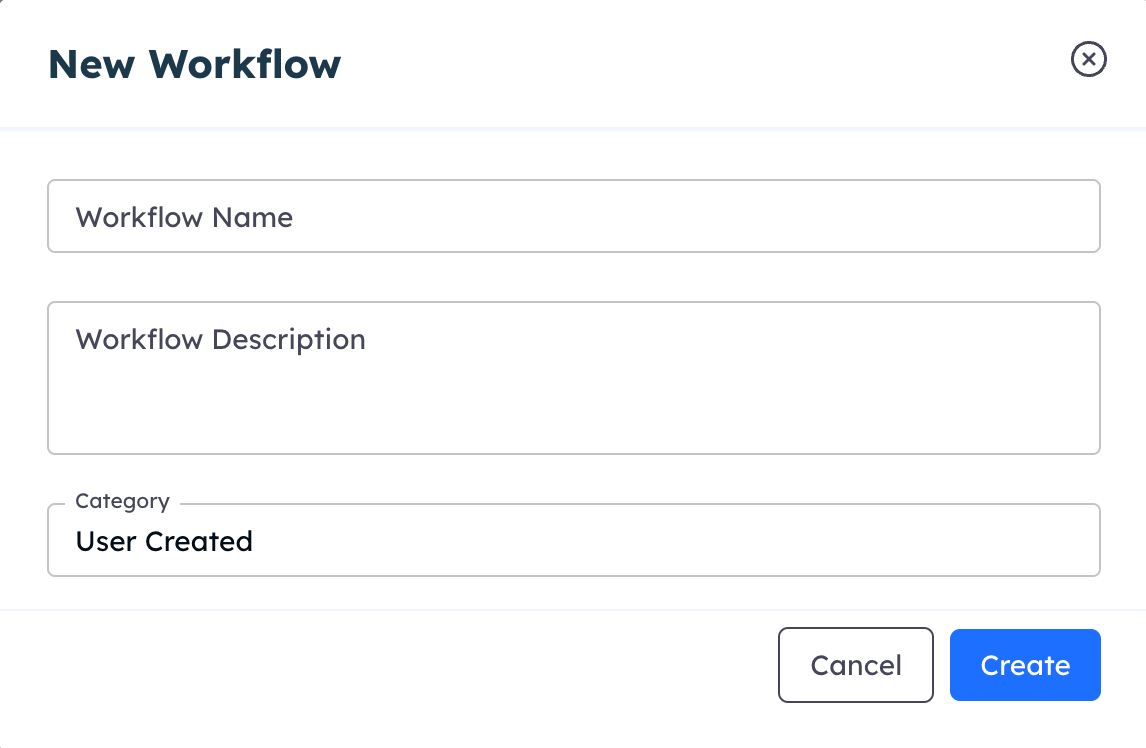
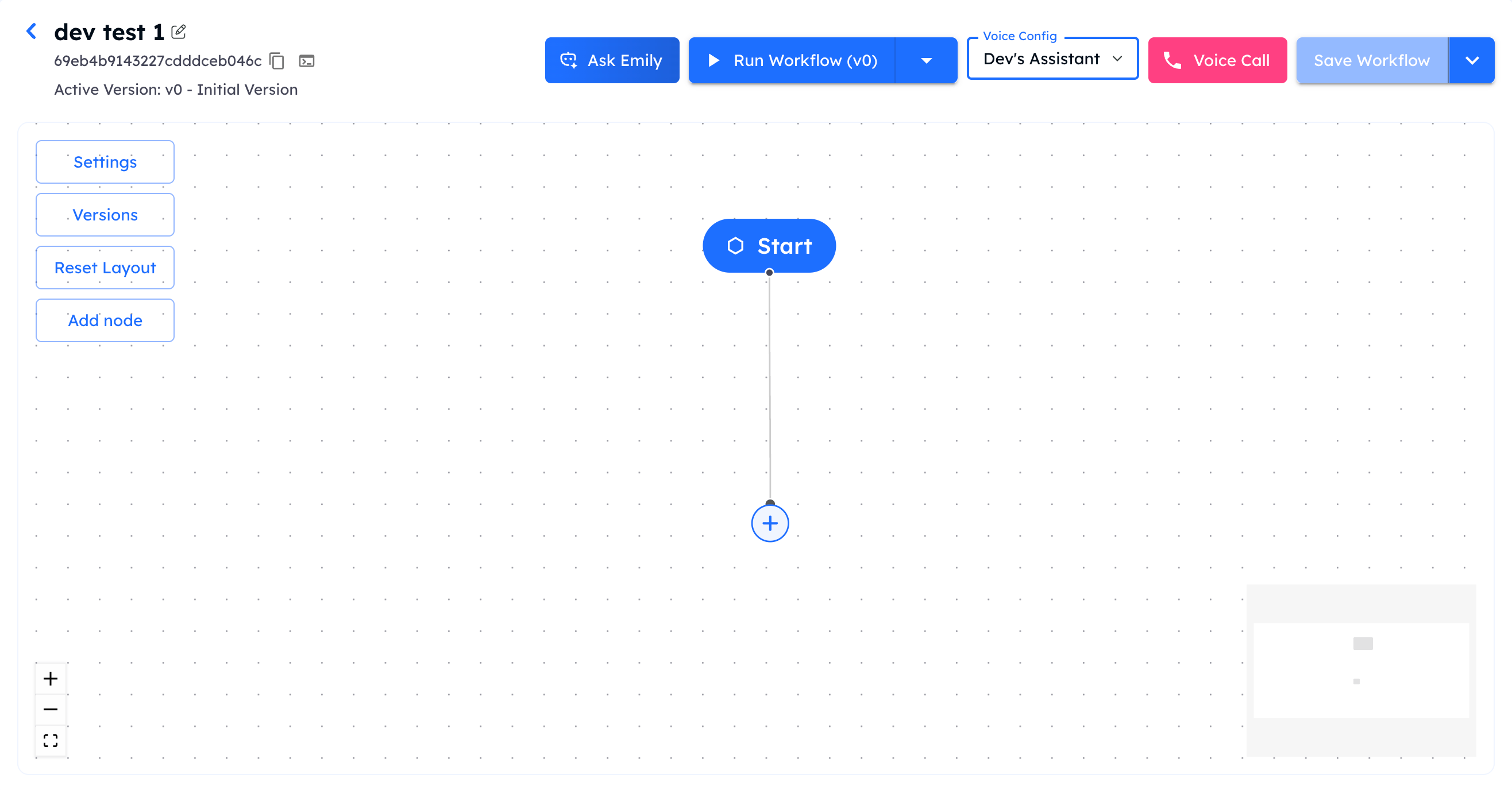
Workflows are built as a graph of connected nodes and edges in the Interactly dashboard. Each workflow starts with a blank canvas — you add nodes for each step of your process, connect them with edges to define the execution flow, and publish a version when ready.
Every workflow is version-controlled from the moment it’s created. Version 0 is automatically generated on creation — you can iterate freely and publish new versions without affecting live executions.
Nodes are the building blocks of a workflow. Each node performs one discrete action — generating an LLM response, calling an API, sending an SMS, or controlling conversation flow.
Unconditional transition — execution moves from the source node to the target node immediately after the source completes.Use when: The next step is always the same, regardless of what happened at the source node.
Conditional Edge
LLM-evaluated routing — a natural language condition is evaluated at runtime by an LLM. Execution only proceeds along this edge if the condition is satisfied.Use when: The next step depends on conversation context, collected data, or a specific outcome.
Condition — write the condition in plain English, e.g. "The patient confirmed their appointment" or "The user requested a callback"
Priority — when multiple conditional edges leave a node, priority determines evaluation order
Write conditions as complete, specific statements about what must be true for the edge to activate. The runtime LLM evaluates these against the full conversation context.
Companion Edge
Parallel execution — the target node runs alongside the primary flow without blocking it. The source node does not wait for the companion to complete before continuing.Use when: You want to trigger a background action (e.g., logging, sending an SMS) while the main conversation continues.
Global Variables are team-level key-value pairs automatically injected into every workflow execution. Use them in prompts, messages, and tool inputs via {{variable_name}} syntax.
Define Variables
Navigate to Settings → Global Variables and click New Variable.
Set a name, value, optional description, and category for grouping.
Use in Workflows
Reference any global variable inside a node’s system prompt, message body, or HTTP request using {{variable_name}}.
Global Variable Fields
Field
Description
name
Unique identifier — alphanumeric and underscores only, must start with a letter or underscore
value
The variable’s value — can be plain text, JSON, or a full system prompt
description
Human-readable description (max 1024 chars)
category
Grouping label, e.g. Prompts, Config, Credentials
is_secret
If enabled, value is masked in list responses
Reserved Variable Names
The following names are reserved and cannot be used for custom global variables:now, date, time, year, month, day, hour, minute, workflow_invoke_countThese are automatically injected by the runtime with current date/time context and execution metadata.
If a user-provided dynamic variable shares the same name as a global variable, the user-provided value takes precedence at execution time.
Interactly tracks every change to your workflow as a version. Version 0 is created automatically when you first create the workflow. When you’re ready to go live, activate the version you want to use for execution.
1
Save Your Changes
All node and edge changes are saved automatically. Use the Save button to explicitly commit the current canvas state to the active version.
2
Create a New Version (Optional)
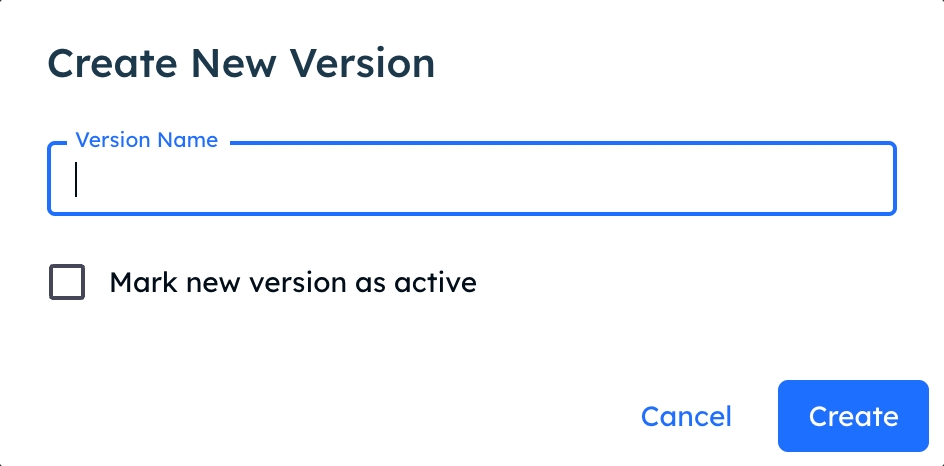
To snapshot the current state before making further changes, click New Version. Give it a meaningful name like "v1 — Initial Release" or "v2 — Add Callback Branch".
Creating a new version
3
Activate the Version
Click Activate on the version you want to use for live execution. All subsequent executions — triggered manually, via schedule, or via webhook — will run this version by default.
Activating a version does not interrupt runs already in progress. In-flight executions continue on the version they started with.
Control how many instances of a workflow can run simultaneously:
Team-level limit — set by Interactly for your organisation (default: 50 concurrent runs)
Per-workflow limit — optionally configure a lower cap for a specific workflow via Settings → Concurrency
Per-workflow limits are always within your team-level ceiling. Setting a per-workflow limit to 0 removes the per-workflow cap and falls back to the team limit.
Full reference for all node types, configuration fields, and use cases
Tools & Integrations
Attach tools, external APIs, and Knowledge Bases to LLM nodes
Workflow Versioning
Manage versions, compare diffs, and roll back safely
Simulation
Test your workflow interactively before going live
{"docsConfig":{"theme":"mint","$schema":"https://mintlify.com/docs.json","name":"Interactly API","colors":{"primary":"#1E6EFF","light":"#1E6EFF","dark":"#1E6EFF"},"logo":{"light":"https://mintcdn.com/interactly-qa/rQv06DcAu00ifyO5/logo/logo_light.svg?fit=max\u0026auto=format\u0026n=rQv06DcAu00ifyO5\u0026q=85\u0026s=eb6e3c5ae13dedc06c7f4af81bffb90d","dark":"https://mintcdn.com/interactly-qa/rQv06DcAu00ifyO5/logo/logo_dark.svg?fit=max\u0026auto=format\u0026n=rQv06DcAu00ifyO5\u0026q=85\u0026s=7df0871e3b8149b8337d8f907a078ed7"},"favicon":"https://mintcdn.com/interactly-qa/20698e0YpWVbNAWm/logo/favicon.png?fit=max\u0026auto=format\u0026n=20698e0YpWVbNAWm\u0026q=85\u0026s=d20934ecbb58c578651e1c26eb7e922a","api":{"playground":{"display":"interactive","proxy":false}},"appearance":{"default":"light"},"navbar":{"links":[{"href":"https://interactly.ai","label":"Website"}],"primary":{"type":"button","label":"Dashboard","href":"https://dashboard-qa.interactly.ai"}},"footer":{"socials":{}},"seo":{"indexing":"all"},"styling":{"latex":false},"navigation":{"pages":[]}},"deployment":{"deploymentMetadataValue":{"subdomain":"interactly-qa","hasAudioNarration":false,"actualSubdomain":"interactly-qa","customDomains":["docs-qa.interactly.ai"],"gitSource":{"type":"github","owner":"interactly","repo":"docs","deployBranch":"main","contentDirectory":"","isPrivate":false,"mountPath":"","label":""},"chroma":{"liveDeploymentHistoryId":"6a548c02370bcde85027ad75","collectionId":"0357f8f2-f8b1-4504-a8e2-46e87b2a8016","schemaVersion":"v3"},"entitlements":{},"buildId":"6a548c02370bcde85027ad75:success","clientVersion":"0.0.3939","searchFilterCounts":[{"language":"default","tag":"API Reference","count":256},{"language":"default","tag":"Workflows","count":140},{"language":"default","tag":"Integrations","count":61},{"language":"default","tag":"Campaigns","count":42},{"language":"default","tag":"APIs","count":38},{"language":"default","tag":"Documentation","count":33},{"language":"default","tag":"Tools","count":15},{"language":"default","tag":"Prompts","count":13},{"language":"default","tag":"Simulations","count":13},{"language":"default","tag":"Integrations Resource Records V2","count":12}]},"assistantConfig":{},"hasChatPermissions":false,"hasWebMcpPermissions":false,"toggles":[{"name":"kill-isr","enabled":true,"variant":{"name":"disabled","enabled":false,"feature_enabled":true},"impressionData":false},{"name":"agent-mintlify-slack","enabled":true,"variant":{"name":"disabled","enabled":false,"feature_enabled":true},"impressionData":false},{"name":"editor-v7-file-tree","enabled":true,"variant":{"name":"disabled","enabled":false,"feature_enabled":true},"impressionData":false},{"name":"agent-integrations-settings","enabled":true,"variant":{"name":"disabled","enabled":false,"feature_enabled":true},"impressionData":false},{"name":"automations-pr-grouping","enabled":true,"variant":{"name":"disabled","enabled":false,"feature_enabled":true},"impressionData":false},{"name":"custom-prefix","enabled":true,"variant":{"name":"disabled","enabled":false,"feature_enabled":true},"impressionData":false},{"name":"analytics-v7","enabled":true,"variant":{"name":"disabled","enabled":false,"feature_enabled":true},"impressionData":false},{"name":"user-flows-analytics","enabled":true,"variant":{"name":"disabled","enabled":false,"feature_enabled":true},"impressionData":false},{"name":"no-publish-flow","enabled":true,"variant":{"name":"disabled","enabled":false,"feature_enabled":true},"impressionData":false},{"name":"workos-onboarding","enabled":true,"variant":{"name":"disabled","enabled":false,"feature_enabled":true},"impressionData":false},{"name":"llms-txt-v2","enabled":true,"variant":{"name":"disabled","enabled":false,"feature_enabled":true},"impressionData":false},{"name":"pause-universal-search-reconcile","enabled":true,"variant":{"name":"disabled","enabled":false,"feature_enabled":true},"impressionData":false},{"name":"snapshot-serving-live","enabled":true,"variant":{"name":"disabled","enabled":false,"feature_enabled":true},"impressionData":false},{"name":"stripTemperatureMiddleware","enabled":true,"variant":{"name":"disabled","enabled":false,"feature_enabled":true},"impressionData":false},{"name":"per-site-search-delta","enabled":true,"variant":{"name":"disabled","enabled":false,"feature_enabled":true},"impressionData":false},{"name":"support-platform-pylon-zendesk","enabled":true,"variant":{"name":"disabled","enabled":false,"feature_enabled":true},"impressionData":false},{"name":"snapshot-serving","enabled":true,"variant":{"name":"disabled","enabled":false,"feature_enabled":true},"impressionData":false},{"name":"instant-rollback","enabled":true,"variant":{"name":"disabled","enabled":false,"feature_enabled":true},"impressionData":false},{"name":"granular-notifications-server","enabled":true,"variant":{"name":"disabled","enabled":false,"feature_enabled":true},"impressionData":false},{"name":"granular-notifications","enabled":true,"variant":{"name":"disabled","enabled":false,"feature_enabled":true},"impressionData":false},{"name":"editor-private-page-search","enabled":true,"variant":{"name":"disabled","enabled":false,"feature_enabled":true},"impressionData":false},{"name":"automations-fable","enabled":true,"variant":{"name":"disabled","enabled":false,"feature_enabled":true},"impressionData":false},{"name":"fixed-ai-action-pricing","enabled":true,"variant":{"name":"disabled","enabled":false,"feature_enabled":true},"impressionData":false},{"name":"automation-resolve-merge-conflict","enabled":true,"variant":{"name":"disabled","enabled":false,"feature_enabled":true},"impressionData":false},{"name":"scoped-publishing","enabled":true,"variant":{"name":"disabled","enabled":false,"feature_enabled":true},"impressionData":false},{"name":"mintql","enabled":true,"variant":{"name":"disabled","enabled":false,"feature_enabled":true},"impressionData":false},{"name":"page-level-analytics","enabled":true,"variant":{"name":"disabled","enabled":false,"feature_enabled":true},"impressionData":false},{"name":"editor-version-history-v2","enabled":true,"variant":{"name":"disabled","enabled":false,"feature_enabled":true},"impressionData":false},{"name":"editor-nav-generations","enabled":true,"variant":{"name":"disabled","enabled":false,"feature_enabled":true},"impressionData":false},{"name":"billing-page-v2","enabled":true,"variant":{"name":"disabled","enabled":false,"feature_enabled":true},"impressionData":false},{"name":"workspace-projects","enabled":true,"variant":{"name":"disabled","enabled":false,"feature_enabled":true},"impressionData":false},{"name":"assistant-v5","enabled":true,"variant":{"name":"disabled","enabled":false,"feature_enabled":true},"impressionData":false},{"name":"byok-sep-25","enabled":true,"variant":{"name":"disabled","enabled":false,"feature_enabled":true},"impressionData":false},{"name":"fork-pr-previews","enabled":true,"variant":{"name":"disabled","enabled":false,"feature_enabled":true},"impressionData":false},{"name":"revalidation-jwt","enabled":true,"variant":{"name":"disabled","enabled":false,"feature_enabled":true},"impressionData":false},{"name":"vite-origin","enabled":true,"variant":{"name":"disabled","enabled":false,"feature_enabled":true},"impressionData":false},{"name":"editor-agent-model-picker","enabled":true,"variant":{"name":"disabled","enabled":false,"feature_enabled":true},"impressionData":false},{"name":"billing-updated-9-15","enabled":true,"variant":{"name":"disabled","enabled":false,"feature_enabled":true},"impressionData":false},{"name":"hobby-abuse-scan","enabled":true,"variant":{"name":"disabled","enabled":false,"feature_enabled":true},"impressionData":false},{"name":"dashboard-inbox","enabled":true,"variant":{"name":"disabled","enabled":false,"feature_enabled":true},"impressionData":false}],"isAtlas":false,"googleFontsInlined":false},"customCss":[],"page":{"pagePath":"workflows/building-a-workflow","slug":"/workflows/building-a-workflow","pageMetadata":{"title":"Building a Workflow","subtitle":"Step-by-step guide to creating, configuring, and publishing your first workflow","slug":"workflows/building-a-workflow","description":"Learn how to build a workflow from scratch — adding nodes, connecting edges, attaching tools, setting global variables, and publishing a version for live execution","href":"/workflows/building-a-workflow"},"description":{"compiledSource":"\"use strict\";\nconst {jsx: _jsx} = arguments[0];\nconst {useMDXComponents: _provideComponents} = arguments[0];\nfunction _createMdxContent(props) {\n const _components = {\n p: \"p\",\n ..._provideComponents(),\n ...props.components\n };\n return _jsx(_components.p, {\n children: \"Learn how to build a workflow from scratch — adding nodes, connecting edges, attaching tools, setting global variables, and publishing a version for live execution\"\n });\n}\nfunction MDXContent(props = {}) {\n const {wrapper: MDXLayout} = {\n ..._provideComponents(),\n ...props.components\n };\n return MDXLayout ? _jsx(MDXLayout, {\n ...props,\n children: _jsx(_createMdxContent, {\n ...props\n })\n }) : _createMdxContent(props);\n}\nreturn {\n default: MDXContent\n};\n","frontmatter":{},"scope":{}},"pageType":"default","mdx":{"mdxSource":{"compiledSource":"\"use strict\";const{Fragment:_Fragment,jsx:_jsx,jsxs:_jsxs}=arguments[0];const{useMDXComponents:_provideComponents}=arguments[0];function _createMdxContent(props){const _components={code:`code`,li:`li`,ol:`ol`,p:`p`,strong:`strong`,tbody:`tbody`,td:`td`,th:`th`,thead:`thead`,tr:`tr`,ul:`ul`,..._provideComponents(),...props.components},{Accordion,AccordionGroup,Card,CardGroup,Frame,Heading,Info,Note,OptimizedImage,Step,Steps,Table,Tip,Warning}=_components;if(!Accordion)_missingMdxReference(`Accordion`,true);if(!AccordionGroup)_missingMdxReference(`AccordionGroup`,true);if(!Card)_missingMdxReference(`Card`,true);if(!CardGroup)_missingMdxReference(`CardGroup`,true);if(!Frame)_missingMdxReference(`Frame`,true);if(!Heading)_missingMdxReference(`Heading`,true);if(!Info)_missingMdxReference(`Info`,true);if(!Note)_missingMdxReference(`Note`,true);if(!OptimizedImage)_missingMdxReference(`OptimizedImage`,true);if(!Step)_missingMdxReference(`Step`,true);if(!Steps)_missingMdxReference(`Steps`,true);if(!Table)_missingMdxReference(`Table`,true);if(!Tip)_missingMdxReference(`Tip`,true);if(!Warning)_missingMdxReference(`Warning`,true);return _jsxs(_Fragment,{children:[_jsx(Heading,{level:`1`,id:`about`,children:`About`}),`\n`,_jsx(_components.p,{children:`Workflows are built as a graph of connected nodes and edges in the Interactly dashboard. Each workflow starts with a blank canvas — you add nodes for each step of your process, connect them with edges to define the execution flow, and publish a version when ready.`}),`\n`,_jsx(Info,{children:_jsx(_components.p,{children:`Every workflow is version-controlled from the moment it’s created. Version 0 is automatically generated on creation — you can iterate freely and publish new versions without affecting live executions.`})}),`\n`,_jsx(Heading,{level:`2`,id:`creating-your-workflow`,children:`Creating Your Workflow`}),`\n`,_jsxs(Steps,{children:[_jsxs(Step,{title:`Access the Workflow Dashboard`,children:[_jsxs(_components.ol,{children:[`\n`,_jsx(_components.li,{children:`Navigate to your Interactly dashboard`}),`\n`,_jsxs(_components.li,{children:[`Click the `,_jsx(_components.strong,{children:`Workflows`}),` tab`]}),`\n`,_jsxs(_components.li,{children:[`Click `,_jsx(_components.strong,{children:`New Workflow`}),` to begin`]}),`\n`]}),_jsx(Frame,{caption:`Creating a new workflow`,children:_jsx(OptimizedImage,{src:`https://mintcdn.com/interactly-qa/K-nUMdF073QrWB3m/images/workflows/create-new-workflow.png?fit=max\u0026auto=format\u0026n=K-nUMdF073QrWB3m\u0026q=85\u0026s=e26a033d79f18f3d8236847211fe7523`,\"data-og-width\":`1146`,width:`1146`,\"data-og-height\":`748`,height:`748`,\"data-path\":`images/workflows/create-new-workflow.png`,\"data-optimize\":`true`,\"data-opv\":`3`,srcset:`https://mintcdn.com/interactly-qa/K-nUMdF073QrWB3m/images/workflows/create-new-workflow.png?w=280\u0026fit=max\u0026auto=format\u0026n=K-nUMdF073QrWB3m\u0026q=85\u0026s=df13c9bc8649f5f46efdcf4869461cba 280w, https://mintcdn.com/interactly-qa/K-nUMdF073QrWB3m/images/workflows/create-new-workflow.png?w=560\u0026fit=max\u0026auto=format\u0026n=K-nUMdF073QrWB3m\u0026q=85\u0026s=7a6e24ae42b344274f9a5a2aaea4f10f 560w, https://mintcdn.com/interactly-qa/K-nUMdF073QrWB3m/images/workflows/create-new-workflow.png?w=840\u0026fit=max\u0026auto=format\u0026n=K-nUMdF073QrWB3m\u0026q=85\u0026s=32f17f133ebfb748cf657403ea576ae4 840w, https://mintcdn.com/interactly-qa/K-nUMdF073QrWB3m/images/workflows/create-new-workflow.png?w=1100\u0026fit=max\u0026auto=format\u0026n=K-nUMdF073QrWB3m\u0026q=85\u0026s=81f8fbbf35c0b82d06a6ace4730c24b3 1100w, https://mintcdn.com/interactly-qa/K-nUMdF073QrWB3m/images/workflows/create-new-workflow.png?w=1650\u0026fit=max\u0026auto=format\u0026n=K-nUMdF073QrWB3m\u0026q=85\u0026s=3f5930f23628760af545f52694aef839 1650w, https://mintcdn.com/interactly-qa/K-nUMdF073QrWB3m/images/workflows/create-new-workflow.png?w=2500\u0026fit=max\u0026auto=format\u0026n=K-nUMdF073QrWB3m\u0026q=85\u0026s=70c027f002d102b85dfa4cac7008273f 2500w`})})]}),_jsxs(Step,{title:`Name Your Workflow`,children:[_jsx(_components.p,{children:`Enter a descriptive name that reflects the workflow’s purpose:`}),_jsx(Card,{title:`Naming Examples`,icon:`tag`,children:_jsxs(_components.ul,{children:[`\n`,_jsx(_components.li,{children:`“Patient Intake — Appointment Scheduling”`}),`\n`,_jsx(_components.li,{children:`“Post-Call Follow-Up Sequence”`}),`\n`,_jsx(_components.li,{children:`“Insurance Verification Flow”`}),`\n`,_jsx(_components.li,{children:`“Outbound Reminder — Prescription Refill”`}),`\n`]})}),_jsxs(_components.p,{children:[`Optionally add a description and assign a category for organisation. Click `,_jsx(_components.strong,{children:`Create`}),` to proceed.`]})]}),_jsxs(Step,{title:`Open the Workflow Builder`,children:[_jsx(_components.p,{children:`You’ll be taken to the visual workflow canvas. This is where you add and connect all nodes.`}),_jsx(Frame,{caption:`Workflow builder canvas`,children:_jsx(OptimizedImage,{src:`https://mintcdn.com/interactly-qa/K-nUMdF073QrWB3m/images/workflows/workflow-builder.png?fit=max\u0026auto=format\u0026n=K-nUMdF073QrWB3m\u0026q=85\u0026s=4b8508c6bc025243ab2565e114639dc8`,\"data-og-width\":`2632`,width:`2632`,\"data-og-height\":`1376`,height:`1376`,\"data-path\":`images/workflows/workflow-builder.png`,\"data-optimize\":`true`,\"data-opv\":`3`,srcset:`https://mintcdn.com/interactly-qa/K-nUMdF073QrWB3m/images/workflows/workflow-builder.png?w=280\u0026fit=max\u0026auto=format\u0026n=K-nUMdF073QrWB3m\u0026q=85\u0026s=1ca0b8decc820e1fd4a99fb62ecf0605 280w, https://mintcdn.com/interactly-qa/K-nUMdF073QrWB3m/images/workflows/workflow-builder.png?w=560\u0026fit=max\u0026auto=format\u0026n=K-nUMdF073QrWB3m\u0026q=85\u0026s=736f0054ac8595109050f43179c672d2 560w, https://mintcdn.com/interactly-qa/K-nUMdF073QrWB3m/images/workflows/workflow-builder.png?w=840\u0026fit=max\u0026auto=format\u0026n=K-nUMdF073QrWB3m\u0026q=85\u0026s=55ba450ff94162f51be127ef4ba9b7cb 840w, https://mintcdn.com/interactly-qa/K-nUMdF073QrWB3m/images/workflows/workflow-builder.png?w=1100\u0026fit=max\u0026auto=format\u0026n=K-nUMdF073QrWB3m\u0026q=85\u0026s=9f29cfceb67f478c7126b5385848fade 1100w, https://mintcdn.com/interactly-qa/K-nUMdF073QrWB3m/images/workflows/workflow-builder.png?w=1650\u0026fit=max\u0026auto=format\u0026n=K-nUMdF073QrWB3m\u0026q=85\u0026s=da4dc3286ea03e4c047ccb8576f0000d 1650w, https://mintcdn.com/interactly-qa/K-nUMdF073QrWB3m/images/workflows/workflow-builder.png?w=2500\u0026fit=max\u0026auto=format\u0026n=K-nUMdF073QrWB3m\u0026q=85\u0026s=d595a2131e6e75f03dd5d37892ede48d 2500w`})})]})]}),`\n`,_jsx(Heading,{level:`2`,id:`adding-nodes`,children:`Adding Nodes`}),`\n`,_jsx(_components.p,{children:`Nodes are the building blocks of a workflow. Each node performs one discrete action — generating an LLM response, calling an API, sending an SMS, or controlling conversation flow.`}),`\n`,_jsx(Heading,{level:`3`,id:`node-categories`,children:`Node Categories`}),`\n`,_jsxs(CardGroup,{cols:2,children:[_jsxs(Card,{title:`LLM Nodes`,icon:`brain-circuit`,children:[_jsx(_components.p,{children:_jsx(_components.strong,{children:`Conversational and reasoning steps`})}),_jsxs(_components.ul,{children:[`\n`,_jsxs(_components.li,{children:[_jsx(_components.code,{children:`SAY_LLM`}),` — generate a conversational response via LLM`]}),`\n`,_jsxs(_components.li,{children:[_jsx(_components.code,{children:`WORKER_LLM`}),` — structured output or background reasoning`]}),`\n`,_jsxs(_components.li,{children:[_jsx(_components.code,{children:`SAY_STATIC`}),` — output a predefined or random static message`]}),`\n`]})]}),_jsxs(Card,{title:`Tool \u0026 HTTP Nodes`,icon:`wrench`,children:[_jsx(_components.p,{children:_jsx(_components.strong,{children:`External actions and API calls`})}),_jsxs(_components.ul,{children:[`\n`,_jsxs(_components.li,{children:[_jsx(_components.code,{children:`TOOL_NODE`}),` — execute a registered tool (function, Python, API, KB)`]}),`\n`,_jsxs(_components.li,{children:[_jsx(_components.code,{children:`HTTP_REQUEST`}),` — call any REST endpoint directly`]}),`\n`]})]}),_jsxs(Card,{title:`Communication Nodes`,icon:`message`,children:[_jsx(_components.p,{children:_jsx(_components.strong,{children:`Messaging and call control`})}),_jsxs(_components.ul,{children:[`\n`,_jsxs(_components.li,{children:[_jsx(_components.code,{children:`SEND_SMS`}),` — send an SMS to the contact`]}),`\n`]})]}),_jsxs(Card,{title:`Workflow Control Nodes`,icon:`shuffle`,children:[_jsx(_components.p,{children:_jsx(_components.strong,{children:`Internal execution management`})}),_jsxs(_components.ul,{children:[`\n`,_jsxs(_components.li,{children:[_jsx(_components.code,{children:`WORKFLOW_RUN_FETCH`}),` — retrieve a previous workflow run`]}),`\n`,_jsxs(_components.li,{children:[_jsx(_components.code,{children:`WORKFLOW_RUN_EVALUATOR`}),` — evaluate run outputs`]}),`\n`]})]})]}),`\n`,_jsx(Heading,{level:`3`,id:`configuring-a-node`,children:`Configuring a Node`}),`\n`,_jsxs(_components.p,{children:[`Click `,_jsx(_components.strong,{children:`Add Node`}),` on the canvas or drag a node type from the palette. Each node type has its own configuration panel:`]}),`\n`,_jsxs(AccordionGroup,{children:[_jsxs(Accordion,{title:`SAY_LLM Node Configuration`,id:`say-llm-node-configuration`,children:[_jsx(_components.p,{children:`The primary node for LLM-driven conversational responses.`}),_jsxs(_components.ul,{children:[`\n`,_jsxs(_components.li,{children:[_jsx(_components.strong,{children:`Name`}),` — label for this node on the canvas`]}),`\n`,_jsxs(_components.li,{children:[_jsx(_components.strong,{children:`LLM Provider`}),` — select from Azure OpenAI, OpenAI, Google, Anthropic, AWS Bedrock, or Custom`]}),`\n`,_jsxs(_components.li,{children:[_jsx(_components.strong,{children:`Model`}),` — choose the model for this node`]}),`\n`,_jsxs(_components.li,{children:[_jsx(_components.strong,{children:`System Prompt`}),` — instructions for the LLM (supports `,_jsx(_components.code,{children:`{{variable}}`}),` syntax)`]}),`\n`,_jsxs(_components.li,{children:[_jsx(_components.strong,{children:`Tools`}),` — attach tools the LLM can call during this step`]}),`\n`,_jsxs(_components.li,{children:[_jsx(_components.strong,{children:`Max Turns`}),` — limit conversation turns at this node`]}),`\n`,_jsxs(_components.li,{children:[_jsx(_components.strong,{children:`Temperature / Max Tokens`}),` — generation parameters`]}),`\n`]})]}),_jsxs(Accordion,{title:`WORKER_LLM Node Configuration`,id:`worker-llm-node-configuration`,children:[_jsx(_components.p,{children:`For background reasoning or structured data extraction — not exposed directly to the user.`}),_jsxs(_components.ul,{children:[`\n`,_jsxs(_components.li,{children:[_jsx(_components.strong,{children:`Name`}),`, `,_jsx(_components.strong,{children:`LLM Provider`}),`, `,_jsx(_components.strong,{children:`Model`}),` — same as SAY_LLM`]}),`\n`,_jsxs(_components.li,{children:[_jsx(_components.strong,{children:`System Prompt`}),` — task instructions for the worker`]}),`\n`,_jsxs(_components.li,{children:[_jsx(_components.strong,{children:`Output Schema`}),` — define a JSON schema for structured outputs`]}),`\n`,_jsxs(_components.li,{children:[_jsx(_components.strong,{children:`Tools`}),` — attach tools for extended capabilities`]}),`\n`]})]}),_jsxs(Accordion,{title:`HTTP_REQUEST Node Configuration`,id:`http-request-node-configuration`,children:[_jsx(_components.p,{children:`Call any external REST API from within your workflow.`}),_jsxs(_components.ul,{children:[`\n`,_jsxs(_components.li,{children:[_jsx(_components.strong,{children:`URL`}),` — target endpoint (supports `,_jsx(_components.code,{children:`{{variable}}`}),` substitution)`]}),`\n`,_jsxs(_components.li,{children:[_jsx(_components.strong,{children:`Method`}),` — GET, POST, PUT, PATCH, DELETE`]}),`\n`,_jsxs(_components.li,{children:[_jsx(_components.strong,{children:`Headers`}),` — key-value pairs (supports secrets via global variables)`]}),`\n`,_jsxs(_components.li,{children:[_jsx(_components.strong,{children:`Body`}),` — JSON payload (supports `,_jsx(_components.code,{children:`{{variable}}`}),` substitution)`]}),`\n`,_jsxs(_components.li,{children:[_jsx(_components.strong,{children:`Response Mapping`}),` — map response fields to workflow variables`]}),`\n`]})]}),_jsxs(Accordion,{title:`SEND_SMS Node Configuration`,id:`send-sms-node-configuration`,children:[_jsx(_components.p,{children:`Send an SMS message to the contact mid-workflow.`}),_jsxs(_components.ul,{children:[`\n`,_jsxs(_components.li,{children:[_jsx(_components.strong,{children:`To`}),` — phone number or `,_jsx(_components.code,{children:`{{variable}}`}),` reference`]}),`\n`,_jsxs(_components.li,{children:[_jsx(_components.strong,{children:`Message`}),` — SMS body with `,_jsx(_components.code,{children:`{{variable}}`}),` support`]}),`\n`,_jsxs(_components.li,{children:[_jsx(_components.strong,{children:`Provider`}),` — configured SMS provider for your team`]}),`\n`]})]}),_jsxs(Accordion,{title:`TOOL_NODE Configuration`,id:`tool-node-configuration`,children:[_jsx(_components.p,{children:`Execute a tool from the tool registry.`}),_jsxs(_components.ul,{children:[`\n`,_jsxs(_components.li,{children:[_jsx(_components.strong,{children:`Tool`}),` — select from registered tools (inbuilt, inline Python, external API, or Knowledge Base)`]}),`\n`,_jsxs(_components.li,{children:[_jsx(_components.strong,{children:`Input Mapping`}),` — map workflow variables to tool input fields`]}),`\n`,_jsxs(_components.li,{children:[_jsx(_components.strong,{children:`Output Mapping`}),` — map tool output fields back to workflow variables`]}),`\n`]})]})]}),`\n`,_jsx(Heading,{level:`2`,id:`connecting-nodes-with-edges`,children:`Connecting Nodes with Edges`}),`\n`,_jsx(_components.p,{children:`Edges define how execution flows between nodes. After placing your nodes, connect them by drawing edges on the canvas.`}),`\n`,_jsx(Heading,{level:`3`,id:`edge-types`,children:`Edge Types`}),`\n`,_jsxs(AccordionGroup,{children:[_jsxs(Accordion,{title:`Direct Edge`,icon:`arrow-right`,id:`direct-edge`,children:[_jsxs(_components.p,{children:[_jsx(_components.strong,{children:`Unconditional transition`}),` — execution moves from the source node to the target node immediately after the source completes.`]}),_jsxs(_components.p,{children:[_jsx(_components.strong,{children:`Use when:`}),` The next step is always the same, regardless of what happened at the source node.`]})]}),_jsxs(Accordion,{title:`Conditional Edge`,icon:`split`,id:`conditional-edge`,children:[_jsxs(_components.p,{children:[_jsx(_components.strong,{children:`LLM-evaluated routing`}),` — a natural language condition is evaluated at runtime by an LLM. Execution only proceeds along this edge if the condition is satisfied.`]}),_jsxs(_components.p,{children:[_jsx(_components.strong,{children:`Use when:`}),` The next step depends on conversation context, collected data, or a specific outcome.`]}),_jsxs(_components.ul,{children:[`\n`,_jsxs(_components.li,{children:[_jsx(_components.strong,{children:`Condition`}),` — write the condition in plain English, e.g. `,_jsx(_components.code,{children:`\"The patient confirmed their appointment\"`}),` or `,_jsx(_components.code,{children:`\"The user requested a callback\"`})]}),`\n`,_jsxs(_components.li,{children:[_jsx(_components.strong,{children:`Priority`}),` — when multiple conditional edges leave a node, priority determines evaluation order`]}),`\n`]}),_jsx(Tip,{children:_jsx(_components.p,{children:`Write conditions as complete, specific statements about what must be true for the edge to activate. The runtime LLM evaluates these against the full conversation context.`})})]}),_jsxs(Accordion,{title:`Companion Edge`,icon:`layers`,id:`companion-edge`,children:[_jsxs(_components.p,{children:[_jsx(_components.strong,{children:`Parallel execution`}),` — the target node runs alongside the primary flow without blocking it. The source node does not wait for the companion to complete before continuing.`]}),_jsxs(_components.p,{children:[_jsx(_components.strong,{children:`Use when:`}),` You want to trigger a background action (e.g., logging, sending an SMS) while the main conversation continues.`]})]})]}),`\n`,_jsx(Heading,{level:`2`,id:`global-variables`,children:`Global Variables`}),`\n`,_jsxs(_components.p,{children:[`Global Variables are team-level key-value pairs automatically injected into every workflow execution. Use them in prompts, messages, and tool inputs via `,_jsx(_components.code,{children:`{{variable_name}}`}),` syntax.`]}),`\n`,_jsxs(CardGroup,{cols:2,children:[_jsx(Card,{title:`Define Variables`,icon:`plus`,children:_jsxs(_components.p,{children:[`Navigate to `,_jsx(_components.strong,{children:`Settings → Global Variables`}),` and click `,_jsx(_components.strong,{children:`New Variable`}),`.\nSet a name, value, optional description, and category for grouping.`]})}),_jsx(Card,{title:`Use in Workflows`,icon:`brackets-curly`,children:_jsxs(_components.p,{children:[`Reference any global variable inside a node’s system prompt, message body, or HTTP request using `,_jsx(_components.code,{children:`{{variable_name}}`}),`.`]})})]}),`\n`,_jsxs(AccordionGroup,{children:[_jsx(Accordion,{title:`Global Variable Fields`,id:`global-variable-fields`,children:_jsxs(Table,{children:[_jsx(_components.thead,{children:_jsxs(_components.tr,{children:[_jsx(_components.th,{children:`Field`}),_jsx(_components.th,{children:`Description`})]})}),_jsxs(_components.tbody,{children:[_jsxs(_components.tr,{children:[_jsx(_components.td,{children:_jsx(_components.code,{children:`name`})}),_jsx(_components.td,{children:`Unique identifier — alphanumeric and underscores only, must start with a letter or underscore`})]}),_jsxs(_components.tr,{children:[_jsx(_components.td,{children:_jsx(_components.code,{children:`value`})}),_jsx(_components.td,{children:`The variable’s value — can be plain text, JSON, or a full system prompt`})]}),_jsxs(_components.tr,{children:[_jsx(_components.td,{children:_jsx(_components.code,{children:`description`})}),_jsx(_components.td,{children:`Human-readable description (max 1024 chars)`})]}),_jsxs(_components.tr,{children:[_jsx(_components.td,{children:_jsx(_components.code,{children:`category`})}),_jsxs(_components.td,{children:[`Grouping label, e.g. `,_jsx(_components.code,{children:`Prompts`}),`, `,_jsx(_components.code,{children:`Config`}),`, `,_jsx(_components.code,{children:`Credentials`})]})]}),_jsxs(_components.tr,{children:[_jsx(_components.td,{children:_jsx(_components.code,{children:`is_secret`})}),_jsx(_components.td,{children:`If enabled, value is masked in list responses`})]})]})]})}),_jsxs(Accordion,{title:`Reserved Variable Names`,id:`reserved-variable-names`,children:[_jsx(_components.p,{children:`The following names are reserved and cannot be used for custom global variables:`}),_jsxs(_components.p,{children:[_jsx(_components.code,{children:`now`}),`, `,_jsx(_components.code,{children:`date`}),`, `,_jsx(_components.code,{children:`time`}),`, `,_jsx(_components.code,{children:`year`}),`, `,_jsx(_components.code,{children:`month`}),`, `,_jsx(_components.code,{children:`day`}),`, `,_jsx(_components.code,{children:`hour`}),`, `,_jsx(_components.code,{children:`minute`}),`, `,_jsx(_components.code,{children:`workflow_invoke_count`})]}),_jsx(_components.p,{children:`These are automatically injected by the runtime with current date/time context and execution metadata.`})]})]}),`\n`,_jsx(Note,{children:_jsx(_components.p,{children:`If a user-provided dynamic variable shares the same name as a global variable, the user-provided value takes precedence at execution time.`})}),`\n`,_jsx(Heading,{level:`2`,id:`publishing-a-version`,children:`Publishing a Version`}),`\n`,_jsx(_components.p,{children:`Interactly tracks every change to your workflow as a version. Version 0 is created automatically when you first create the workflow. When you’re ready to go live, activate the version you want to use for execution.`}),`\n`,_jsxs(Steps,{children:[_jsx(Step,{title:`Save Your Changes`,children:_jsxs(_components.p,{children:[`All node and edge changes are saved automatically. Use the `,_jsx(_components.strong,{children:`Save`}),` button to explicitly commit the current canvas state to the active version.`]})}),_jsxs(Step,{title:`Create a New Version (Optional)`,children:[_jsxs(_components.p,{children:[`To snapshot the current state before making further changes, click `,_jsx(_components.strong,{children:`New Version`}),`. Give it a meaningful name like `,_jsx(_components.code,{children:`\"v1 — Initial Release\"`}),` or `,_jsx(_components.code,{children:`\"v2 — Add Callback Branch\"`}),`.`]}),_jsx(Frame,{caption:`Creating a new version`,children:_jsx(OptimizedImage,{src:`https://mintcdn.com/interactly-qa/K-nUMdF073QrWB3m/images/workflows/create-version.png?fit=max\u0026auto=format\u0026n=K-nUMdF073QrWB3m\u0026q=85\u0026s=149a0442ff396d4c5ffd7e68b6b4bf25`,\"data-og-width\":`944`,width:`944`,\"data-og-height\":`466`,height:`466`,\"data-path\":`images/workflows/create-version.png`,\"data-optimize\":`true`,\"data-opv\":`3`,srcset:`https://mintcdn.com/interactly-qa/K-nUMdF073QrWB3m/images/workflows/create-version.png?w=280\u0026fit=max\u0026auto=format\u0026n=K-nUMdF073QrWB3m\u0026q=85\u0026s=4ee62e07518bbe4fae8543bae77d4d8f 280w, https://mintcdn.com/interactly-qa/K-nUMdF073QrWB3m/images/workflows/create-version.png?w=560\u0026fit=max\u0026auto=format\u0026n=K-nUMdF073QrWB3m\u0026q=85\u0026s=d9f3564a03fb38f3f92e4b931c2d3fb0 560w, https://mintcdn.com/interactly-qa/K-nUMdF073QrWB3m/images/workflows/create-version.png?w=840\u0026fit=max\u0026auto=format\u0026n=K-nUMdF073QrWB3m\u0026q=85\u0026s=b2b57d3e5fa77ac863cf0b0b7bbc56a7 840w, https://mintcdn.com/interactly-qa/K-nUMdF073QrWB3m/images/workflows/create-version.png?w=1100\u0026fit=max\u0026auto=format\u0026n=K-nUMdF073QrWB3m\u0026q=85\u0026s=236d336b39c94c355094a09bfd8d0bf2 1100w, https://mintcdn.com/interactly-qa/K-nUMdF073QrWB3m/images/workflows/create-version.png?w=1650\u0026fit=max\u0026auto=format\u0026n=K-nUMdF073QrWB3m\u0026q=85\u0026s=14edc58c05fcb991cc054180c6d2c76a 1650w, https://mintcdn.com/interactly-qa/K-nUMdF073QrWB3m/images/workflows/create-version.png?w=2500\u0026fit=max\u0026auto=format\u0026n=K-nUMdF073QrWB3m\u0026q=85\u0026s=54e9b58c9efb92ff622c2ba77f1595ac 2500w`})})]}),_jsxs(Step,{title:`Activate the Version`,children:[_jsxs(_components.p,{children:[`Click `,_jsx(_components.strong,{children:`Activate`}),` on the version you want to use for live execution. All subsequent executions — triggered manually, via schedule, or via webhook — will run this version by default.`]}),_jsx(Warning,{children:_jsx(_components.p,{children:`Activating a version does not interrupt runs already in progress. In-flight executions continue on the version they started with.`})})]})]}),`\n`,_jsx(Heading,{level:`2`,id:`workflow-management`,children:`Workflow Management`}),`\n`,_jsx(Heading,{level:`3`,id:`clone-a-workflow`,children:`Clone a Workflow`}),`\n`,_jsx(_components.p,{children:`Duplicate an existing workflow to use it as a starting point:`}),`\n`,_jsxs(_components.ul,{children:[`\n`,_jsxs(_components.li,{children:[`Click the `,_jsx(_components.strong,{children:`three-dot menu`}),` on a workflow card and select `,_jsx(_components.strong,{children:`Clone Workflow`})]}),`\n`,_jsx(_components.li,{children:`Choose to clone all versions or specific version numbers`}),`\n`,_jsx(_components.li,{children:`Give the clone a new name — all nodes, edges, and configuration are copied`}),`\n`]}),`\n`,_jsx(Heading,{level:`3`,id:`edit-a-workflow`,children:`Edit a Workflow`}),`\n`,_jsxs(_components.ul,{children:[`\n`,_jsxs(_components.li,{children:[`Click the `,_jsx(_components.strong,{children:`three-dot menu`}),` and select `,_jsx(_components.strong,{children:`Edit`}),` to re-open the builder`]}),`\n`,_jsx(_components.li,{children:`Changes apply to the currently selected version`}),`\n`,_jsx(_components.li,{children:`Activate the updated version when ready to go live`}),`\n`]}),`\n`,_jsx(Heading,{level:`3`,id:`delete-a-workflow`,children:`Delete a Workflow`}),`\n`,_jsxs(_components.ul,{children:[`\n`,_jsxs(_components.li,{children:[`Click the `,_jsx(_components.strong,{children:`three-dot menu`}),` and select `,_jsx(_components.strong,{children:`Delete`})]}),`\n`,_jsx(_components.li,{children:`All versions and run history associated with the workflow are permanently removed`}),`\n`]}),`\n`,_jsx(Warning,{children:_jsx(_components.p,{children:`Workflow deletion is irreversible. All versions and historical run data will be lost.`})}),`\n`,_jsx(Heading,{level:`3`,id:`concurrency-limits`,children:`Concurrency Limits`}),`\n`,_jsx(_components.p,{children:`Control how many instances of a workflow can run simultaneously:`}),`\n`,_jsxs(_components.ul,{children:[`\n`,_jsxs(_components.li,{children:[_jsx(_components.strong,{children:`Team-level limit`}),` — set by Interactly for your organisation (default: 50 concurrent runs)`]}),`\n`,_jsxs(_components.li,{children:[_jsx(_components.strong,{children:`Per-workflow limit`}),` — optionally configure a lower cap for a specific workflow via `,_jsx(_components.strong,{children:`Settings → Concurrency`})]}),`\n`]}),`\n`,_jsx(Info,{children:_jsxs(_components.p,{children:[`Per-workflow limits are always within your team-level ceiling. Setting a per-workflow limit to `,_jsx(_components.code,{children:`0`}),` removes the per-workflow cap and falls back to the team limit.`]})}),`\n`,_jsx(Heading,{level:`2`,id:`workflow-run-status`,children:`Workflow Run Status`}),`\n`,_jsx(_components.p,{children:`Once a workflow is executing, runs progress through the following states:`}),`\n`,_jsxs(Steps,{children:[_jsx(Step,{title:`Started`,children:_jsx(_components.p,{children:`Execution has been initiated and the runtime is initializing the workflow graph.`})}),_jsx(Step,{title:`In Progress`,children:_jsx(_components.p,{children:`The workflow is actively traversing nodes and processing the conversation or task.`})}),_jsx(Step,{title:`Completed`,children:_jsxs(_components.p,{children:[`Execution reached an `,_jsx(_components.code,{children:`END_CONVERSATION`}),` node successfully. All outputs and events are recorded.`]})}),_jsx(Step,{title:`Failed`,children:_jsx(_components.p,{children:`An unrecoverable error occurred during execution. Error details are logged in the run record.`})}),_jsx(Step,{title:`Cancelled`,children:_jsx(_components.p,{children:`Execution was manually stopped before reaching an end node.`})})]}),`\n`,_jsx(Heading,{level:`2`,id:`api-reference`,children:`API Reference`}),`\n`,_jsxs(CardGroup,{cols:2,children:[_jsx(Card,{title:`Create Workflow`,icon:`rocket`,href:`/api-reference/workflows/workflows/create-workflow`,children:_jsxs(_components.p,{children:[_jsx(_components.strong,{children:`POST /workflows`}),`\nCreate a new workflow programmatically with full configuration`]})}),_jsx(Card,{title:`Update Workflow`,icon:`pen`,href:`/api-reference/workflows/workflows/update-workflow`,children:_jsxs(_components.p,{children:[_jsx(_components.strong,{children:`PATCH /workflows/:id`}),`\nUpdate nodes, edges, and settings for a specific version`]})}),_jsx(Card,{title:`Create Node`,icon:`circle-plus`,href:`/api-reference/workflows/nodes/create-node`,children:_jsxs(_components.p,{children:[_jsx(_components.strong,{children:`POST /nodes`}),`\nAdd a node to your workflow configuration`]})}),_jsx(Card,{title:`Create Edge`,icon:`arrow-right`,href:`/api-reference/workflows/edges/create-edge`,children:_jsxs(_components.p,{children:[_jsx(_components.strong,{children:`POST /edges`}),`\nConnect two nodes with a direct, conditional, or companion edge`]})}),_jsx(Card,{title:`Execute Workflow`,icon:`play`,href:`/api-reference/workflows/workflow-execution/execute-workflow`,children:_jsxs(_components.p,{children:[_jsx(_components.strong,{children:`POST /workflows/:id/execute`}),`\nTrigger a workflow run with optional version and input overrides`]})}),_jsx(Card,{title:`Global Variables API`,icon:`brackets-curly`,href:`/api-reference/workflows/global-variables/list-global-variables`,children:_jsxs(_components.p,{children:[_jsx(_components.strong,{children:`GET /global-variables`}),`\nList, create, and manage team-level global variables`]})})]}),`\n`,_jsx(Heading,{level:`2`,id:`next-steps`,children:`Next Steps`}),`\n`,_jsxs(CardGroup,{cols:2,children:[_jsx(Card,{title:`Node Types`,icon:`circle-nodes`,href:`/workflows/node-types`,children:_jsx(_components.p,{children:`Full reference for all node types, configuration fields, and use cases`})}),_jsx(Card,{title:`Tools \u0026 Integrations`,icon:`plug`,href:`/workflows/tools-and-integrations`,children:_jsx(_components.p,{children:`Attach tools, external APIs, and Knowledge Bases to LLM nodes`})}),_jsx(Card,{title:`Workflow Versioning`,icon:`code-branch`,href:`/workflows/workflow-versioning`,children:_jsx(_components.p,{children:`Manage versions, compare diffs, and roll back safely`})}),_jsx(Card,{title:`Simulation`,icon:`flask`,href:`/workflows/workflow-simulation`,children:_jsx(_components.p,{children:`Test your workflow interactively before going live`})})]})]})}function MDXContent(props={}){const{wrapper:MDXLayout}={..._provideComponents(),...props.components};return MDXLayout?_jsx(MDXLayout,{...props,children:_jsx(_createMdxContent,{...props})}):_createMdxContent(props)}return{default:MDXContent};function _missingMdxReference(id,component){throw new Error(`Expected `+(component?`component`:`object`)+\" `\"+id+\"` to be defined: you likely forgot to import, pass, or provide it.\")}","frontmatter":{},"scope":{"config":{},"pageMetadata":{"title":"Building a Workflow","subtitle":"Step-by-step guide to creating, configuring, and publishing your first workflow","slug":"workflows/building-a-workflow","description":"Learn how to build a workflow from scratch — adding nodes, connecting edges, attaching tools, setting global variables, and publishing a version for live execution","href":"/workflows/building-a-workflow"}}},"mdxSourceWithNoJs":null},"mdxExtracts":{"tableOfContents":[{"title":"About","slug":"about","depth":1,"children":[]},{"title":"Creating Your Workflow","slug":"creating-your-workflow","depth":2,"children":[]},{"title":"Adding Nodes","slug":"adding-nodes","depth":2,"children":[{"title":"Node Categories","slug":"node-categories","depth":3,"children":[]},{"title":"Configuring a Node","slug":"configuring-a-node","depth":3,"children":[]}]},{"title":"Connecting Nodes with Edges","slug":"connecting-nodes-with-edges","depth":2,"children":[{"title":"Edge Types","slug":"edge-types","depth":3,"children":[]}]},{"title":"Global Variables","slug":"global-variables","depth":2,"children":[]},{"title":"Publishing a Version","slug":"publishing-a-version","depth":2,"children":[]},{"title":"Workflow Management","slug":"workflow-management","depth":2,"children":[{"title":"Clone a Workflow","slug":"clone-a-workflow","depth":3,"children":[]},{"title":"Edit a Workflow","slug":"edit-a-workflow","depth":3,"children":[]},{"title":"Delete a Workflow","slug":"delete-a-workflow","depth":3,"children":[]},{"title":"Concurrency Limits","slug":"concurrency-limits","depth":3,"children":[]}]},{"title":"Workflow Run Status","slug":"workflow-run-status","depth":2,"children":[]},{"title":"API Reference","slug":"api-reference","depth":2,"children":[]},{"title":"Next Steps","slug":"next-steps","depth":2,"children":[]}],"codeExamples":{}},"jsLinks":[],"subdomain":"interactly-qa","siteName":"Interactly API","title":"Building a Workflow - Interactly API","navMaps":{"firstHrefInVersion":{},"firstHrefInLanguage":{}},"lastModified":"2026-04-30T16:52:59.259Z","originalFileLocation":"workflows/building-a-workflow.mdx"},"headHtml":"\u003cscript data-mint-head>(function(){var d=document.documentElement,p=null;if(!p){try{p=localStorage.getItem(\"isDarkMode\")}catch(e){}if(p==='true')p='dark';else if(p==='false')p='light';if(p!=='light'\u0026\u0026p!=='dark'\u0026\u0026p!=='system')p=\"light\"}var r=p==='system'?(matchMedia(\"(prefers-color-scheme: dark)\").matches?'dark':'light'):p;d.classList.remove(r==='dark'?'light':'dark');d.classList.add(r);d.setAttribute(\"data-theme-preference\",p)})();\u003c/script>\u003cmeta data-mint-head name=\"description\" content=\"Learn how to build a workflow from scratch — adding nodes, connecting edges, attaching tools, setting global variables, and publishing a version for live execution\">\u003cmeta data-mint-head name=\"application-name\" content=\"Interactly API\">\u003cmeta data-mint-head name=\"generator\" content=\"Mintlify\">\u003clink data-mint-head rel=\"icon\" type=\"image/png\" sizes=\"192x192\" href=\"/mintlify-assets/_mintlify/favicons/interactly-qa/ztkxC4YjXG9OzWnh/_generated/favicon/android-chrome-192x192.png\" media=\"(prefers-color-scheme: light)\">\u003clink data-mint-head rel=\"apple-touch-icon\" type=\"image/png\" sizes=\"180x180\" href=\"/mintlify-assets/_mintlify/favicons/interactly-qa/ztkxC4YjXG9OzWnh/_generated/favicon/apple-touch-icon.png\">\u003clink data-mint-head rel=\"icon\" type=\"image/png\" sizes=\"16x16\" href=\"/mintlify-assets/_mintlify/favicons/interactly-qa/ztkxC4YjXG9OzWnh/_generated/favicon/favicon-16x16.png\" media=\"(prefers-color-scheme: light)\">\u003clink data-mint-head rel=\"icon\" type=\"image/png\" sizes=\"32x32\" href=\"/mintlify-assets/_mintlify/favicons/interactly-qa/ztkxC4YjXG9OzWnh/_generated/favicon/favicon-32x32.png\" media=\"(prefers-color-scheme: light)\">\u003clink data-mint-head rel=\"shortcut icon\" type=\"image/x-icon\" href=\"/mintlify-assets/_mintlify/favicons/interactly-qa/ztkxC4YjXG9OzWnh/_generated/favicon/favicon.ico\" media=\"(prefers-color-scheme: light)\">\u003clink data-mint-head rel=\"icon\" type=\"image/png\" sizes=\"192x192\" href=\"/mintlify-assets/_mintlify/favicons/interactly-qa/ztkxC4YjXG9OzWnh/_generated/favicon-dark/android-chrome-192x192.png\" media=\"(prefers-color-scheme: dark)\">\u003clink data-mint-head rel=\"icon\" type=\"image/png\" sizes=\"16x16\" href=\"/mintlify-assets/_mintlify/favicons/interactly-qa/ztkxC4YjXG9OzWnh/_generated/favicon-dark/favicon-16x16.png\" media=\"(prefers-color-scheme: dark)\">\u003clink data-mint-head rel=\"icon\" type=\"image/png\" sizes=\"32x32\" href=\"/mintlify-assets/_mintlify/favicons/interactly-qa/ztkxC4YjXG9OzWnh/_generated/favicon-dark/favicon-32x32.png\" media=\"(prefers-color-scheme: dark)\">\u003clink data-mint-head rel=\"shortcut icon\" type=\"image/x-icon\" href=\"/mintlify-assets/_mintlify/favicons/interactly-qa/ztkxC4YjXG9OzWnh/_generated/favicon-dark/favicon.ico\" media=\"(prefers-color-scheme: dark)\">\u003cmeta data-mint-head property=\"og:title\" content=\"Building a Workflow - Interactly API\">\u003cmeta data-mint-head property=\"og:description\" content=\"Learn how to build a workflow from scratch — adding nodes, connecting edges, attaching tools, setting global variables, and publishing a version for live execution\">\u003cmeta data-mint-head property=\"og:site_name\" content=\"Interactly API\">\u003cmeta data-mint-head property=\"og:url\" content=\"https://docs-qa.interactly.ai/workflows/building-a-workflow\">\u003cmeta data-mint-head property=\"og:type\" content=\"website\">\u003cmeta data-mint-head property=\"og:image\" content=\"https://interactly-qa.mintlify.app/_mintlify/api/og/v2?division=Workflows\u0026amp;title=Building+a+Workflow\u0026amp;description=Learn+how+to+build+a+workflow+from+scratch+%E2%80%94+adding+nodes%2C+connecting+edges%2C+attaching+tools%2C+setting+global+variables%2C+and+publishing+a+version+for+live+execut\u0026amp;theme=f91e2e5da38dddab758a5d35\u0026amp;signature=93acdf2bef0382dd1c6e5a2f3e1c83919675f1a51f1882c3350c7fb099a65a5c\">\u003cmeta data-mint-head property=\"og:image:width\" content=\"1200\">\u003cmeta data-mint-head property=\"og:image:height\" content=\"630\">\u003cmeta data-mint-head name=\"twitter:card\" content=\"summary_large_image\">\u003cmeta data-mint-head name=\"twitter:title\" content=\"Building a Workflow - Interactly API\">\u003cmeta data-mint-head name=\"twitter:description\" content=\"Learn how to build a workflow from scratch — adding nodes, connecting edges, attaching tools, setting global variables, and publishing a version for live execution\">\u003cmeta data-mint-head name=\"twitter:image\" content=\"https://interactly-qa.mintlify.app/_mintlify/api/og/v2?division=Workflows\u0026amp;title=Building+a+Workflow\u0026amp;description=Learn+how+to+build+a+workflow+from+scratch+%E2%80%94+adding+nodes%2C+connecting+edges%2C+attaching+tools%2C+setting+global+variables%2C+and+publishing+a+version+for+live+execut\u0026amp;theme=f91e2e5da38dddab758a5d35\u0026amp;signature=93acdf2bef0382dd1c6e5a2f3e1c83919675f1a51f1882c3350c7fb099a65a5c\">\u003cmeta data-mint-head name=\"twitter:image:width\" content=\"1200\">\u003cmeta data-mint-head name=\"twitter:image:height\" content=\"630\">\u003cmeta data-mint-head name=\"msapplication-config\" content=\"/mintlify-assets/_mintlify/favicons/interactly-qa/ztkxC4YjXG9OzWnh/_generated/favicon/browserconfig.xml\">\u003cmeta data-mint-head name=\"apple-mobile-web-app-title\" content=\"Interactly API\">\u003cmeta data-mint-head name=\"msapplication-TileColor\" content=\"#1E6EFF\">\u003clink data-mint-head rel=\"canonical\" href=\"https://docs-qa.interactly.ai/workflows/building-a-workflow\">\u003clink data-mint-head rel=\"alternate\" type=\"application/xml\" href=\"/sitemap.xml\">\u003clink data-mint-head rel=\"alternate\" type=\"text/markdown\" href=\"/workflows/building-a-workflow.md\">\u003cscript data-mint-head type=\"application/ld+json\">{\"@context\":\"https://schema.org\",\"@graph\":[{\"@type\":\"Organization\",\"@id\":\"https://docs-qa.interactly.ai/#organization\",\"name\":\"Interactly API\",\"url\":\"https://docs-qa.interactly.ai\",\"logo\":{\"@type\":\"ImageObject\",\"url\":\"https://mintcdn.com/interactly-qa/rQv06DcAu00ifyO5/logo/logo_light.svg?fit=max\u0026auto=format\u0026n=rQv06DcAu00ifyO5\u0026q=85\u0026s=eb6e3c5ae13dedc06c7f4af81bffb90d\"}},{\"@type\":\"WebSite\",\"@id\":\"https://docs-qa.interactly.ai#website\",\"name\":\"Interactly API\",\"url\":\"https://docs-qa.interactly.ai\",\"publisher\":{\"@id\":\"https://docs-qa.interactly.ai/#organization\"}},{\"@type\":\"WebPage\",\"@id\":\"https://docs-qa.interactly.ai/workflows/building-a-workflow#webpage\",\"url\":\"https://docs-qa.interactly.ai/workflows/building-a-workflow\",\"name\":\"Building a Workflow\",\"description\":\"Learn how to build a workflow from scratch — adding nodes, connecting edges, attaching tools, setting global variables, and publishing a version for live execution\",\"dateModified\":\"2026-04-30T16:52:59.259Z\",\"isPartOf\":{\"@id\":\"https://docs-qa.interactly.ai#website\"},\"breadcrumb\":{\"@id\":\"https://docs-qa.interactly.ai/workflows/building-a-workflow#breadcrumb\"}},{\"@type\":\"BreadcrumbList\",\"@id\":\"https://docs-qa.interactly.ai/workflows/building-a-workflow#breadcrumb\",\"itemListElement\":[{\"@type\":\"ListItem\",\"position\":1,\"name\":\"Workflows\",\"item\":\"https://docs-qa.interactly.ai/workflows/introduction\"},{\"@type\":\"ListItem\",\"position\":2,\"name\":\"Building a Workflow\",\"item\":\"https://docs-qa.interactly.ai/workflows/building-a-workflow\"}]},{\"@type\":[\"Article\",\"TechArticle\"],\"@id\":\"https://docs-qa.interactly.ai/workflows/building-a-workflow#article\",\"headline\":\"Building a Workflow\",\"name\":\"Building a Workflow\",\"description\":\"Learn how to build a workflow from scratch — adding nodes, connecting edges, attaching tools, setting global variables, and publishing a version for live execution\",\"url\":\"https://docs-qa.interactly.ai/workflows/building-a-workflow\",\"mainEntityOfPage\":{\"@id\":\"https://docs-qa.interactly.ai/workflows/building-a-workflow#webpage\"},\"dateModified\":\"2026-04-30T16:52:59.259Z\",\"publisher\":{\"@id\":\"https://docs-qa.interactly.ai/#organization\"},\"isPartOf\":{\"@id\":\"https://docs-qa.interactly.ai#website\"}}]}\u003c/script>\u003cscript data-mint-head type=\"application/ld+json\">{\"@context\":\"https://schema.org\",\"@type\":\"WebSite\",\"name\":\"Interactly API\",\"creator\":{\"@type\":\"Organization\",\"name\":\"Mintlify\",\"url\":\"https://mintlify.com\"}}\u003c/script>","siteName":"Interactly API","nav":{"global":null,"tabs":[{"tab":"Overview","pages":[{"title":"Overview","href":"/welcome","groups":[]}]},{"tab":"Documentation","groups":[{"group":"General","pages":[{"title":"Welcome","href":"/general/introduction"},{"title":"Support","href":"/general/support"}]},{"group":"Quickstart","pages":[{"title":"Dashboard","href":"/quickstart/dashboard"},{"title":null,"href":"/quickstart/client-SDK"}]},{"group":"Calls","pages":[{"title":"Live Call Control","href":"/calls/call-features"}]},{"group":"Campaigns","pages":[{"title":"Campaigns","href":"/campaigns/introduction"},{"title":"Single-Modal Campaign","href":"/campaigns/single-modal-campaign"},{"title":"Multi-Modal Campaign","href":"/campaigns/multi-modal-campaign"},{"title":"Retry Policy of Campaigns","href":"/campaigns/retry-policy-of-campaigns"},{"title":"DND \u0026 Callback","href":"/campaigns/dnd-and-callback"}]},{"group":"Workflows","pages":[{"title":"Workflows","description":"Learn about Interactly's workflow system — how to build, version, simulate, and execute agentic workflows powered by LLMs, tools, and configurable node graphs","href":"/workflows/introduction"},{"title":"Building a Workflow","href":"/workflows/building-a-workflow"},{"title":"Node Types","description":"Explore every node type available in Interactly workflows — LLM nodes, tool and HTTP nodes, communication nodes, and workflow control nodes — with configuration details and use cases","href":"/workflows/node-types"},{"title":"Workflow Versioning","href":"/workflows/workflow-versioning"},{"title":"Workflow Simulation","href":"/workflows/workflow-simulation"},{"title":"Tools \u0026 Integrations","href":"/workflows/tools-and-integrations"},{"title":"Scheduled \u0026 Triggered Workflows","href":"/workflows/scheduled-and-triggered-workflows"},{"title":"Workflow Webhooks","href":"/workflows/workflow-webhooks"}]},{"group":"Assistant Tools","pages":[{"title":"Assistant Tools","href":"/assistant-tools/introduction"},{"title":"Testing Tools","href":"/assistant-tools/testing-tools"}]},{"group":"Webhooks","pages":[{"title":"Webhook Events Overview","href":"/webhooks/events/introduction"},{"title":"Status Update Event","href":"/webhooks/events/status-update"},{"title":"Conversation Update Event","href":"/webhooks/events/conversation-update"},{"title":"End of Call Report Event","href":"/webhooks/events/end-of-call-report"},{"title":"Hang Event","href":"/webhooks/events/hang"},{"title":"Error Event","href":"/webhooks/events/error"},{"title":"Local Testing with ngrok","href":"/webhooks/events/testing/ngrok-setup"},{"title":"Live Events Dashboard","href":"/webhooks/events/testing/live-events-dashboard"}]},{"group":"Vendors","pages":[{"title":"Transcribers","href":"/vendors/transcribers"},{"title":"Voices","href":"/vendors/voices"},{"title":"Models","href":"/vendors/models"},{"title":"ElevenLabs TTS Configuration Guide","href":"/vendors/elevenlabs-TTS-recommended-configurations"}]},{"group":"Prompts","pages":[{"title":"Tags","href":"/prompts/tags"}]}]},{"tab":"API Reference","pages":[{"title":"API Reference","href":"/api-reference/api-keys"}]},{"tab":"Changelog","pages":[{"title":"Changelog","href":"/changelog/release-notes"}]}]},"title":"Building a Workflow - Interactly API","buildId":"dpl_5UDDZ9hnigTkoV7QtvQ39eUp84nu","deploymentId":"dpl_5UDDZ9hnigTkoV7QtvQ39eUp84nu","dynamics":["07c022d89b","a74be98ba7"],"chunks":["Frame-CUTvSGqu.js","DynamicMarkdown-BGu84FgU.js","zoom-image-lightbox-ChyC7Hte.js","PlusIcon-DXkY3IBj.js","lightbox-handle-r17bVUz3.js"]}