Learn how Interactly’s workflow versioning system works — creating versions, activating them for live use, comparing changes, importing and exporting, and rolling back when needed
Every workflow in Interactly is version-controlled from the moment it is created. Version 0 is generated automatically on creation and serves as your working baseline. As your workflow evolves, you can snapshot the current state into a new named version, activate it for live execution, and roll back instantly if something goes wrong — all without disrupting runs already in progress.
In-flight workflow runs always complete on the version they started with. Activating a new version only affects executions that begin after the activation.
Created automatically when you first create a workflow. This is your editable baseline. All changes made in the builder apply here until you snapshot a new version.
Named Versions — Snapshots
Each new version is an immutable snapshot of your workflow’s nodes, edges, and configuration at a point in time. Snapshots can be named, activated, compared, exported, and restored.
Active Version — Live Execution
Only one version is active at a time. All workflow executions — triggered manually, via schedule, or via webhook — run on the active version by default unless a specific version is requested.
Independent Editing
Each version can be edited independently. You can refine a future version while the current active version continues serving live traffic.
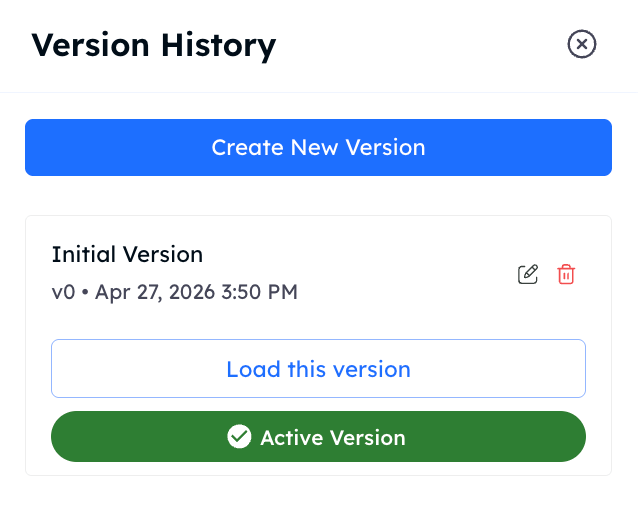
Navigate to your workflow in the dashboard and click the Versions panel or the version indicator at the top of the builder.
Version management panel
2
Create a Snapshot
Click New Version. You will be prompted to:
Give the version a meaningful name — e.g. "v1 — Initial Release" or "v2 — Add Callback Branch"
Optionally check Mark new version as active to immediately make this version live upon creation
Use descriptive version names that reflect what changed — this makes it easy to identify the right version when reviewing history or rolling back.
3
Edit the New Version
After creation, select the new version in the builder. All edits — adding nodes, changing edge conditions, updating prompts — apply only to this version until you activate it.
4
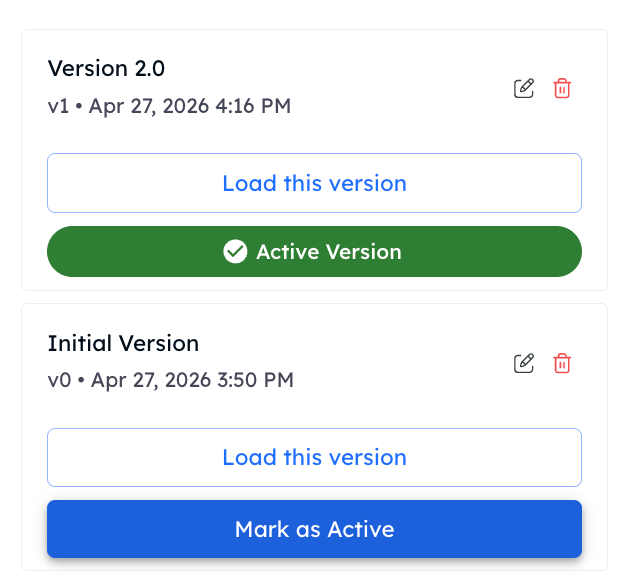
Mark as Active When Ready
Once you are satisfied with the new version, click Mark as Active. All subsequent executions will use this version. Running executions are not affected.
Navigate to the Versions panel on any workflow to see its full version history.For each version you can see:
Version number and name
Created date and author
Whether it is the currently active version
Comparing Two Versions
Select any two versions and click Compare to see a side-by-side diff of their configurations — nodes added or removed, edge conditions changed, prompt updates, and setting differences.This is useful before activating a new version to verify exactly what will change in live execution.
Editing a Specific Version
Select any version from the history list and open it in the builder. Changes are isolated to that version and do not affect other versions or the currently active one.
Editing an older version does not automatically make it active. You must explicitly activate it to route live traffic to it.
Workflow versions can be exported as a portable bundle and imported into the same or a different environment — useful for promoting workflows from a staging workspace to production, or for backing up configurations.
Export
Export one or more versions of a workflow as a bundle. You can choose to include specific version numbers or export all versions at once.
Import
Import a previously exported bundle to restore a workflow or bring it into a new environment. The imported workflow retains its version history from the bundle.
Imported workflows are created as new workflows in the target environment. They do not overwrite existing workflows with the same name.
Use version names that describe the change, not just a number. "v3 — Fix callback routing condition" is far more useful than "Version 3" when scanning history under pressure.
Test before activating
Use the Simulation feature to validate a new version interactively before activating it for live traffic.
Keep a known-good version
Avoid overwriting the last known-good version. Create a new snapshot for every meaningful change so you always have a rollback target.
Use export for environment promotion
Export a validated version from your staging workflow and import it to production rather than rebuilding manually. This eliminates configuration drift between environments.
Test a new version interactively before activating it for live traffic
Building a Workflow
Go back to the workflow builder guide
Scheduled Workflows
Set up scheduled and event-driven workflow triggers
Workflow Webhooks
Subscribe to lifecycle events including version activation
{"docsConfig":{"theme":"mint","$schema":"https://mintlify.com/docs.json","name":"Interactly API","colors":{"primary":"#1E6EFF","light":"#1E6EFF","dark":"#1E6EFF"},"logo":{"light":"https://mintcdn.com/interactly-qa/rQv06DcAu00ifyO5/logo/logo_light.svg?fit=max\u0026auto=format\u0026n=rQv06DcAu00ifyO5\u0026q=85\u0026s=eb6e3c5ae13dedc06c7f4af81bffb90d","dark":"https://mintcdn.com/interactly-qa/rQv06DcAu00ifyO5/logo/logo_dark.svg?fit=max\u0026auto=format\u0026n=rQv06DcAu00ifyO5\u0026q=85\u0026s=7df0871e3b8149b8337d8f907a078ed7"},"favicon":"https://mintcdn.com/interactly-qa/20698e0YpWVbNAWm/logo/favicon.png?fit=max\u0026auto=format\u0026n=20698e0YpWVbNAWm\u0026q=85\u0026s=d20934ecbb58c578651e1c26eb7e922a","api":{"playground":{"display":"interactive","proxy":false}},"appearance":{"default":"light"},"navbar":{"links":[{"href":"https://interactly.ai","label":"Website"}],"primary":{"type":"button","label":"Dashboard","href":"https://dashboard-qa.interactly.ai"}},"footer":{"socials":{}},"seo":{"indexing":"all"},"styling":{"latex":false},"navigation":{"pages":[]}},"deployment":{"deploymentMetadataValue":{"subdomain":"interactly-qa","hasAudioNarration":false,"actualSubdomain":"interactly-qa","customDomains":["docs-qa.interactly.ai"],"gitSource":{"type":"github","owner":"interactly","repo":"docs","deployBranch":"main","contentDirectory":"","isPrivate":false,"mountPath":"","label":""},"chroma":{"liveDeploymentHistoryId":"6a548c02370bcde85027ad75","collectionId":"0357f8f2-f8b1-4504-a8e2-46e87b2a8016","schemaVersion":"v3"},"entitlements":{},"buildId":"6a548c02370bcde85027ad75:success","clientVersion":"0.0.3939","searchFilterCounts":[{"language":"default","tag":"API Reference","count":256},{"language":"default","tag":"Workflows","count":140},{"language":"default","tag":"Integrations","count":61},{"language":"default","tag":"Campaigns","count":42},{"language":"default","tag":"APIs","count":38},{"language":"default","tag":"Documentation","count":33},{"language":"default","tag":"Tools","count":15},{"language":"default","tag":"Prompts","count":13},{"language":"default","tag":"Simulations","count":13},{"language":"default","tag":"Integrations Resource Records V2","count":12}]},"assistantConfig":{},"hasChatPermissions":false,"hasWebMcpPermissions":false,"toggles":[{"name":"kill-isr","enabled":true,"variant":{"name":"disabled","enabled":false,"feature_enabled":true},"impressionData":false},{"name":"agent-mintlify-slack","enabled":true,"variant":{"name":"disabled","enabled":false,"feature_enabled":true},"impressionData":false},{"name":"editor-v7-file-tree","enabled":true,"variant":{"name":"disabled","enabled":false,"feature_enabled":true},"impressionData":false},{"name":"agent-integrations-settings","enabled":true,"variant":{"name":"disabled","enabled":false,"feature_enabled":true},"impressionData":false},{"name":"automations-pr-grouping","enabled":true,"variant":{"name":"disabled","enabled":false,"feature_enabled":true},"impressionData":false},{"name":"custom-prefix","enabled":true,"variant":{"name":"disabled","enabled":false,"feature_enabled":true},"impressionData":false},{"name":"analytics-v7","enabled":true,"variant":{"name":"disabled","enabled":false,"feature_enabled":true},"impressionData":false},{"name":"user-flows-analytics","enabled":true,"variant":{"name":"disabled","enabled":false,"feature_enabled":true},"impressionData":false},{"name":"no-publish-flow","enabled":true,"variant":{"name":"disabled","enabled":false,"feature_enabled":true},"impressionData":false},{"name":"workos-onboarding","enabled":true,"variant":{"name":"disabled","enabled":false,"feature_enabled":true},"impressionData":false},{"name":"llms-txt-v2","enabled":true,"variant":{"name":"disabled","enabled":false,"feature_enabled":true},"impressionData":false},{"name":"pause-universal-search-reconcile","enabled":true,"variant":{"name":"disabled","enabled":false,"feature_enabled":true},"impressionData":false},{"name":"snapshot-serving-live","enabled":true,"variant":{"name":"disabled","enabled":false,"feature_enabled":true},"impressionData":false},{"name":"stripTemperatureMiddleware","enabled":true,"variant":{"name":"disabled","enabled":false,"feature_enabled":true},"impressionData":false},{"name":"per-site-search-delta","enabled":true,"variant":{"name":"disabled","enabled":false,"feature_enabled":true},"impressionData":false},{"name":"support-platform-pylon-zendesk","enabled":true,"variant":{"name":"disabled","enabled":false,"feature_enabled":true},"impressionData":false},{"name":"snapshot-serving","enabled":true,"variant":{"name":"disabled","enabled":false,"feature_enabled":true},"impressionData":false},{"name":"instant-rollback","enabled":true,"variant":{"name":"disabled","enabled":false,"feature_enabled":true},"impressionData":false},{"name":"granular-notifications-server","enabled":true,"variant":{"name":"disabled","enabled":false,"feature_enabled":true},"impressionData":false},{"name":"granular-notifications","enabled":true,"variant":{"name":"disabled","enabled":false,"feature_enabled":true},"impressionData":false},{"name":"editor-private-page-search","enabled":true,"variant":{"name":"disabled","enabled":false,"feature_enabled":true},"impressionData":false},{"name":"automations-fable","enabled":true,"variant":{"name":"disabled","enabled":false,"feature_enabled":true},"impressionData":false},{"name":"fixed-ai-action-pricing","enabled":true,"variant":{"name":"disabled","enabled":false,"feature_enabled":true},"impressionData":false},{"name":"automation-resolve-merge-conflict","enabled":true,"variant":{"name":"disabled","enabled":false,"feature_enabled":true},"impressionData":false},{"name":"scoped-publishing","enabled":true,"variant":{"name":"disabled","enabled":false,"feature_enabled":true},"impressionData":false},{"name":"mintql","enabled":true,"variant":{"name":"disabled","enabled":false,"feature_enabled":true},"impressionData":false},{"name":"page-level-analytics","enabled":true,"variant":{"name":"disabled","enabled":false,"feature_enabled":true},"impressionData":false},{"name":"editor-version-history-v2","enabled":true,"variant":{"name":"disabled","enabled":false,"feature_enabled":true},"impressionData":false},{"name":"editor-nav-generations","enabled":true,"variant":{"name":"disabled","enabled":false,"feature_enabled":true},"impressionData":false},{"name":"billing-page-v2","enabled":true,"variant":{"name":"disabled","enabled":false,"feature_enabled":true},"impressionData":false},{"name":"workspace-projects","enabled":true,"variant":{"name":"disabled","enabled":false,"feature_enabled":true},"impressionData":false},{"name":"assistant-v5","enabled":true,"variant":{"name":"disabled","enabled":false,"feature_enabled":true},"impressionData":false},{"name":"byok-sep-25","enabled":true,"variant":{"name":"disabled","enabled":false,"feature_enabled":true},"impressionData":false},{"name":"fork-pr-previews","enabled":true,"variant":{"name":"disabled","enabled":false,"feature_enabled":true},"impressionData":false},{"name":"revalidation-jwt","enabled":true,"variant":{"name":"disabled","enabled":false,"feature_enabled":true},"impressionData":false},{"name":"vite-origin","enabled":true,"variant":{"name":"disabled","enabled":false,"feature_enabled":true},"impressionData":false},{"name":"editor-agent-model-picker","enabled":true,"variant":{"name":"disabled","enabled":false,"feature_enabled":true},"impressionData":false},{"name":"billing-updated-9-15","enabled":true,"variant":{"name":"disabled","enabled":false,"feature_enabled":true},"impressionData":false},{"name":"hobby-abuse-scan","enabled":true,"variant":{"name":"disabled","enabled":false,"feature_enabled":true},"impressionData":false},{"name":"dashboard-inbox","enabled":true,"variant":{"name":"disabled","enabled":false,"feature_enabled":true},"impressionData":false}],"isAtlas":false,"googleFontsInlined":false},"customCss":[],"page":{"pagePath":"workflows/workflow-versioning","slug":"/workflows/workflow-versioning","pageMetadata":{"title":"Workflow Versioning","subtitle":"Track changes, manage versions, and publish updates safely without disrupting live executions","slug":"workflows/workflow-versioning","description":"Learn how Interactly's workflow versioning system works — creating versions, activating them for live use, comparing changes, importing and exporting, and rolling back when needed","href":"/workflows/workflow-versioning"},"description":{"compiledSource":"\"use strict\";\nconst {jsx: _jsx} = arguments[0];\nconst {useMDXComponents: _provideComponents} = arguments[0];\nfunction _createMdxContent(props) {\n const _components = {\n p: \"p\",\n ..._provideComponents(),\n ...props.components\n };\n return _jsx(_components.p, {\n children: \"Learn how Interactly’s workflow versioning system works — creating versions, activating them for live use, comparing changes, importing and exporting, and rolling back when needed\"\n });\n}\nfunction MDXContent(props = {}) {\n const {wrapper: MDXLayout} = {\n ..._provideComponents(),\n ...props.components\n };\n return MDXLayout ? _jsx(MDXLayout, {\n ...props,\n children: _jsx(_createMdxContent, {\n ...props\n })\n }) : _createMdxContent(props);\n}\nreturn {\n default: MDXContent\n};\n","frontmatter":{},"scope":{}},"pageType":"default","mdx":{"mdxSource":{"compiledSource":"\"use strict\";const{Fragment:_Fragment,jsx:_jsx,jsxs:_jsxs}=arguments[0];const{useMDXComponents:_provideComponents}=arguments[0];function _createMdxContent(props){const _components={a:`a`,code:`code`,li:`li`,p:`p`,strong:`strong`,ul:`ul`,..._provideComponents(),...props.components},{Accordion,AccordionGroup,Card,CardGroup,Frame,Heading,Info,Note,OptimizedImage,Step,Steps,Tip,Warning}=_components;if(!Accordion)_missingMdxReference(`Accordion`,true);if(!AccordionGroup)_missingMdxReference(`AccordionGroup`,true);if(!Card)_missingMdxReference(`Card`,true);if(!CardGroup)_missingMdxReference(`CardGroup`,true);if(!Frame)_missingMdxReference(`Frame`,true);if(!Heading)_missingMdxReference(`Heading`,true);if(!Info)_missingMdxReference(`Info`,true);if(!Note)_missingMdxReference(`Note`,true);if(!OptimizedImage)_missingMdxReference(`OptimizedImage`,true);if(!Step)_missingMdxReference(`Step`,true);if(!Steps)_missingMdxReference(`Steps`,true);if(!Tip)_missingMdxReference(`Tip`,true);if(!Warning)_missingMdxReference(`Warning`,true);return _jsxs(_Fragment,{children:[_jsx(Heading,{level:`1`,id:`about`,children:`About`}),`\n`,_jsx(_components.p,{children:`Every workflow in Interactly is version-controlled from the moment it is created. Version 0 is generated automatically on creation and serves as your working baseline. As your workflow evolves, you can snapshot the current state into a new named version, activate it for live execution, and roll back instantly if something goes wrong — all without disrupting runs already in progress.`}),`\n`,_jsx(Info,{children:_jsx(_components.p,{children:`In-flight workflow runs always complete on the version they started with. Activating a new version only affects executions that begin after the activation.`})}),`\n`,_jsx(Heading,{level:`2`,id:`how-versioning-works`,children:`How Versioning Works`}),`\n`,_jsxs(CardGroup,{cols:2,children:[_jsx(Card,{title:`Version 0 — Working Draft`,icon:`pencil`,children:_jsx(_components.p,{children:`Created automatically when you first create a workflow. This is your editable baseline. All changes made in the builder apply here until you snapshot a new version.`})}),_jsx(Card,{title:`Named Versions — Snapshots`,icon:`camera`,children:_jsx(_components.p,{children:`Each new version is an immutable snapshot of your workflow’s nodes, edges, and configuration at a point in time. Snapshots can be named, activated, compared, exported, and restored.`})}),_jsx(Card,{title:`Active Version — Live Execution`,icon:`play`,children:_jsx(_components.p,{children:`Only one version is active at a time. All workflow executions — triggered manually, via schedule, or via webhook — run on the active version by default unless a specific version is requested.`})}),_jsx(Card,{title:`Independent Editing`,icon:`code-branch`,children:_jsx(_components.p,{children:`Each version can be edited independently. You can refine a future version while the current active version continues serving live traffic.`})})]}),`\n`,_jsx(Heading,{level:`2`,id:`creating-a-new-version`,children:`Creating a New Version`}),`\n`,_jsxs(Steps,{children:[_jsxs(Step,{title:`Open Version Management`,children:[_jsxs(_components.p,{children:[`Navigate to your workflow in the dashboard and click the `,_jsx(_components.strong,{children:`Versions`}),` panel or the version indicator at the top of the builder.`]}),_jsx(Frame,{caption:`Version management panel`,children:_jsx(OptimizedImage,{src:`https://mintcdn.com/interactly-qa/K-nUMdF073QrWB3m/images/workflows/version-management.png?fit=max\u0026auto=format\u0026n=K-nUMdF073QrWB3m\u0026q=85\u0026s=ea3d71df4173046dd3b5c73ed18b3411`,\"data-og-width\":`638`,width:`638`,\"data-og-height\":`508`,height:`508`,\"data-path\":`images/workflows/version-management.png`,\"data-optimize\":`true`,\"data-opv\":`3`,srcset:`https://mintcdn.com/interactly-qa/K-nUMdF073QrWB3m/images/workflows/version-management.png?w=280\u0026fit=max\u0026auto=format\u0026n=K-nUMdF073QrWB3m\u0026q=85\u0026s=1d3debae39bebb6a7ed078f78cc9fd08 280w, https://mintcdn.com/interactly-qa/K-nUMdF073QrWB3m/images/workflows/version-management.png?w=560\u0026fit=max\u0026auto=format\u0026n=K-nUMdF073QrWB3m\u0026q=85\u0026s=3de896c892e6728cf423f9ce22887cb2 560w, https://mintcdn.com/interactly-qa/K-nUMdF073QrWB3m/images/workflows/version-management.png?w=840\u0026fit=max\u0026auto=format\u0026n=K-nUMdF073QrWB3m\u0026q=85\u0026s=76aa7350b73fce371abdc4cdd710eacf 840w, https://mintcdn.com/interactly-qa/K-nUMdF073QrWB3m/images/workflows/version-management.png?w=1100\u0026fit=max\u0026auto=format\u0026n=K-nUMdF073QrWB3m\u0026q=85\u0026s=3febacb1c3652518b1fc162cb6a0ab9b 1100w, https://mintcdn.com/interactly-qa/K-nUMdF073QrWB3m/images/workflows/version-management.png?w=1650\u0026fit=max\u0026auto=format\u0026n=K-nUMdF073QrWB3m\u0026q=85\u0026s=ad06e41af869c7562797295c96a0bf1f 1650w, https://mintcdn.com/interactly-qa/K-nUMdF073QrWB3m/images/workflows/version-management.png?w=2500\u0026fit=max\u0026auto=format\u0026n=K-nUMdF073QrWB3m\u0026q=85\u0026s=250b8997fab3fabafc080f316f19d51a 2500w`})})]}),_jsxs(Step,{title:`Create a Snapshot`,children:[_jsxs(_components.p,{children:[`Click `,_jsx(_components.strong,{children:`New Version`}),`. You will be prompted to:`]}),_jsxs(_components.ul,{children:[`\n`,_jsxs(_components.li,{children:[`Give the version a meaningful name — e.g. `,_jsx(_components.code,{children:`\"v1 — Initial Release\"`}),` or `,_jsx(_components.code,{children:`\"v2 — Add Callback Branch\"`})]}),`\n`,_jsxs(_components.li,{children:[`Optionally check `,_jsx(_components.strong,{children:`Mark new version as active`}),` to immediately make this version live upon creation`]}),`\n`]}),_jsx(Tip,{children:_jsx(_components.p,{children:`Use descriptive version names that reflect what changed — this makes it easy to identify the right version when reviewing history or rolling back.`})})]}),_jsx(Step,{title:`Edit the New Version`,children:_jsx(_components.p,{children:`After creation, select the new version in the builder. All edits — adding nodes, changing edge conditions, updating prompts — apply only to this version until you activate it.`})}),_jsxs(Step,{title:`Mark as Active When Ready`,children:[_jsxs(_components.p,{children:[`Once you are satisfied with the new version, click `,_jsx(_components.strong,{children:`Mark as Active`}),`. All subsequent executions will use this version. Running executions are not affected.`]}),_jsx(Frame,{caption:`Activating a version`,children:_jsx(OptimizedImage,{src:`https://mintcdn.com/interactly-qa/K-nUMdF073QrWB3m/images/workflows/activate-version.png?fit=max\u0026auto=format\u0026n=K-nUMdF073QrWB3m\u0026q=85\u0026s=d7021d141d40d9c3727561ea2e9a6cb5`,\"data-og-width\":`630`,width:`630`,\"data-og-height\":`588`,height:`588`,\"data-path\":`images/workflows/activate-version.png`,\"data-optimize\":`true`,\"data-opv\":`3`,srcset:`https://mintcdn.com/interactly-qa/K-nUMdF073QrWB3m/images/workflows/activate-version.png?w=280\u0026fit=max\u0026auto=format\u0026n=K-nUMdF073QrWB3m\u0026q=85\u0026s=90351ece7b2c258883153e67b1652eee 280w, https://mintcdn.com/interactly-qa/K-nUMdF073QrWB3m/images/workflows/activate-version.png?w=560\u0026fit=max\u0026auto=format\u0026n=K-nUMdF073QrWB3m\u0026q=85\u0026s=a1e0c3d89f0aef843a9c31e7bb68b5db 560w, https://mintcdn.com/interactly-qa/K-nUMdF073QrWB3m/images/workflows/activate-version.png?w=840\u0026fit=max\u0026auto=format\u0026n=K-nUMdF073QrWB3m\u0026q=85\u0026s=7a6c3c7cc883f02585ba1d1637e2cef8 840w, https://mintcdn.com/interactly-qa/K-nUMdF073QrWB3m/images/workflows/activate-version.png?w=1100\u0026fit=max\u0026auto=format\u0026n=K-nUMdF073QrWB3m\u0026q=85\u0026s=b1b44f1e7ad0074561f0a55e761b5094 1100w, https://mintcdn.com/interactly-qa/K-nUMdF073QrWB3m/images/workflows/activate-version.png?w=1650\u0026fit=max\u0026auto=format\u0026n=K-nUMdF073QrWB3m\u0026q=85\u0026s=541ae47f4245d27cd1f3108e4a56e30c 1650w, https://mintcdn.com/interactly-qa/K-nUMdF073QrWB3m/images/workflows/activate-version.png?w=2500\u0026fit=max\u0026auto=format\u0026n=K-nUMdF073QrWB3m\u0026q=85\u0026s=e03cd594f45f9320c4dfcedc3eaffb2f 2500w`})})]})]}),`\n`,_jsx(Heading,{level:`2`,id:`viewing-version-history`,children:`Viewing Version History`}),`\n`,_jsxs(_components.p,{children:[`Navigate to the `,_jsx(_components.strong,{children:`Versions`}),` panel on any workflow to see its full version history.`]}),`\n`,_jsx(_components.p,{children:`For each version you can see:`}),`\n`,_jsxs(_components.ul,{children:[`\n`,_jsx(_components.li,{children:`Version number and name`}),`\n`,_jsx(_components.li,{children:`Created date and author`}),`\n`,_jsx(_components.li,{children:`Whether it is the currently active version`}),`\n`]}),`\n`,_jsxs(AccordionGroup,{children:[_jsxs(Accordion,{title:`Comparing Two Versions`,icon:`arrows-left-right`,id:`comparing-two-versions`,children:[_jsxs(_components.p,{children:[`Select any two versions and click `,_jsx(_components.strong,{children:`Compare`}),` to see a side-by-side diff of their configurations — nodes added or removed, edge conditions changed, prompt updates, and setting differences.`]}),_jsx(_components.p,{children:`This is useful before activating a new version to verify exactly what will change in live execution.`})]}),_jsxs(Accordion,{title:`Editing a Specific Version`,icon:`pen`,id:`editing-a-specific-version`,children:[_jsx(_components.p,{children:`Select any version from the history list and open it in the builder. Changes are isolated to that version and do not affect other versions or the currently active one.`}),_jsx(Note,{children:_jsx(_components.p,{children:`Editing an older version does not automatically make it active. You must explicitly activate it to route live traffic to it.`})})]})]}),`\n`,_jsx(Heading,{level:`2`,id:`import-\u0026-export`,children:`Import \u0026 Export`}),`\n`,_jsx(_components.p,{children:`Workflow versions can be exported as a portable bundle and imported into the same or a different environment — useful for promoting workflows from a staging workspace to production, or for backing up configurations.`}),`\n`,_jsxs(CardGroup,{cols:2,children:[_jsx(Card,{title:`Export`,icon:`arrow-up-from-bracket`,children:_jsx(_components.p,{children:`Export one or more versions of a workflow as a bundle. You can choose to include specific version numbers or export all versions at once.`})}),_jsx(Card,{title:`Import`,icon:`arrow-down-to-bracket`,children:_jsx(_components.p,{children:`Import a previously exported bundle to restore a workflow or bring it into a new environment. The imported workflow retains its version history from the bundle.`})})]}),`\n`,_jsx(Warning,{children:_jsx(_components.p,{children:`Imported workflows are created as new workflows in the target environment. They do not overwrite existing workflows with the same name.`})}),`\n`,_jsx(Heading,{level:`2`,id:`rolling-back`,children:`Rolling Back`}),`\n`,_jsx(_components.p,{children:`If a newly activated version causes unexpected behaviour, rolling back is straightforward:`}),`\n`,_jsxs(Steps,{children:[_jsx(Step,{title:`Open Version History`,children:_jsxs(_components.p,{children:[`Go to the `,_jsx(_components.strong,{children:`Versions`}),` panel on the affected workflow.`]})}),_jsx(Step,{title:`Select the Previous Version`,children:_jsx(_components.p,{children:`Identify the version that was working correctly before the change.`})}),_jsx(Step,{title:`Mark as Active`,children:_jsxs(_components.p,{children:[`Click `,_jsx(_components.strong,{children:`Mark as Active`}),` on the previous version. Live traffic is immediately routed back to it.`]})})]}),`\n`,_jsx(Info,{children:_jsx(_components.p,{children:`Runs that started on the problematic version will continue to completion on that version. Only new executions are affected by the rollback.`})}),`\n`,_jsx(Heading,{level:`2`,id:`best-practices`,children:`Best Practices`}),`\n`,_jsxs(AccordionGroup,{children:[_jsx(Accordion,{title:`Name versions clearly`,icon:`tag`,id:`name-versions-clearly`,children:_jsxs(_components.p,{children:[`Use version names that describe the change, not just a number. `,_jsx(_components.code,{children:`\"v3 — Fix callback routing condition\"`}),` is far more useful than `,_jsx(_components.code,{children:`\"Version 3\"`}),` when scanning history under pressure.`]})}),_jsx(Accordion,{title:`Test before activating`,icon:`flask`,id:`test-before-activating`,children:_jsxs(_components.p,{children:[`Use the `,_jsx(_components.a,{href:`/workflows/workflow-simulation`,children:`Simulation`}),` feature to validate a new version interactively before activating it for live traffic.`]})}),_jsx(Accordion,{title:`Keep a known-good version`,icon:`shield-check`,id:`keep-a-known-good-version`,children:_jsx(_components.p,{children:`Avoid overwriting the last known-good version. Create a new snapshot for every meaningful change so you always have a rollback target.`})}),_jsx(Accordion,{title:`Use export for environment promotion`,icon:`arrow-up-from-bracket`,id:`use-export-for-environment-promotion`,children:_jsx(_components.p,{children:`Export a validated version from your staging workflow and import it to production rather than rebuilding manually. This eliminates configuration drift between environments.`})})]}),`\n`,_jsx(Heading,{level:`2`,id:`api-reference`,children:`API Reference`}),`\n`,_jsxs(CardGroup,{cols:2,children:[_jsx(Card,{title:`List Versions`,icon:`list`,href:`/api-reference/workflows/workflow-versions/list-workflow-versions`,children:_jsxs(_components.p,{children:[_jsx(_components.strong,{children:`GET /workflows/:id/versions`}),`\nRetrieve the full version history for a workflow`]})}),_jsx(Card,{title:`Create Version`,icon:`plus`,href:`/api-reference/workflows/workflow-versions/create-workflow-version`,children:_jsxs(_components.p,{children:[_jsx(_components.strong,{children:`POST /workflows/:id/versions`}),`\nSnapshot the current configuration as a new named version`]})}),_jsx(Card,{title:`Activate Version`,icon:`play`,href:`/api-reference/workflows/workflow-versions/activate-workflow-version`,children:_jsxs(_components.p,{children:[_jsx(_components.strong,{children:`POST /workflows/:id/versions/:version/activate`}),`\nSet a version as active for all subsequent executions`]})}),_jsx(Card,{title:`Compare Versions`,icon:`arrows-left-right`,href:`/api-reference/workflows/workflow-versions/diff-workflow-versions`,children:_jsxs(_components.p,{children:[_jsx(_components.strong,{children:`GET /workflows/:id/versions/:version/diff/:version2`}),`\nCompare two versions of a workflow side by side`]})}),_jsx(Card,{title:`Export Workflow`,icon:`arrow-up-from-bracket`,href:`/api-reference/workflows/workflows/export-workflow`,children:_jsxs(_components.p,{children:[_jsx(_components.strong,{children:`POST /workflows/:id/export`}),`\nExport one or more versions as a portable bundle`]})}),_jsx(Card,{title:`Import Workflow`,icon:`arrow-down-to-bracket`,href:`/api-reference/workflows/workflows/import-workflow-bundle`,children:_jsxs(_components.p,{children:[_jsx(_components.strong,{children:`POST /workflows/import/bundle`}),`\nImport a previously exported workflow bundle`]})})]}),`\n`,_jsx(Heading,{level:`2`,id:`next-steps`,children:`Next Steps`}),`\n`,_jsxs(CardGroup,{cols:2,children:[_jsx(Card,{title:`Simulation`,icon:`flask`,href:`/workflows/workflow-simulation`,children:_jsx(_components.p,{children:`Test a new version interactively before activating it for live traffic`})}),_jsx(Card,{title:`Building a Workflow`,icon:`hammer`,href:`/workflows/building-a-workflow`,children:_jsx(_components.p,{children:`Go back to the workflow builder guide`})}),_jsx(Card,{title:`Scheduled Workflows`,icon:`calendar-clock`,href:`/workflows/scheduled-and-triggered-workflows`,children:_jsx(_components.p,{children:`Set up scheduled and event-driven workflow triggers`})}),_jsx(Card,{title:`Workflow Webhooks`,icon:`webhook`,href:`/workflows/workflow-webhooks`,children:_jsx(_components.p,{children:`Subscribe to lifecycle events including version activation`})})]})]})}function MDXContent(props={}){const{wrapper:MDXLayout}={..._provideComponents(),...props.components};return MDXLayout?_jsx(MDXLayout,{...props,children:_jsx(_createMdxContent,{...props})}):_createMdxContent(props)}return{default:MDXContent};function _missingMdxReference(id,component){throw new Error(`Expected `+(component?`component`:`object`)+\" `\"+id+\"` to be defined: you likely forgot to import, pass, or provide it.\")}","frontmatter":{},"scope":{"config":{},"pageMetadata":{"title":"Workflow Versioning","subtitle":"Track changes, manage versions, and publish updates safely without disrupting live executions","slug":"workflows/workflow-versioning","description":"Learn how Interactly's workflow versioning system works — creating versions, activating them for live use, comparing changes, importing and exporting, and rolling back when needed","href":"/workflows/workflow-versioning"}}},"mdxSourceWithNoJs":null},"mdxExtracts":{"tableOfContents":[{"title":"About","slug":"about","depth":1,"children":[]},{"title":"How Versioning Works","slug":"how-versioning-works","depth":2,"children":[]},{"title":"Creating a New Version","slug":"creating-a-new-version","depth":2,"children":[]},{"title":"Viewing Version History","slug":"viewing-version-history","depth":2,"children":[]},{"title":"Import \u0026 Export","slug":"import-\u0026-export","depth":2,"children":[]},{"title":"Rolling Back","slug":"rolling-back","depth":2,"children":[]},{"title":"Best Practices","slug":"best-practices","depth":2,"children":[]},{"title":"API Reference","slug":"api-reference","depth":2,"children":[]},{"title":"Next Steps","slug":"next-steps","depth":2,"children":[]}],"codeExamples":{}},"jsLinks":[],"subdomain":"interactly-qa","siteName":"Interactly API","title":"Workflow Versioning - Interactly API","navMaps":{"firstHrefInVersion":{},"firstHrefInLanguage":{}},"lastModified":"2026-04-30T16:53:13.996Z","originalFileLocation":"workflows/workflow-versioning.mdx"},"headHtml":"\u003cscript data-mint-head>(function(){var d=document.documentElement,p=null;if(!p){try{p=localStorage.getItem(\"isDarkMode\")}catch(e){}if(p==='true')p='dark';else if(p==='false')p='light';if(p!=='light'\u0026\u0026p!=='dark'\u0026\u0026p!=='system')p=\"light\"}var r=p==='system'?(matchMedia(\"(prefers-color-scheme: dark)\").matches?'dark':'light'):p;d.classList.remove(r==='dark'?'light':'dark');d.classList.add(r);d.setAttribute(\"data-theme-preference\",p)})();\u003c/script>\u003cmeta data-mint-head name=\"description\" content=\"Learn how Interactly\u0026#x27;s workflow versioning system works — creating versions, activating them for live use, comparing changes, importing and exporting, and rolling back when needed\">\u003cmeta data-mint-head name=\"application-name\" content=\"Interactly API\">\u003cmeta data-mint-head name=\"generator\" content=\"Mintlify\">\u003clink data-mint-head rel=\"icon\" type=\"image/png\" sizes=\"192x192\" href=\"/mintlify-assets/_mintlify/favicons/interactly-qa/ztkxC4YjXG9OzWnh/_generated/favicon/android-chrome-192x192.png\" media=\"(prefers-color-scheme: light)\">\u003clink data-mint-head rel=\"apple-touch-icon\" type=\"image/png\" sizes=\"180x180\" href=\"/mintlify-assets/_mintlify/favicons/interactly-qa/ztkxC4YjXG9OzWnh/_generated/favicon/apple-touch-icon.png\">\u003clink data-mint-head rel=\"icon\" type=\"image/png\" sizes=\"16x16\" href=\"/mintlify-assets/_mintlify/favicons/interactly-qa/ztkxC4YjXG9OzWnh/_generated/favicon/favicon-16x16.png\" media=\"(prefers-color-scheme: light)\">\u003clink data-mint-head rel=\"icon\" type=\"image/png\" sizes=\"32x32\" href=\"/mintlify-assets/_mintlify/favicons/interactly-qa/ztkxC4YjXG9OzWnh/_generated/favicon/favicon-32x32.png\" media=\"(prefers-color-scheme: light)\">\u003clink data-mint-head rel=\"shortcut icon\" type=\"image/x-icon\" href=\"/mintlify-assets/_mintlify/favicons/interactly-qa/ztkxC4YjXG9OzWnh/_generated/favicon/favicon.ico\" media=\"(prefers-color-scheme: light)\">\u003clink data-mint-head rel=\"icon\" type=\"image/png\" sizes=\"192x192\" href=\"/mintlify-assets/_mintlify/favicons/interactly-qa/ztkxC4YjXG9OzWnh/_generated/favicon-dark/android-chrome-192x192.png\" media=\"(prefers-color-scheme: dark)\">\u003clink data-mint-head rel=\"icon\" type=\"image/png\" sizes=\"16x16\" href=\"/mintlify-assets/_mintlify/favicons/interactly-qa/ztkxC4YjXG9OzWnh/_generated/favicon-dark/favicon-16x16.png\" media=\"(prefers-color-scheme: dark)\">\u003clink data-mint-head rel=\"icon\" type=\"image/png\" sizes=\"32x32\" href=\"/mintlify-assets/_mintlify/favicons/interactly-qa/ztkxC4YjXG9OzWnh/_generated/favicon-dark/favicon-32x32.png\" media=\"(prefers-color-scheme: dark)\">\u003clink data-mint-head rel=\"shortcut icon\" type=\"image/x-icon\" href=\"/mintlify-assets/_mintlify/favicons/interactly-qa/ztkxC4YjXG9OzWnh/_generated/favicon-dark/favicon.ico\" media=\"(prefers-color-scheme: dark)\">\u003cmeta data-mint-head property=\"og:title\" content=\"Workflow Versioning - Interactly API\">\u003cmeta data-mint-head property=\"og:description\" content=\"Learn how Interactly\u0026#x27;s workflow versioning system works — creating versions, activating them for live use, comparing changes, importing and exporting, and rolling back when needed\">\u003cmeta data-mint-head property=\"og:site_name\" content=\"Interactly API\">\u003cmeta data-mint-head property=\"og:url\" content=\"https://docs-qa.interactly.ai/workflows/workflow-versioning\">\u003cmeta data-mint-head property=\"og:type\" content=\"website\">\u003cmeta data-mint-head property=\"og:image\" content=\"https://interactly-qa.mintlify.app/_mintlify/api/og/v2?division=Workflows\u0026amp;title=Workflow+Versioning\u0026amp;description=Learn+how+Interactly%27s+workflow+versioning+system+works+%E2%80%94+creating+versions%2C+activating+them+for+live+use%2C+comparing+changes%2C+importing+and+exporting%2C+and+rolli\u0026amp;theme=f91e2e5da38dddab758a5d35\u0026amp;signature=0af2f1262093d3b78e48c0e817b08e537ed8961b63b67fa0985f8d88754a8f48\">\u003cmeta data-mint-head property=\"og:image:width\" content=\"1200\">\u003cmeta data-mint-head property=\"og:image:height\" content=\"630\">\u003cmeta data-mint-head name=\"twitter:card\" content=\"summary_large_image\">\u003cmeta data-mint-head name=\"twitter:title\" content=\"Workflow Versioning - Interactly API\">\u003cmeta data-mint-head name=\"twitter:description\" content=\"Learn how Interactly\u0026#x27;s workflow versioning system works — creating versions, activating them for live use, comparing changes, importing and exporting, and rolling back when needed\">\u003cmeta data-mint-head name=\"twitter:image\" content=\"https://interactly-qa.mintlify.app/_mintlify/api/og/v2?division=Workflows\u0026amp;title=Workflow+Versioning\u0026amp;description=Learn+how+Interactly%27s+workflow+versioning+system+works+%E2%80%94+creating+versions%2C+activating+them+for+live+use%2C+comparing+changes%2C+importing+and+exporting%2C+and+rolli\u0026amp;theme=f91e2e5da38dddab758a5d35\u0026amp;signature=0af2f1262093d3b78e48c0e817b08e537ed8961b63b67fa0985f8d88754a8f48\">\u003cmeta data-mint-head name=\"twitter:image:width\" content=\"1200\">\u003cmeta data-mint-head name=\"twitter:image:height\" content=\"630\">\u003cmeta data-mint-head name=\"msapplication-config\" content=\"/mintlify-assets/_mintlify/favicons/interactly-qa/ztkxC4YjXG9OzWnh/_generated/favicon/browserconfig.xml\">\u003cmeta data-mint-head name=\"apple-mobile-web-app-title\" content=\"Interactly API\">\u003cmeta data-mint-head name=\"msapplication-TileColor\" content=\"#1E6EFF\">\u003clink data-mint-head rel=\"canonical\" href=\"https://docs-qa.interactly.ai/workflows/workflow-versioning\">\u003clink data-mint-head rel=\"alternate\" type=\"application/xml\" href=\"/sitemap.xml\">\u003clink data-mint-head rel=\"alternate\" type=\"text/markdown\" href=\"/workflows/workflow-versioning.md\">\u003cscript data-mint-head type=\"application/ld+json\">{\"@context\":\"https://schema.org\",\"@graph\":[{\"@type\":\"Organization\",\"@id\":\"https://docs-qa.interactly.ai/#organization\",\"name\":\"Interactly API\",\"url\":\"https://docs-qa.interactly.ai\",\"logo\":{\"@type\":\"ImageObject\",\"url\":\"https://mintcdn.com/interactly-qa/rQv06DcAu00ifyO5/logo/logo_light.svg?fit=max\u0026auto=format\u0026n=rQv06DcAu00ifyO5\u0026q=85\u0026s=eb6e3c5ae13dedc06c7f4af81bffb90d\"}},{\"@type\":\"WebSite\",\"@id\":\"https://docs-qa.interactly.ai#website\",\"name\":\"Interactly API\",\"url\":\"https://docs-qa.interactly.ai\",\"publisher\":{\"@id\":\"https://docs-qa.interactly.ai/#organization\"}},{\"@type\":\"WebPage\",\"@id\":\"https://docs-qa.interactly.ai/workflows/workflow-versioning#webpage\",\"url\":\"https://docs-qa.interactly.ai/workflows/workflow-versioning\",\"name\":\"Workflow Versioning\",\"description\":\"Learn how Interactly's workflow versioning system works — creating versions, activating them for live use, comparing changes, importing and exporting, and rolling back when needed\",\"dateModified\":\"2026-04-30T16:53:13.996Z\",\"isPartOf\":{\"@id\":\"https://docs-qa.interactly.ai#website\"},\"breadcrumb\":{\"@id\":\"https://docs-qa.interactly.ai/workflows/workflow-versioning#breadcrumb\"}},{\"@type\":\"BreadcrumbList\",\"@id\":\"https://docs-qa.interactly.ai/workflows/workflow-versioning#breadcrumb\",\"itemListElement\":[{\"@type\":\"ListItem\",\"position\":1,\"name\":\"Workflows\",\"item\":\"https://docs-qa.interactly.ai/workflows/introduction\"},{\"@type\":\"ListItem\",\"position\":2,\"name\":\"Workflow Versioning\",\"item\":\"https://docs-qa.interactly.ai/workflows/workflow-versioning\"}]},{\"@type\":[\"Article\",\"TechArticle\"],\"@id\":\"https://docs-qa.interactly.ai/workflows/workflow-versioning#article\",\"headline\":\"Workflow Versioning\",\"name\":\"Workflow Versioning\",\"description\":\"Learn how Interactly's workflow versioning system works — creating versions, activating them for live use, comparing changes, importing and exporting, and rolling back when needed\",\"url\":\"https://docs-qa.interactly.ai/workflows/workflow-versioning\",\"mainEntityOfPage\":{\"@id\":\"https://docs-qa.interactly.ai/workflows/workflow-versioning#webpage\"},\"dateModified\":\"2026-04-30T16:53:13.996Z\",\"publisher\":{\"@id\":\"https://docs-qa.interactly.ai/#organization\"},\"isPartOf\":{\"@id\":\"https://docs-qa.interactly.ai#website\"}}]}\u003c/script>\u003cscript data-mint-head type=\"application/ld+json\">{\"@context\":\"https://schema.org\",\"@type\":\"WebSite\",\"name\":\"Interactly API\",\"creator\":{\"@type\":\"Organization\",\"name\":\"Mintlify\",\"url\":\"https://mintlify.com\"}}\u003c/script>","siteName":"Interactly API","nav":{"global":null,"tabs":[{"tab":"Overview","pages":[{"title":"Overview","href":"/welcome","groups":[]}]},{"tab":"Documentation","groups":[{"group":"General","pages":[{"title":"Welcome","href":"/general/introduction"},{"title":"Support","href":"/general/support"}]},{"group":"Quickstart","pages":[{"title":"Dashboard","href":"/quickstart/dashboard"},{"title":null,"href":"/quickstart/client-SDK"}]},{"group":"Calls","pages":[{"title":"Live Call Control","href":"/calls/call-features"}]},{"group":"Campaigns","pages":[{"title":"Campaigns","href":"/campaigns/introduction"},{"title":"Single-Modal Campaign","href":"/campaigns/single-modal-campaign"},{"title":"Multi-Modal Campaign","href":"/campaigns/multi-modal-campaign"},{"title":"Retry Policy of Campaigns","href":"/campaigns/retry-policy-of-campaigns"},{"title":"DND \u0026 Callback","href":"/campaigns/dnd-and-callback"}]},{"group":"Workflows","pages":[{"title":"Workflows","href":"/workflows/introduction"},{"title":"Building a Workflow","href":"/workflows/building-a-workflow"},{"title":"Node Types","description":"Explore every node type available in Interactly workflows — LLM nodes, tool and HTTP nodes, communication nodes, and workflow control nodes — with configuration details and use cases","href":"/workflows/node-types"},{"title":"Workflow Versioning","href":"/workflows/workflow-versioning"},{"title":"Workflow Simulation","description":"Learn how to use Interactly's workflow simulation feature to run two workflows in parallel, compare their outputs, and evaluate performance before activating a version for live traffic","href":"/workflows/workflow-simulation"},{"title":"Tools \u0026 Integrations","href":"/workflows/tools-and-integrations"},{"title":"Scheduled \u0026 Triggered Workflows","href":"/workflows/scheduled-and-triggered-workflows"},{"title":"Workflow Webhooks","href":"/workflows/workflow-webhooks"}]},{"group":"Assistant Tools","pages":[{"title":"Assistant Tools","href":"/assistant-tools/introduction"},{"title":"Testing Tools","href":"/assistant-tools/testing-tools"}]},{"group":"Webhooks","pages":[{"title":"Webhook Events Overview","href":"/webhooks/events/introduction"},{"title":"Status Update Event","href":"/webhooks/events/status-update"},{"title":"Conversation Update Event","href":"/webhooks/events/conversation-update"},{"title":"End of Call Report Event","href":"/webhooks/events/end-of-call-report"},{"title":"Hang Event","href":"/webhooks/events/hang"},{"title":"Error Event","href":"/webhooks/events/error"},{"title":"Local Testing with ngrok","href":"/webhooks/events/testing/ngrok-setup"},{"title":"Live Events Dashboard","href":"/webhooks/events/testing/live-events-dashboard"}]},{"group":"Vendors","pages":[{"title":"Transcribers","href":"/vendors/transcribers"},{"title":"Voices","href":"/vendors/voices"},{"title":"Models","href":"/vendors/models"},{"title":"ElevenLabs TTS Configuration Guide","href":"/vendors/elevenlabs-TTS-recommended-configurations"}]},{"group":"Prompts","pages":[{"title":"Tags","href":"/prompts/tags"}]}]},{"tab":"API Reference","pages":[{"title":"API Reference","href":"/api-reference/api-keys"}]},{"tab":"Changelog","pages":[{"title":"Changelog","href":"/changelog/release-notes"}]}]},"title":"Workflow Versioning - Interactly API","buildId":"dpl_5UDDZ9hnigTkoV7QtvQ39eUp84nu","deploymentId":"dpl_5UDDZ9hnigTkoV7QtvQ39eUp84nu","dynamics":["07c022d89b","a74be98ba7"],"chunks":["Frame-CUTvSGqu.js","DynamicMarkdown-BGu84FgU.js","zoom-image-lightbox-ChyC7Hte.js","PlusIcon-DXkY3IBj.js","lightbox-handle-r17bVUz3.js"]}