Learn how to use Interactly’s workflow simulation feature to run two workflows in parallel, compare their outputs, and evaluate performance before activating a version for live traffic
Simulation lets you compare two workflow configurations — a selected workflow and a counter workflow — by running them in parallel across multiple automated iterations. Each simulation batch produces individual run results for both workflows, which are then evaluated and scored so you can objectively measure the impact of changes before activating a new version for live traffic.
Simulation is designed for comparing workflow versions or configurations head-to-head. Each simulation run executes both workflows independently and captures their outputs for side-by-side evaluation.
Each simulation run executes two workflows simultaneously — the selected workflow (your candidate) and the counter workflow (your baseline). Both receive the same inputs.
Multiple Iterations
You configure how many simulation iterations to run. The platform spawns that many parallel run pairs, giving you a statistically meaningful sample of results.
Automated Evaluation
Each individual run can be evaluated automatically using a configured evaluation workflow, which scores the output against defined criteria and contributes to the overall simulation summary.
Comparison Summary
After all iterations complete, the simulation produces a summary — total runs, success and failure counts, average scores, and score distribution — for both the selected and counter workflows side by side.
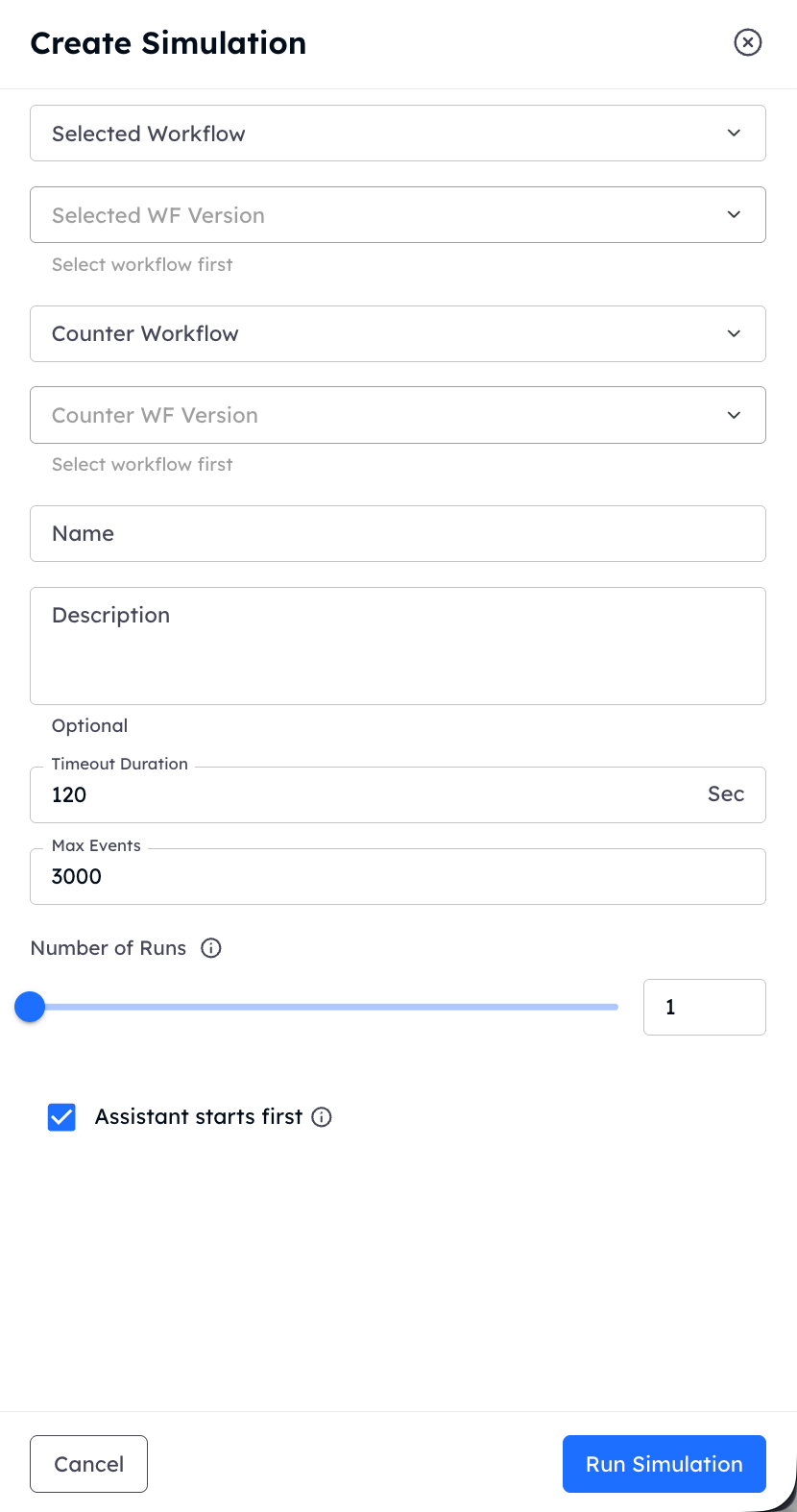
Navigate to your workflow in the dashboard and click the Simulations tab. Click Create Simulation to begin.
Simulation configuration
2
Select the Two Workflows
Choose the selected workflow (the version or configuration you want to test) and the counter workflow (the baseline you are comparing against). These can be different versions of the same workflow or two entirely different workflows.
3
Configure the Number of Runs
Set how many simulation iterations to execute. Each iteration creates one run pair — one run for the selected workflow and one for the counter. More iterations give you more reliable comparison data.
4
Run the Simulation
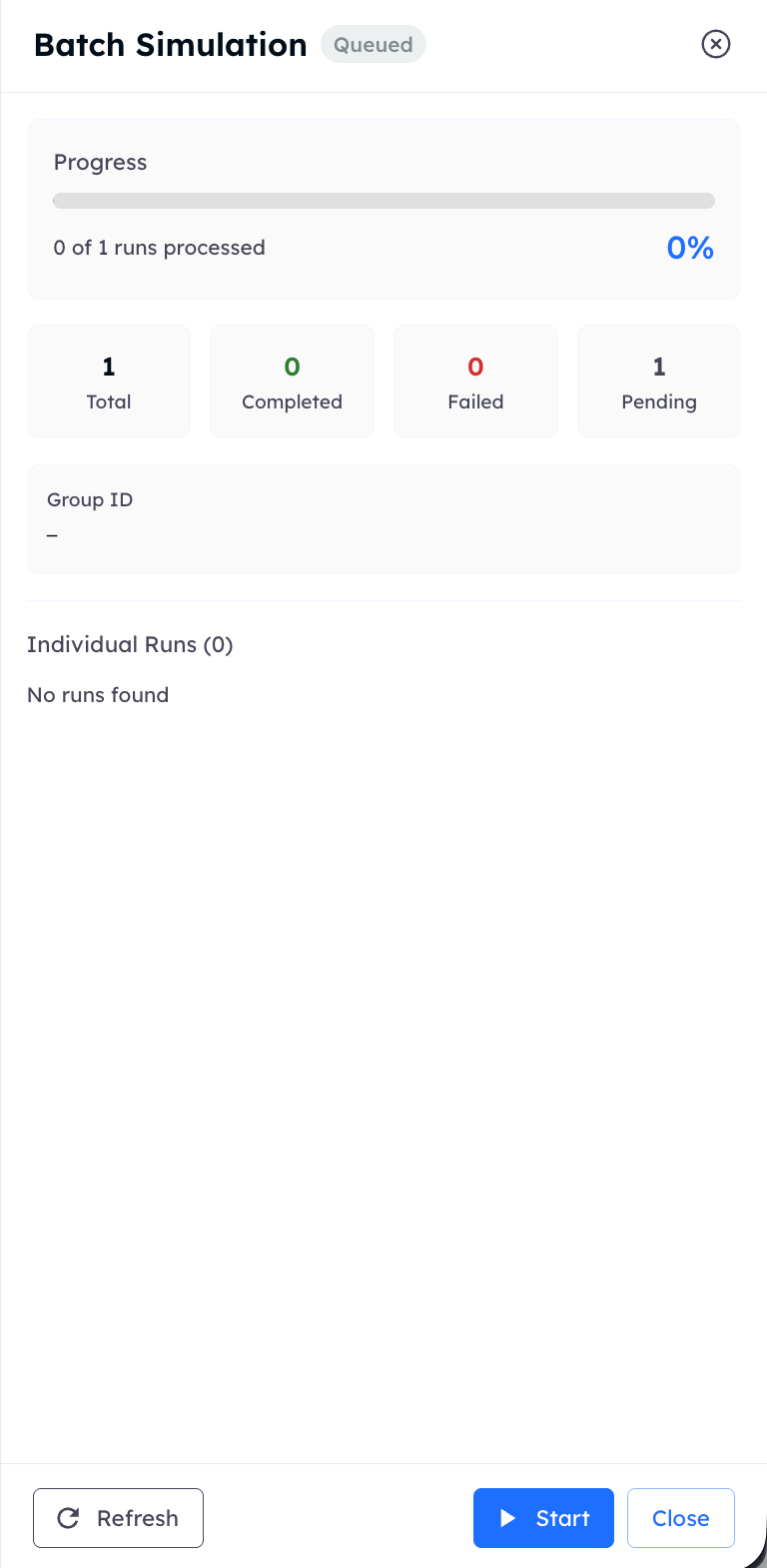
Click Run Simulation. The platform creates a simulation batch and begins spawning run pairs in the background.
Once a simulation batch completes, navigate to the batch to view its results.
Evaluation Summary
The summary compares both workflows across all iterations:
Total runs — number of iterations executed
Success / Failure counts — how many runs completed vs. failed for each workflow
Average evaluation score — mean score across all evaluated runs
Score distribution — breakdown of scores across defined ranges
Individual Run Details
Drill into any individual iteration to see the full run details for both the selected and counter workflow — every node that fired, the outputs produced, variables collected, and the evaluation result for that specific run.
Comparing Batches
You can run multiple simulation batches against the same simulation configuration. Compare batch summaries over time to track how your workflows evolve across iterations of improvement.
The counter workflow is your baseline. Keep it pinned to a known-good version so that differences in evaluation scores are attributable to your selected workflow changes, not baseline drift.
Run enough iterations
A small number of runs may not produce reliable comparison data. Run at least enough iterations to cover the expected variability in inputs and LLM outputs.
Review failures before activating
If the selected workflow has a higher failure rate than the counter workflow, investigate the individual failed runs before activating it for live traffic.
Create and activate versions once simulation confirms your changes perform better
Building a Workflow
Go back to the workflow builder to refine nodes and edges
Node Types
Reference for all node types to help diagnose simulation run failures
Workflow Webhooks
Subscribe to run completion events for automated post-simulation reporting
{"docsConfig":{"theme":"mint","$schema":"https://mintlify.com/docs.json","name":"Interactly API","colors":{"primary":"#1E6EFF","light":"#1E6EFF","dark":"#1E6EFF"},"logo":{"light":"https://mintcdn.com/interactly-qa/rQv06DcAu00ifyO5/logo/logo_light.svg?fit=max\u0026auto=format\u0026n=rQv06DcAu00ifyO5\u0026q=85\u0026s=eb6e3c5ae13dedc06c7f4af81bffb90d","dark":"https://mintcdn.com/interactly-qa/rQv06DcAu00ifyO5/logo/logo_dark.svg?fit=max\u0026auto=format\u0026n=rQv06DcAu00ifyO5\u0026q=85\u0026s=7df0871e3b8149b8337d8f907a078ed7"},"favicon":"https://mintcdn.com/interactly-qa/20698e0YpWVbNAWm/logo/favicon.png?fit=max\u0026auto=format\u0026n=20698e0YpWVbNAWm\u0026q=85\u0026s=d20934ecbb58c578651e1c26eb7e922a","api":{"playground":{"display":"interactive","proxy":false}},"appearance":{"default":"light"},"navbar":{"links":[{"href":"https://interactly.ai","label":"Website"}],"primary":{"type":"button","label":"Dashboard","href":"https://dashboard-qa.interactly.ai"}},"footer":{"socials":{}},"seo":{"indexing":"all"},"styling":{"latex":false},"navigation":{"pages":[]}},"deployment":{"deploymentMetadataValue":{"subdomain":"interactly-qa","hasAudioNarration":false,"actualSubdomain":"interactly-qa","customDomains":["docs-qa.interactly.ai"],"gitSource":{"type":"github","owner":"interactly","repo":"docs","deployBranch":"main","contentDirectory":"","isPrivate":false,"mountPath":"","label":""},"chroma":{"liveDeploymentHistoryId":"6a548c02370bcde85027ad75","collectionId":"0357f8f2-f8b1-4504-a8e2-46e87b2a8016","schemaVersion":"v3"},"entitlements":{},"buildId":"6a548c02370bcde85027ad75:success","clientVersion":"0.0.3939","searchFilterCounts":[{"language":"default","tag":"API Reference","count":256},{"language":"default","tag":"Workflows","count":140},{"language":"default","tag":"Integrations","count":61},{"language":"default","tag":"Campaigns","count":42},{"language":"default","tag":"APIs","count":38},{"language":"default","tag":"Documentation","count":33},{"language":"default","tag":"Tools","count":15},{"language":"default","tag":"Prompts","count":13},{"language":"default","tag":"Simulations","count":13},{"language":"default","tag":"Integrations Resource Records V2","count":12}]},"assistantConfig":{},"hasChatPermissions":false,"hasWebMcpPermissions":false,"toggles":[{"name":"kill-isr","enabled":true,"variant":{"name":"disabled","enabled":false,"feature_enabled":true},"impressionData":false},{"name":"agent-mintlify-slack","enabled":true,"variant":{"name":"disabled","enabled":false,"feature_enabled":true},"impressionData":false},{"name":"editor-v7-file-tree","enabled":true,"variant":{"name":"disabled","enabled":false,"feature_enabled":true},"impressionData":false},{"name":"agent-integrations-settings","enabled":true,"variant":{"name":"disabled","enabled":false,"feature_enabled":true},"impressionData":false},{"name":"automations-pr-grouping","enabled":true,"variant":{"name":"disabled","enabled":false,"feature_enabled":true},"impressionData":false},{"name":"custom-prefix","enabled":true,"variant":{"name":"disabled","enabled":false,"feature_enabled":true},"impressionData":false},{"name":"analytics-v7","enabled":true,"variant":{"name":"disabled","enabled":false,"feature_enabled":true},"impressionData":false},{"name":"user-flows-analytics","enabled":true,"variant":{"name":"disabled","enabled":false,"feature_enabled":true},"impressionData":false},{"name":"no-publish-flow","enabled":true,"variant":{"name":"disabled","enabled":false,"feature_enabled":true},"impressionData":false},{"name":"workos-onboarding","enabled":true,"variant":{"name":"disabled","enabled":false,"feature_enabled":true},"impressionData":false},{"name":"llms-txt-v2","enabled":true,"variant":{"name":"disabled","enabled":false,"feature_enabled":true},"impressionData":false},{"name":"pause-universal-search-reconcile","enabled":true,"variant":{"name":"disabled","enabled":false,"feature_enabled":true},"impressionData":false},{"name":"snapshot-serving-live","enabled":true,"variant":{"name":"disabled","enabled":false,"feature_enabled":true},"impressionData":false},{"name":"stripTemperatureMiddleware","enabled":true,"variant":{"name":"disabled","enabled":false,"feature_enabled":true},"impressionData":false},{"name":"per-site-search-delta","enabled":true,"variant":{"name":"disabled","enabled":false,"feature_enabled":true},"impressionData":false},{"name":"support-platform-pylon-zendesk","enabled":true,"variant":{"name":"disabled","enabled":false,"feature_enabled":true},"impressionData":false},{"name":"snapshot-serving","enabled":true,"variant":{"name":"disabled","enabled":false,"feature_enabled":true},"impressionData":false},{"name":"instant-rollback","enabled":true,"variant":{"name":"disabled","enabled":false,"feature_enabled":true},"impressionData":false},{"name":"granular-notifications-server","enabled":true,"variant":{"name":"disabled","enabled":false,"feature_enabled":true},"impressionData":false},{"name":"granular-notifications","enabled":true,"variant":{"name":"disabled","enabled":false,"feature_enabled":true},"impressionData":false},{"name":"editor-private-page-search","enabled":true,"variant":{"name":"disabled","enabled":false,"feature_enabled":true},"impressionData":false},{"name":"automations-fable","enabled":true,"variant":{"name":"disabled","enabled":false,"feature_enabled":true},"impressionData":false},{"name":"fixed-ai-action-pricing","enabled":true,"variant":{"name":"disabled","enabled":false,"feature_enabled":true},"impressionData":false},{"name":"automation-resolve-merge-conflict","enabled":true,"variant":{"name":"disabled","enabled":false,"feature_enabled":true},"impressionData":false},{"name":"scoped-publishing","enabled":true,"variant":{"name":"disabled","enabled":false,"feature_enabled":true},"impressionData":false},{"name":"mintql","enabled":true,"variant":{"name":"disabled","enabled":false,"feature_enabled":true},"impressionData":false},{"name":"page-level-analytics","enabled":true,"variant":{"name":"disabled","enabled":false,"feature_enabled":true},"impressionData":false},{"name":"editor-version-history-v2","enabled":true,"variant":{"name":"disabled","enabled":false,"feature_enabled":true},"impressionData":false},{"name":"editor-nav-generations","enabled":true,"variant":{"name":"disabled","enabled":false,"feature_enabled":true},"impressionData":false},{"name":"billing-page-v2","enabled":true,"variant":{"name":"disabled","enabled":false,"feature_enabled":true},"impressionData":false},{"name":"workspace-projects","enabled":true,"variant":{"name":"disabled","enabled":false,"feature_enabled":true},"impressionData":false},{"name":"assistant-v5","enabled":true,"variant":{"name":"disabled","enabled":false,"feature_enabled":true},"impressionData":false},{"name":"byok-sep-25","enabled":true,"variant":{"name":"disabled","enabled":false,"feature_enabled":true},"impressionData":false},{"name":"fork-pr-previews","enabled":true,"variant":{"name":"disabled","enabled":false,"feature_enabled":true},"impressionData":false},{"name":"revalidation-jwt","enabled":true,"variant":{"name":"disabled","enabled":false,"feature_enabled":true},"impressionData":false},{"name":"vite-origin","enabled":true,"variant":{"name":"disabled","enabled":false,"feature_enabled":true},"impressionData":false},{"name":"editor-agent-model-picker","enabled":true,"variant":{"name":"disabled","enabled":false,"feature_enabled":true},"impressionData":false},{"name":"billing-updated-9-15","enabled":true,"variant":{"name":"disabled","enabled":false,"feature_enabled":true},"impressionData":false},{"name":"hobby-abuse-scan","enabled":true,"variant":{"name":"disabled","enabled":false,"feature_enabled":true},"impressionData":false},{"name":"dashboard-inbox","enabled":true,"variant":{"name":"disabled","enabled":false,"feature_enabled":true},"impressionData":false}],"isAtlas":false,"googleFontsInlined":false},"customCss":[],"page":{"pagePath":"workflows/workflow-simulation","slug":"/workflows/workflow-simulation","pageMetadata":{"title":"Workflow Simulation","subtitle":"Compare and evaluate two workflows side by side across multiple automated runs","slug":"workflows/workflow-simulation","description":"Learn how to use Interactly's workflow simulation feature to run two workflows in parallel, compare their outputs, and evaluate performance before activating a version for live traffic","href":"/workflows/workflow-simulation"},"description":{"compiledSource":"\"use strict\";\nconst {jsx: _jsx} = arguments[0];\nconst {useMDXComponents: _provideComponents} = arguments[0];\nfunction _createMdxContent(props) {\n const _components = {\n p: \"p\",\n ..._provideComponents(),\n ...props.components\n };\n return _jsx(_components.p, {\n children: \"Learn how to use Interactly’s workflow simulation feature to run two workflows in parallel, compare their outputs, and evaluate performance before activating a version for live traffic\"\n });\n}\nfunction MDXContent(props = {}) {\n const {wrapper: MDXLayout} = {\n ..._provideComponents(),\n ...props.components\n };\n return MDXLayout ? _jsx(MDXLayout, {\n ...props,\n children: _jsx(_createMdxContent, {\n ...props\n })\n }) : _createMdxContent(props);\n}\nreturn {\n default: MDXContent\n};\n","frontmatter":{},"scope":{}},"pageType":"default","mdx":{"mdxSource":{"compiledSource":"\"use strict\";const{Fragment:_Fragment,jsx:_jsx,jsxs:_jsxs}=arguments[0];const{useMDXComponents:_provideComponents}=arguments[0];function _createMdxContent(props){const _components={li:`li`,p:`p`,strong:`strong`,ul:`ul`,..._provideComponents(),...props.components},{Accordion,AccordionGroup,Card,CardGroup,Frame,Heading,Info,OptimizedImage,Step,Steps}=_components;if(!Accordion)_missingMdxReference(`Accordion`,true);if(!AccordionGroup)_missingMdxReference(`AccordionGroup`,true);if(!Card)_missingMdxReference(`Card`,true);if(!CardGroup)_missingMdxReference(`CardGroup`,true);if(!Frame)_missingMdxReference(`Frame`,true);if(!Heading)_missingMdxReference(`Heading`,true);if(!Info)_missingMdxReference(`Info`,true);if(!OptimizedImage)_missingMdxReference(`OptimizedImage`,true);if(!Step)_missingMdxReference(`Step`,true);if(!Steps)_missingMdxReference(`Steps`,true);return _jsxs(_Fragment,{children:[_jsx(Heading,{level:`1`,id:`about`,children:`About`}),`\n`,_jsx(_components.p,{children:`Simulation lets you compare two workflow configurations — a selected workflow and a counter workflow — by running them in parallel across multiple automated iterations. Each simulation batch produces individual run results for both workflows, which are then evaluated and scored so you can objectively measure the impact of changes before activating a new version for live traffic.`}),`\n`,_jsx(Info,{children:_jsx(_components.p,{children:`Simulation is designed for comparing workflow versions or configurations head-to-head. Each simulation run executes both workflows independently and captures their outputs for side-by-side evaluation.`})}),`\n`,_jsx(Heading,{level:`2`,id:`how-simulation-works`,children:`How Simulation Works`}),`\n`,_jsxs(CardGroup,{cols:2,children:[_jsx(Card,{title:`Two Workflows in Parallel`,icon:`arrows-left-right`,children:_jsxs(_components.p,{children:[`Each simulation run executes two workflows simultaneously — the `,_jsx(_components.strong,{children:`selected workflow`}),` (your candidate) and the `,_jsx(_components.strong,{children:`counter workflow`}),` (your baseline). Both receive the same inputs.`]})}),_jsx(Card,{title:`Multiple Iterations`,icon:`repeat`,children:_jsx(_components.p,{children:`You configure how many simulation iterations to run. The platform spawns that many parallel run pairs, giving you a statistically meaningful sample of results.`})}),_jsx(Card,{title:`Automated Evaluation`,icon:`chart-bar`,children:_jsx(_components.p,{children:`Each individual run can be evaluated automatically using a configured evaluation workflow, which scores the output against defined criteria and contributes to the overall simulation summary.`})}),_jsx(Card,{title:`Comparison Summary`,icon:`table`,children:_jsx(_components.p,{children:`After all iterations complete, the simulation produces a summary — total runs, success and failure counts, average scores, and score distribution — for both the selected and counter workflows side by side.`})})]}),`\n`,_jsx(Heading,{level:`2`,id:`setting-up-a-simulation`,children:`Setting Up a Simulation`}),`\n`,_jsxs(Steps,{children:[_jsxs(Step,{title:`Open the Simulations Panel`,children:[_jsxs(_components.p,{children:[`Navigate to your workflow in the dashboard and click the `,_jsx(_components.strong,{children:`Simulations`}),` tab. Click `,_jsx(_components.strong,{children:`Create Simulation`}),` to begin.`]}),_jsx(Frame,{caption:`Simulation configuration`,children:_jsx(OptimizedImage,{src:`https://mintcdn.com/interactly-qa/K-nUMdF073QrWB3m/images/workflows/simulation-open.png?fit=max\u0026auto=format\u0026n=K-nUMdF073QrWB3m\u0026q=85\u0026s=b7a07d26e1b2b79293451ab864cbdaee`,\"data-og-width\":`830`,width:`830`,\"data-og-height\":`1574`,height:`1574`,\"data-path\":`images/workflows/simulation-open.png`,\"data-optimize\":`true`,\"data-opv\":`3`,srcset:`https://mintcdn.com/interactly-qa/K-nUMdF073QrWB3m/images/workflows/simulation-open.png?w=280\u0026fit=max\u0026auto=format\u0026n=K-nUMdF073QrWB3m\u0026q=85\u0026s=b6c755f5a654ac98876964c4f87d9aea 280w, https://mintcdn.com/interactly-qa/K-nUMdF073QrWB3m/images/workflows/simulation-open.png?w=560\u0026fit=max\u0026auto=format\u0026n=K-nUMdF073QrWB3m\u0026q=85\u0026s=8db9438acfa8f173577685f83922ca49 560w, https://mintcdn.com/interactly-qa/K-nUMdF073QrWB3m/images/workflows/simulation-open.png?w=840\u0026fit=max\u0026auto=format\u0026n=K-nUMdF073QrWB3m\u0026q=85\u0026s=796dd34d3de18195072afe172fcf5fee 840w, https://mintcdn.com/interactly-qa/K-nUMdF073QrWB3m/images/workflows/simulation-open.png?w=1100\u0026fit=max\u0026auto=format\u0026n=K-nUMdF073QrWB3m\u0026q=85\u0026s=e008c92501b64cfc8ae6b484b4b50aab 1100w, https://mintcdn.com/interactly-qa/K-nUMdF073QrWB3m/images/workflows/simulation-open.png?w=1650\u0026fit=max\u0026auto=format\u0026n=K-nUMdF073QrWB3m\u0026q=85\u0026s=b6affe6ff5661b7a567d17fb2e22395f 1650w, https://mintcdn.com/interactly-qa/K-nUMdF073QrWB3m/images/workflows/simulation-open.png?w=2500\u0026fit=max\u0026auto=format\u0026n=K-nUMdF073QrWB3m\u0026q=85\u0026s=6ecfff7a8620ac293a3c7186a89e34f3 2500w`})})]}),_jsx(Step,{title:`Select the Two Workflows`,children:_jsxs(_components.p,{children:[`Choose the `,_jsx(_components.strong,{children:`selected workflow`}),` (the version or configuration you want to test) and the `,_jsx(_components.strong,{children:`counter workflow`}),` (the baseline you are comparing against). These can be different versions of the same workflow or two entirely different workflows.`]})}),_jsx(Step,{title:`Configure the Number of Runs`,children:_jsx(_components.p,{children:`Set how many simulation iterations to execute. Each iteration creates one run pair — one run for the selected workflow and one for the counter. More iterations give you more reliable comparison data.`})}),_jsxs(Step,{title:`Run the Simulation`,children:[_jsxs(_components.p,{children:[`Click `,_jsx(_components.strong,{children:`Run Simulation`}),`. The platform creates a simulation batch and begins spawning run pairs in the background.`]}),_jsx(Frame,{caption:`Active simulation batch`,children:_jsx(OptimizedImage,{src:`https://mintcdn.com/interactly-qa/K-nUMdF073QrWB3m/images/workflows/simulation-active.png?fit=max\u0026auto=format\u0026n=K-nUMdF073QrWB3m\u0026q=85\u0026s=19468f82a30993443327a39cfb60273a`,\"data-og-width\":`768`,width:`768`,\"data-og-height\":`1570`,height:`1570`,\"data-path\":`images/workflows/simulation-active.png`,\"data-optimize\":`true`,\"data-opv\":`3`,srcset:`https://mintcdn.com/interactly-qa/K-nUMdF073QrWB3m/images/workflows/simulation-active.png?w=280\u0026fit=max\u0026auto=format\u0026n=K-nUMdF073QrWB3m\u0026q=85\u0026s=3ee6d3624a99481aea472fa12f60539a 280w, https://mintcdn.com/interactly-qa/K-nUMdF073QrWB3m/images/workflows/simulation-active.png?w=560\u0026fit=max\u0026auto=format\u0026n=K-nUMdF073QrWB3m\u0026q=85\u0026s=5f0d5cebec68e5cbbb7e1cc522528b38 560w, https://mintcdn.com/interactly-qa/K-nUMdF073QrWB3m/images/workflows/simulation-active.png?w=840\u0026fit=max\u0026auto=format\u0026n=K-nUMdF073QrWB3m\u0026q=85\u0026s=90e0bd33b674d172b949472adff24b5c 840w, https://mintcdn.com/interactly-qa/K-nUMdF073QrWB3m/images/workflows/simulation-active.png?w=1100\u0026fit=max\u0026auto=format\u0026n=K-nUMdF073QrWB3m\u0026q=85\u0026s=0fd567fbece28ecb0ccca2e9f982e2f5 1100w, https://mintcdn.com/interactly-qa/K-nUMdF073QrWB3m/images/workflows/simulation-active.png?w=1650\u0026fit=max\u0026auto=format\u0026n=K-nUMdF073QrWB3m\u0026q=85\u0026s=abdfaa863053867f07b1e525cfe65d31 1650w, https://mintcdn.com/interactly-qa/K-nUMdF073QrWB3m/images/workflows/simulation-active.png?w=2500\u0026fit=max\u0026auto=format\u0026n=K-nUMdF073QrWB3m\u0026q=85\u0026s=06b14bb4941237d11c446a7315441feb 2500w`})})]})]}),`\n`,_jsx(Heading,{level:`2`,id:`simulation-run-states`,children:`Simulation Run States`}),`\n`,_jsx(Heading,{level:`3`,id:`batch-status`,children:`Batch Status`}),`\n`,_jsxs(AccordionGroup,{children:[_jsx(Accordion,{title:`Pending`,icon:`clock`,id:`pending`,children:_jsx(_components.p,{children:`The simulation batch has been created and the platform is beginning to spawn individual run pairs.`})}),_jsx(Accordion,{title:`In Progress`,icon:`spinner`,id:`in-progress`,children:_jsx(_components.p,{children:`Run pairs are actively executing. You can monitor progress as individual runs complete.`})}),_jsx(Accordion,{title:`Completed`,icon:`circle-check`,id:`completed`,children:_jsx(_components.p,{children:`All configured iterations have finished. The evaluation summary is available for review.`})}),_jsx(Accordion,{title:`Cancelled`,icon:`ban`,id:`cancelled`,children:_jsx(_components.p,{children:`The simulation batch was stopped before all iterations completed. Runs already in progress finish, but no new pairs are spawned.`})}),_jsx(Accordion,{title:`Failed`,icon:`circle-xmark`,id:`failed`,children:_jsx(_components.p,{children:`An error prevented the batch from completing. Check individual run details for diagnostics.`})})]}),`\n`,_jsx(Heading,{level:`2`,id:`reviewing-simulation-results`,children:`Reviewing Simulation Results`}),`\n`,_jsx(_components.p,{children:`Once a simulation batch completes, navigate to the batch to view its results.`}),`\n`,_jsxs(AccordionGroup,{children:[_jsxs(Accordion,{title:`Evaluation Summary`,icon:`chart-bar`,id:`evaluation-summary`,children:[_jsx(_components.p,{children:`The summary compares both workflows across all iterations:`}),_jsxs(_components.ul,{children:[`\n`,_jsxs(_components.li,{children:[_jsx(_components.strong,{children:`Total runs`}),` — number of iterations executed`]}),`\n`,_jsxs(_components.li,{children:[_jsx(_components.strong,{children:`Success / Failure counts`}),` — how many runs completed vs. failed for each workflow`]}),`\n`,_jsxs(_components.li,{children:[_jsx(_components.strong,{children:`Average evaluation score`}),` — mean score across all evaluated runs`]}),`\n`,_jsxs(_components.li,{children:[_jsx(_components.strong,{children:`Score distribution`}),` — breakdown of scores across defined ranges`]}),`\n`]})]}),_jsx(Accordion,{title:`Individual Run Details`,icon:`list`,id:`individual-run-details`,children:_jsx(_components.p,{children:`Drill into any individual iteration to see the full run details for both the selected and counter workflow — every node that fired, the outputs produced, variables collected, and the evaluation result for that specific run.`})}),_jsx(Accordion,{title:`Comparing Batches`,icon:`arrows-left-right`,id:`comparing-batches`,children:_jsx(_components.p,{children:`You can run multiple simulation batches against the same simulation configuration. Compare batch summaries over time to track how your workflows evolve across iterations of improvement.`})})]}),`\n`,_jsx(Heading,{level:`2`,id:`stopping-a-simulation`,children:`Stopping a Simulation`}),`\n`,_jsx(_components.p,{children:`If you need to stop a simulation batch before it completes:`}),`\n`,_jsxs(_components.ul,{children:[`\n`,_jsxs(_components.li,{children:[`Click `,_jsx(_components.strong,{children:`Stop`}),` on the running batch`]}),`\n`,_jsxs(_components.li,{children:[`The batch status changes to `,_jsx(_components.strong,{children:`Cancelled`})]}),`\n`,_jsx(_components.li,{children:`Run pairs already in progress finish naturally — no new pairs are spawned after the stop`}),`\n`]}),`\n`,_jsx(Heading,{level:`2`,id:`best-practices`,children:`Best Practices`}),`\n`,_jsxs(AccordionGroup,{children:[_jsx(Accordion,{title:`Use a stable counter workflow`,icon:`shield-check`,id:`use-a-stable-counter-workflow`,children:_jsx(_components.p,{children:`The counter workflow is your baseline. Keep it pinned to a known-good version so that differences in evaluation scores are attributable to your selected workflow changes, not baseline drift.`})}),_jsx(Accordion,{title:`Run enough iterations`,icon:`repeat`,id:`run-enough-iterations`,children:_jsx(_components.p,{children:`A small number of runs may not produce reliable comparison data. Run at least enough iterations to cover the expected variability in inputs and LLM outputs.`})}),_jsx(Accordion,{title:`Review failures before activating`,icon:`circle-xmark`,id:`review-failures-before-activating`,children:_jsx(_components.p,{children:`If the selected workflow has a higher failure rate than the counter workflow, investigate the individual failed runs before activating it for live traffic.`})})]}),`\n`,_jsx(Heading,{level:`2`,id:`next-steps`,children:`Next Steps`}),`\n`,_jsxs(CardGroup,{cols:2,children:[_jsx(Card,{title:`Workflow Versioning`,icon:`code-branch`,href:`/workflows/workflow-versioning`,children:_jsx(_components.p,{children:`Create and activate versions once simulation confirms your changes perform better`})}),_jsx(Card,{title:`Building a Workflow`,icon:`hammer`,href:`/workflows/building-a-workflow`,children:_jsx(_components.p,{children:`Go back to the workflow builder to refine nodes and edges`})}),_jsx(Card,{title:`Node Types`,icon:`circle-nodes`,href:`/workflows/node-types`,children:_jsx(_components.p,{children:`Reference for all node types to help diagnose simulation run failures`})}),_jsx(Card,{title:`Workflow Webhooks`,icon:`webhook`,href:`/workflows/workflow-webhooks`,children:_jsx(_components.p,{children:`Subscribe to run completion events for automated post-simulation reporting`})})]})]})}function MDXContent(props={}){const{wrapper:MDXLayout}={..._provideComponents(),...props.components};return MDXLayout?_jsx(MDXLayout,{...props,children:_jsx(_createMdxContent,{...props})}):_createMdxContent(props)}return{default:MDXContent};function _missingMdxReference(id,component){throw new Error(`Expected `+(component?`component`:`object`)+\" `\"+id+\"` to be defined: you likely forgot to import, pass, or provide it.\")}","frontmatter":{},"scope":{"config":{},"pageMetadata":{"title":"Workflow Simulation","subtitle":"Compare and evaluate two workflows side by side across multiple automated runs","slug":"workflows/workflow-simulation","description":"Learn how to use Interactly's workflow simulation feature to run two workflows in parallel, compare their outputs, and evaluate performance before activating a version for live traffic","href":"/workflows/workflow-simulation"}}},"mdxSourceWithNoJs":null},"mdxExtracts":{"tableOfContents":[{"title":"About","slug":"about","depth":1,"children":[]},{"title":"How Simulation Works","slug":"how-simulation-works","depth":2,"children":[]},{"title":"Setting Up a Simulation","slug":"setting-up-a-simulation","depth":2,"children":[]},{"title":"Simulation Run States","slug":"simulation-run-states","depth":2,"children":[{"title":"Batch Status","slug":"batch-status","depth":3,"children":[]}]},{"title":"Reviewing Simulation Results","slug":"reviewing-simulation-results","depth":2,"children":[]},{"title":"Stopping a Simulation","slug":"stopping-a-simulation","depth":2,"children":[]},{"title":"Best Practices","slug":"best-practices","depth":2,"children":[]},{"title":"Next Steps","slug":"next-steps","depth":2,"children":[]}],"codeExamples":{}},"jsLinks":[],"subdomain":"interactly-qa","siteName":"Interactly API","title":"Workflow Simulation - Interactly API","navMaps":{"firstHrefInVersion":{},"firstHrefInLanguage":{}},"lastModified":"2026-04-30T16:53:13.993Z","originalFileLocation":"workflows/workflow-simulation.mdx"},"headHtml":"\u003cscript data-mint-head>(function(){var d=document.documentElement,p=null;if(!p){try{p=localStorage.getItem(\"isDarkMode\")}catch(e){}if(p==='true')p='dark';else if(p==='false')p='light';if(p!=='light'\u0026\u0026p!=='dark'\u0026\u0026p!=='system')p=\"light\"}var r=p==='system'?(matchMedia(\"(prefers-color-scheme: dark)\").matches?'dark':'light'):p;d.classList.remove(r==='dark'?'light':'dark');d.classList.add(r);d.setAttribute(\"data-theme-preference\",p)})();\u003c/script>\u003cmeta data-mint-head name=\"description\" content=\"Learn how to use Interactly\u0026#x27;s workflow simulation feature to run two workflows in parallel, compare their outputs, and evaluate performance before activating a version for live traffic\">\u003cmeta data-mint-head name=\"application-name\" content=\"Interactly API\">\u003cmeta data-mint-head name=\"generator\" content=\"Mintlify\">\u003clink data-mint-head rel=\"icon\" type=\"image/png\" sizes=\"192x192\" href=\"/mintlify-assets/_mintlify/favicons/interactly-qa/ztkxC4YjXG9OzWnh/_generated/favicon/android-chrome-192x192.png\" media=\"(prefers-color-scheme: light)\">\u003clink data-mint-head rel=\"apple-touch-icon\" type=\"image/png\" sizes=\"180x180\" href=\"/mintlify-assets/_mintlify/favicons/interactly-qa/ztkxC4YjXG9OzWnh/_generated/favicon/apple-touch-icon.png\">\u003clink data-mint-head rel=\"icon\" type=\"image/png\" sizes=\"16x16\" href=\"/mintlify-assets/_mintlify/favicons/interactly-qa/ztkxC4YjXG9OzWnh/_generated/favicon/favicon-16x16.png\" media=\"(prefers-color-scheme: light)\">\u003clink data-mint-head rel=\"icon\" type=\"image/png\" sizes=\"32x32\" href=\"/mintlify-assets/_mintlify/favicons/interactly-qa/ztkxC4YjXG9OzWnh/_generated/favicon/favicon-32x32.png\" media=\"(prefers-color-scheme: light)\">\u003clink data-mint-head rel=\"shortcut icon\" type=\"image/x-icon\" href=\"/mintlify-assets/_mintlify/favicons/interactly-qa/ztkxC4YjXG9OzWnh/_generated/favicon/favicon.ico\" media=\"(prefers-color-scheme: light)\">\u003clink data-mint-head rel=\"icon\" type=\"image/png\" sizes=\"192x192\" href=\"/mintlify-assets/_mintlify/favicons/interactly-qa/ztkxC4YjXG9OzWnh/_generated/favicon-dark/android-chrome-192x192.png\" media=\"(prefers-color-scheme: dark)\">\u003clink data-mint-head rel=\"icon\" type=\"image/png\" sizes=\"16x16\" href=\"/mintlify-assets/_mintlify/favicons/interactly-qa/ztkxC4YjXG9OzWnh/_generated/favicon-dark/favicon-16x16.png\" media=\"(prefers-color-scheme: dark)\">\u003clink data-mint-head rel=\"icon\" type=\"image/png\" sizes=\"32x32\" href=\"/mintlify-assets/_mintlify/favicons/interactly-qa/ztkxC4YjXG9OzWnh/_generated/favicon-dark/favicon-32x32.png\" media=\"(prefers-color-scheme: dark)\">\u003clink data-mint-head rel=\"shortcut icon\" type=\"image/x-icon\" href=\"/mintlify-assets/_mintlify/favicons/interactly-qa/ztkxC4YjXG9OzWnh/_generated/favicon-dark/favicon.ico\" media=\"(prefers-color-scheme: dark)\">\u003cmeta data-mint-head property=\"og:title\" content=\"Workflow Simulation - Interactly API\">\u003cmeta data-mint-head property=\"og:description\" content=\"Learn how to use Interactly\u0026#x27;s workflow simulation feature to run two workflows in parallel, compare their outputs, and evaluate performance before activating a version for live traffic\">\u003cmeta data-mint-head property=\"og:site_name\" content=\"Interactly API\">\u003cmeta data-mint-head property=\"og:url\" content=\"https://docs-qa.interactly.ai/workflows/workflow-simulation\">\u003cmeta data-mint-head property=\"og:type\" content=\"website\">\u003cmeta data-mint-head property=\"og:image\" content=\"https://interactly-qa.mintlify.app/_mintlify/api/og/v2?division=Workflows\u0026amp;title=Workflow+Simulation\u0026amp;description=Learn+how+to+use+Interactly%27s+workflow+simulation+feature+to+run+two+workflows+in+parallel%2C+compare+their+outputs%2C+and+evaluate+performance+before+activating+a+\u0026amp;theme=f91e2e5da38dddab758a5d35\u0026amp;signature=6d1cd85d479f7582e29076fb4677f9aa0d74d5f11ca5c231db455ee1fbef86da\">\u003cmeta data-mint-head property=\"og:image:width\" content=\"1200\">\u003cmeta data-mint-head property=\"og:image:height\" content=\"630\">\u003cmeta data-mint-head name=\"twitter:card\" content=\"summary_large_image\">\u003cmeta data-mint-head name=\"twitter:title\" content=\"Workflow Simulation - Interactly API\">\u003cmeta data-mint-head name=\"twitter:description\" content=\"Learn how to use Interactly\u0026#x27;s workflow simulation feature to run two workflows in parallel, compare their outputs, and evaluate performance before activating a version for live traffic\">\u003cmeta data-mint-head name=\"twitter:image\" content=\"https://interactly-qa.mintlify.app/_mintlify/api/og/v2?division=Workflows\u0026amp;title=Workflow+Simulation\u0026amp;description=Learn+how+to+use+Interactly%27s+workflow+simulation+feature+to+run+two+workflows+in+parallel%2C+compare+their+outputs%2C+and+evaluate+performance+before+activating+a+\u0026amp;theme=f91e2e5da38dddab758a5d35\u0026amp;signature=6d1cd85d479f7582e29076fb4677f9aa0d74d5f11ca5c231db455ee1fbef86da\">\u003cmeta data-mint-head name=\"twitter:image:width\" content=\"1200\">\u003cmeta data-mint-head name=\"twitter:image:height\" content=\"630\">\u003cmeta data-mint-head name=\"msapplication-config\" content=\"/mintlify-assets/_mintlify/favicons/interactly-qa/ztkxC4YjXG9OzWnh/_generated/favicon/browserconfig.xml\">\u003cmeta data-mint-head name=\"apple-mobile-web-app-title\" content=\"Interactly API\">\u003cmeta data-mint-head name=\"msapplication-TileColor\" content=\"#1E6EFF\">\u003clink data-mint-head rel=\"canonical\" href=\"https://docs-qa.interactly.ai/workflows/workflow-simulation\">\u003clink data-mint-head rel=\"alternate\" type=\"application/xml\" href=\"/sitemap.xml\">\u003clink data-mint-head rel=\"alternate\" type=\"text/markdown\" href=\"/workflows/workflow-simulation.md\">\u003cscript data-mint-head type=\"application/ld+json\">{\"@context\":\"https://schema.org\",\"@graph\":[{\"@type\":\"Organization\",\"@id\":\"https://docs-qa.interactly.ai/#organization\",\"name\":\"Interactly API\",\"url\":\"https://docs-qa.interactly.ai\",\"logo\":{\"@type\":\"ImageObject\",\"url\":\"https://mintcdn.com/interactly-qa/rQv06DcAu00ifyO5/logo/logo_light.svg?fit=max\u0026auto=format\u0026n=rQv06DcAu00ifyO5\u0026q=85\u0026s=eb6e3c5ae13dedc06c7f4af81bffb90d\"}},{\"@type\":\"WebSite\",\"@id\":\"https://docs-qa.interactly.ai#website\",\"name\":\"Interactly API\",\"url\":\"https://docs-qa.interactly.ai\",\"publisher\":{\"@id\":\"https://docs-qa.interactly.ai/#organization\"}},{\"@type\":\"WebPage\",\"@id\":\"https://docs-qa.interactly.ai/workflows/workflow-simulation#webpage\",\"url\":\"https://docs-qa.interactly.ai/workflows/workflow-simulation\",\"name\":\"Workflow Simulation\",\"description\":\"Learn how to use Interactly's workflow simulation feature to run two workflows in parallel, compare their outputs, and evaluate performance before activating a version for live traffic\",\"dateModified\":\"2026-04-30T16:53:13.993Z\",\"isPartOf\":{\"@id\":\"https://docs-qa.interactly.ai#website\"},\"breadcrumb\":{\"@id\":\"https://docs-qa.interactly.ai/workflows/workflow-simulation#breadcrumb\"}},{\"@type\":\"BreadcrumbList\",\"@id\":\"https://docs-qa.interactly.ai/workflows/workflow-simulation#breadcrumb\",\"itemListElement\":[{\"@type\":\"ListItem\",\"position\":1,\"name\":\"Workflows\",\"item\":\"https://docs-qa.interactly.ai/workflows/introduction\"},{\"@type\":\"ListItem\",\"position\":2,\"name\":\"Workflow Simulation\",\"item\":\"https://docs-qa.interactly.ai/workflows/workflow-simulation\"}]},{\"@type\":[\"Article\",\"TechArticle\"],\"@id\":\"https://docs-qa.interactly.ai/workflows/workflow-simulation#article\",\"headline\":\"Workflow Simulation\",\"name\":\"Workflow Simulation\",\"description\":\"Learn how to use Interactly's workflow simulation feature to run two workflows in parallel, compare their outputs, and evaluate performance before activating a version for live traffic\",\"url\":\"https://docs-qa.interactly.ai/workflows/workflow-simulation\",\"mainEntityOfPage\":{\"@id\":\"https://docs-qa.interactly.ai/workflows/workflow-simulation#webpage\"},\"dateModified\":\"2026-04-30T16:53:13.993Z\",\"publisher\":{\"@id\":\"https://docs-qa.interactly.ai/#organization\"},\"isPartOf\":{\"@id\":\"https://docs-qa.interactly.ai#website\"}}]}\u003c/script>\u003cscript data-mint-head type=\"application/ld+json\">{\"@context\":\"https://schema.org\",\"@type\":\"WebSite\",\"name\":\"Interactly API\",\"creator\":{\"@type\":\"Organization\",\"name\":\"Mintlify\",\"url\":\"https://mintlify.com\"}}\u003c/script>","siteName":"Interactly API","nav":{"global":null,"tabs":[{"tab":"Overview","pages":[{"title":"Overview","href":"/welcome","groups":[]}]},{"tab":"Documentation","groups":[{"group":"General","pages":[{"title":"Welcome","href":"/general/introduction"},{"title":"Support","href":"/general/support"}]},{"group":"Quickstart","pages":[{"title":"Dashboard","href":"/quickstart/dashboard"},{"title":null,"href":"/quickstart/client-SDK"}]},{"group":"Calls","pages":[{"title":"Live Call Control","href":"/calls/call-features"}]},{"group":"Campaigns","pages":[{"title":"Campaigns","href":"/campaigns/introduction"},{"title":"Single-Modal Campaign","href":"/campaigns/single-modal-campaign"},{"title":"Multi-Modal Campaign","href":"/campaigns/multi-modal-campaign"},{"title":"Retry Policy of Campaigns","href":"/campaigns/retry-policy-of-campaigns"},{"title":"DND \u0026 Callback","href":"/campaigns/dnd-and-callback"}]},{"group":"Workflows","pages":[{"title":"Workflows","href":"/workflows/introduction"},{"title":"Building a Workflow","href":"/workflows/building-a-workflow"},{"title":"Node Types","href":"/workflows/node-types"},{"title":"Workflow Versioning","description":"Learn how Interactly's workflow versioning system works — creating versions, activating them for live use, comparing changes, importing and exporting, and rolling back when needed","href":"/workflows/workflow-versioning"},{"title":"Workflow Simulation","href":"/workflows/workflow-simulation"},{"title":"Tools \u0026 Integrations","description":"Learn how to register and attach tools to workflow nodes — inbuilt functions, inline Python, external REST APIs, and Knowledge Base queries — and configure LLM provider integrations","href":"/workflows/tools-and-integrations"},{"title":"Scheduled \u0026 Triggered Workflows","href":"/workflows/scheduled-and-triggered-workflows"},{"title":"Workflow Webhooks","href":"/workflows/workflow-webhooks"}]},{"group":"Assistant Tools","pages":[{"title":"Assistant Tools","href":"/assistant-tools/introduction"},{"title":"Testing Tools","href":"/assistant-tools/testing-tools"}]},{"group":"Webhooks","pages":[{"title":"Webhook Events Overview","href":"/webhooks/events/introduction"},{"title":"Status Update Event","href":"/webhooks/events/status-update"},{"title":"Conversation Update Event","href":"/webhooks/events/conversation-update"},{"title":"End of Call Report Event","href":"/webhooks/events/end-of-call-report"},{"title":"Hang Event","href":"/webhooks/events/hang"},{"title":"Error Event","href":"/webhooks/events/error"},{"title":"Local Testing with ngrok","href":"/webhooks/events/testing/ngrok-setup"},{"title":"Live Events Dashboard","href":"/webhooks/events/testing/live-events-dashboard"}]},{"group":"Vendors","pages":[{"title":"Transcribers","href":"/vendors/transcribers"},{"title":"Voices","href":"/vendors/voices"},{"title":"Models","href":"/vendors/models"},{"title":"ElevenLabs TTS Configuration Guide","href":"/vendors/elevenlabs-TTS-recommended-configurations"}]},{"group":"Prompts","pages":[{"title":"Tags","href":"/prompts/tags"}]}]},{"tab":"API Reference","pages":[{"title":"API Reference","href":"/api-reference/api-keys"}]},{"tab":"Changelog","pages":[{"title":"Changelog","href":"/changelog/release-notes"}]}]},"title":"Workflow Simulation - Interactly API","buildId":"dpl_5UDDZ9hnigTkoV7QtvQ39eUp84nu","deploymentId":"dpl_5UDDZ9hnigTkoV7QtvQ39eUp84nu","dynamics":["07c022d89b","a74be98ba7"],"chunks":["Frame-CUTvSGqu.js","DynamicMarkdown-BGu84FgU.js","zoom-image-lightbox-ChyC7Hte.js","PlusIcon-DXkY3IBj.js","lightbox-handle-r17bVUz3.js"]}